Maximizing Visibility: Using Local Search Ads
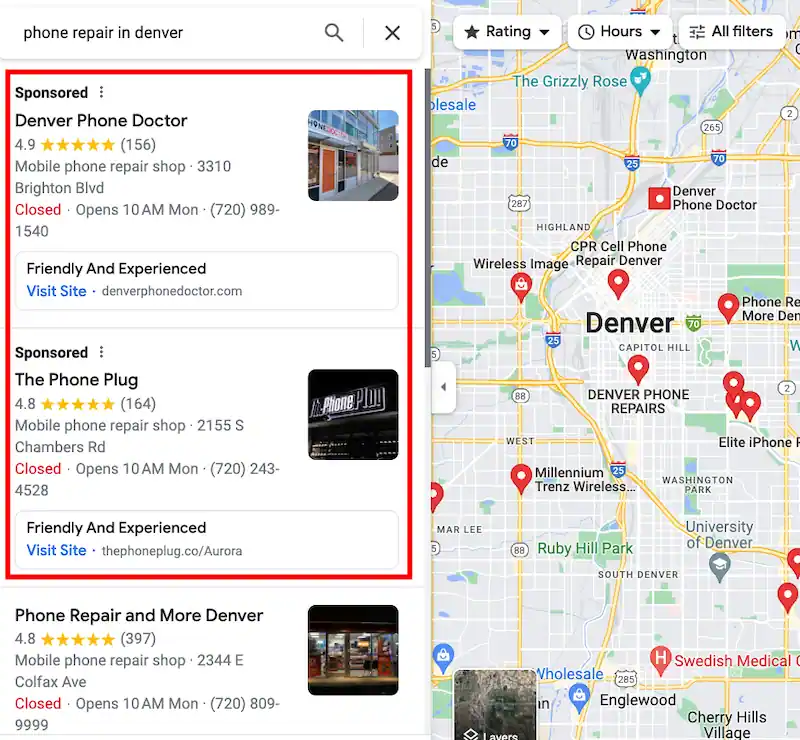
Local search ads on Google can showcase your business locations and encourage users to contact or visit your establishments.
When people search for nearby businesses on Google.com or Google Maps using their mobile devices, such as searching for “phone repair near me,” they may come across local search ads that highlight your business locations.
To display these local search ads, you need to configure location assets. Note that call assets are not eligible to be shown in conjunction with local search ad formats.
Benefits of Local Search Ads
- Increase Foot Traffic: Local search ads ensure that you capture nearby foot traffic, helping you attract more visitors to your store.
- Drive Phone Calls: Local search ads provide users with the option to directly call your business locations, using the phone number associated with the featured location.
- Enhance Business Awareness: Local search ads enable customers to discover more about your business by linking them to your location page. This page contains valuable information such as store hours, address, customer reviews, and photos.
- Dominate Local Search Results: With local search ads, your business location can appear prominently at the top of local search results on Google.com, ensuring maximum visibility.
- Expand Reach on Google Maps: Local search ads also extend to the Google Maps mobile app, allowing your business location to be featured when users search for similar businesses in their vicinity.
Auto Suggest Ads
Google has the capability to display ads in Maps search results when users search for businesses, such as “car rentals” or “grocery stores”, on their mobile devices.
Auto Suggest ads enable you to promote your offerings even before the search query is fully entered by displaying suggested ad locations in an autocomplete search.
For instance, if a user types “coffee” and inputs the first three characters “c-o-f”, an advertiser’s ad for a nearby café location may appear in the suggestions.
Pricing
For these types of clicks on local search ads, you will incur a standard cost-per-click (CPC) charge:
- Clicks on location details
- Clicks for directions
- Clicks for mobile calls
- Clicks to visit a website
How To Show Local Search Ads On Google Maps
- Activate location assets for your Google Ads account.
- Create or revise your Business Profile listing. If you haven’t created a listing yet, establish your Business Profile. If you already have a listing, ensure that your information is up to date.
- Use location targeting and set bids based on location. Target a specific geographical area and adjust your bids to prioritize users located near your business.
- Optimize your keywords. Incorporate keywords into your campaigns that are relevant to your location and align with the local search queries users are making.
How to Review Your Google Maps Click History
To assess the performance of your search ads on Google Maps, you can review the data related to clicks. There are three types of clicks that can be generated by search ads:
- Location detail clicks: These occur when users click to expand ads from the search results list to view more information.
- Direction clicks: These happen when users click to obtain directions to your business.
- Mobile clicks-to-call clicks: These take place when users click to directly call your business.
To review the performance of each type of click from your search ads on Google Maps, follow these steps:
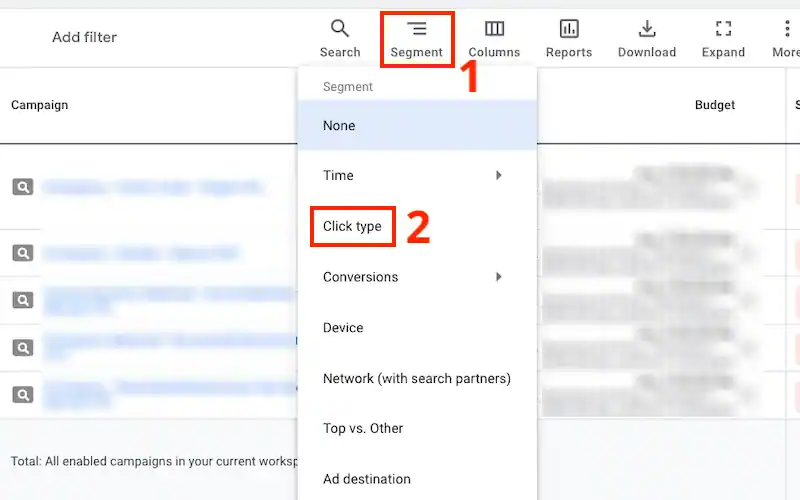
- Click on Campaigns, Ad groups, Ads, or Keywords in the page menu, depending on the level of data you wish to review.
- Click on the Segment icon (usually represented by a small icon with lines) and then select Click type from the dropdown menu.

- You will now be able to view and analyze the performance metrics specific to each type of click for your search ads on Google Maps.