Have you ever found yourself pondering over the enigmatic realm of Google Tag Manager triggers, with questions swirling in your mind about their functionalities, implementations, and practical uses?
From Form Submission triggers to YouTube Video triggers, we’ll explore each type in detail, providing you with valuable insights and practical examples along the way.
Whether you’re a beginner or an experienced user, this post will equip you with the knowledge you need to leverage the power of triggers effectively. So, grab a cup of coffee, sit back, and prepare to delve into the fascinating realm of Google Tag Manager triggers!
Types of triggers
Every tag is activated in response to specific events. When an event is detected by Google Tag Manager, it evaluates the relevant event triggers and activates the associated tags.
In Tag Manager, you can use various trigger types to capture events such as page views, button clicks, form submissions, or any custom event that you define.
Page View Triggers
Google Tag Manager offers page view triggers that allow tags to be fired when web pages are loaded in browsers. There are five types of triggers based on page load events, each with specific criteria for determining when the trigger should activate.
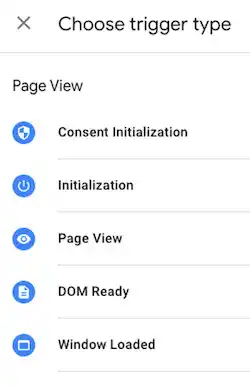
The order of precedence for page view triggers is as follows:
-
Consent Initialization
This trigger ensures that consent settings are honored before other triggers are fired. It is used for tags that manage user consent state, such as Consent Management Platform tags or those that set consent defaults. A Consent Initialization – All Pages trigger is included by default in each web container. Note that this trigger is not suitable for tags that require early firing; instead, use an Initialization trigger. For more information on consent settings, refer to the relevant documentation.
-
Initialization
This trigger fires before all other triggers except Consent Initialization triggers. An Initialization – All Pages trigger is included by default in each web container. Select this trigger to activate tags that should fire before other triggers.
-
Page View
This trigger immediately fires when a web browser starts loading a page. Choose this option when you only need data generated from page impressions.
-
DOM Ready
This trigger fires after the browser has finished constructing the full page in HTML, and the Document Object Model (DOM) is ready for parsing. Use this trigger type for pageview-based tags that interact with the DOM to populate variables, ensuring that the correct values are available to Tag Manager.
-
Window Loaded
This trigger fires after the page has completely loaded, including embedded resources like images and scripts.
How to create a new page view trigger
- Go to Triggers and click on New.
- Select Trigger Configuration and choose the desired page view trigger type.
- Optionally, improve performance by specifying conditions, typically a URL pattern, for pages where you expect the trigger to activate:
- Under “This trigger fires on,” select “Some Events.”
- Under “Fire this trigger when an Event occurs and all of these conditions are true,” add a filter to enable the trigger only on relevant pages. For example, set the condition “Click URL contains /path/to/promo” to restrict the trigger to specific pages.
- Save the trigger and publish your changes.
Practical example: Page View Trigger
Let’s say you have an e-commerce website and you want to track the number of times a specific product page is viewed. You can set up a page view trigger to fire a tag every time that product page is loaded.
Here are the steps to configure the page view trigger:
Sure! Here’s a practical example of how you can use a page view trigger in Google Tag Manager:
Let’s say you have an e-commerce website and you want to track the number of times a specific product page is viewed. You can set up a page view trigger to fire a tag every time that product page is loaded.
Here are the steps to configure the page view trigger:
- In Google Tag Manager, go to the Triggers section and click on “New”.
- Select “Trigger Configuration” and choose the page view trigger type.
- Configure the trigger conditions:
- Under the “This trigger fires on” section, select “Some Page Views”.
- Under the “Fire this trigger when an Event occurs and all of these conditions are true” section, add a condition that matches the specific product page you want to track. For example, you can use the condition “Page URL contains /products/product-name”.
- Save the trigger.
Now, you can associate a tag with this trigger to perform the desired action. In this example, you might create a tag that sends an event to your analytics platform, indicating that the product page was viewed.
By using a page view trigger, you can accurately track and measure the number of views for that specific product page without relying on other user actions or events.
Click Triggers
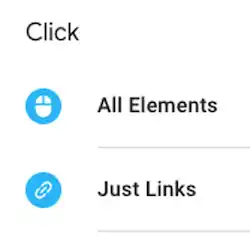
Utilize the click trigger feature in Google Tag Manager to activate tags based on click events. When an element on a page is clicked and meets the trigger conditions, Tag Manager will automatically populate values for any active click-based built-in variables.
How to configure a click trigger
- Navigate to the Triggers section and click on “New”.
- Select “Click Trigger Configuration” and choose the desired click trigger type:
- All Elements: Track clicks on any element present on a page, including links, images, buttons, and more.
- Just Links: Track clicks exclusively on HTML links that use the <a> element, such as <a href=”www.google.com”>Google.com</a>.
- For “Just Links” triggers, there are optional settings you can configure:
- Wait for Tags: Enable this option to delay triggering until all tags have fired or until the specified timeout has elapsed.
- Check Validation: Only fire tags when the link click is considered a valid action. If unchecked, the trigger will fire tags whenever any link is clicked.
- Optionally, for improved performance, you can specify conditions (typically a URL pattern) for pages where you expect clicks to occur:
- Under the “This trigger fires on” section, select “Some Clicks”.
- Under the “Fire this trigger when an Event occurs and all of these conditions are true” section, add a filter to enable this trigger only on relevant pages. For example, you can use the condition “Click URL contains /path/to/promo” to restrict the trigger to specific pages where the click is expected.
Follow these steps to configure your click trigger and enhance the functionality of your tags.
Practical example: Click Trigger
Let’s say you have a website with a contact form, and you want to track whenever users submit the form. You can set up a click trigger to fire a tag when the form submission button is clicked.
Here are the steps to configure the click trigger:
- In Google Tag Manager, go to the Triggers section and click on “New”.
- Select “Trigger Configuration” and choose the click trigger type.
- Choose the appropriate click trigger option based on your requirements:
- All Elements: Track clicks on any element on the page, including buttons, links, images, etc.
- Just Links: Track clicks only on HTML links that use the
<a>element.
- If you choose “Just Links,” you can further configure optional settings:
- Wait for Tags: Select this option if you want to delay the trigger firing until all tags have fired or until a specified timeout has elapsed.
- Check Validation: Enable this option if you want to fire the tag only when the link click is considered valid. If unchecked, the trigger will fire for any link click.
- Save the trigger.
Next, you can associate a tag with this click trigger to perform the desired action. In this example, you might create a tag that sends an event to your analytics platform when the contact form submission button is clicked.
Remember to test and preview your implementation in Google Tag Manager to ensure that the trigger fires correctly when the form submission button is clicked.
Element Visibility Trigger
Google Tag Manager’s element visibility trigger is designed to activate when a specific element becomes visible within the viewport of a web browser.
This trigger can be triggered by various events such as page loads, scrolling, when a browser tab is brought to the foreground, or programmatic routines that affect the element’s position or visibility.
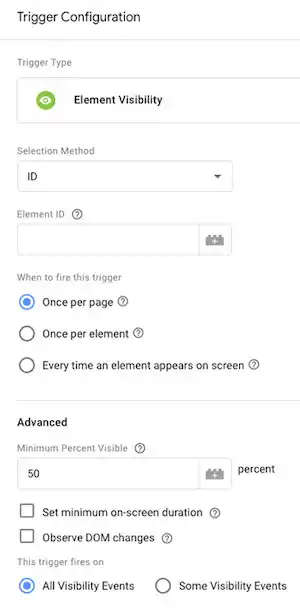
How to configure an element visibility trigger
- Go to the Triggers section in Google Tag Manager and click on “New.”
- Select “Trigger Configuration” and choose the Element Visibility trigger type.
- Use the Selection Method menu to choose whether to select elements by ID attribute or CSS selector:
- ID: Select a single element based on its ID attribute value.
- CSS Selector: Select one or more elements based on a specified CSS selector pattern.
- Choose one of the following options to determine the firing frequency of the trigger:
- Once per page: The trigger fires only once per page. If multiple elements match the ID or CSS selector on a given page, the trigger will fire the first time any of them become visible. If the page is reloaded or the user navigates to a new page, the trigger will reset and may fire again based on the visibility of the selected element.
- Once per element: The trigger fires once per selected element per page. If multiple elements match the CSS selector on a page, the trigger will fire the first time each of them becomes visible. If multiple elements on a page share the same ID, only the first matched element will fire the trigger. However, if the “Observe DOM changes” option is enabled in the advanced settings and a DOM change removes the first matched element, the trigger may fire again. The trigger will reset and may fire again based on the visibility of the selected element when the page is reloaded or the user navigates to a new page.
- Every time an element appears on-screen: The trigger fires every time a matched element becomes visible, either programmatically or through user interaction.
Advanced options
- Minimum Percent Visible: By default, the trigger fires when the selected element is at least 50% visible. You can specify a different percentage value for the trigger to fire based on the element’s visibility.
- Set minimum on-screen duration: Enable this option to specify how long the selected element must be visible (at the specified minimum percent visible) before the trigger fires. By default, the trigger fires as soon as the element becomes visible.
- Observe DOM changes: Enable this option to track matched elements that appear as the DOM changes.
When the element visibility trigger fires, the following variables are automatically populated:
- Percent Visible: A numeric value (0-100) indicating the percentage of the selected element that is visible when the trigger fires.
- On-Screen Duration: A numeric value indicating the number of milliseconds the selected element has been visible before the trigger fires.
Please note that when multiple elements on a page match the trigger, it may impact page performance. It is recommended to use a CSS selector that does not match a large number of elements or use the ID selection method for optimal performance.
Practical example: Element Visibility Trigger
Let’s say you have a website with a long-scrolling page and you want to track when specific sections of the page become visible to users as they scroll. For example, you want to track when users reach the “Features” section, the “Testimonials” section, and the “Contact” section.
Here’s how you can set up the element visibility trigger:
- In Google Tag Manager, go to the Triggers section and click on “New”.
- Select “Trigger Configuration” and choose the Element Visibility trigger type.
- Use the Selection Method menu to choose a CSS selector to target the specific elements representing the sections you want to track. For example, you can use “.features-section” for the “Features” section, “.testimonials-section” for the “Testimonials” section, and “.contact-section” for the “Contact” section.
- Choose the firing frequency option that suits your tracking needs. For this example, you can select “Once per element” to track each section independently when it becomes visible.
- Optionally, you can set a minimum percent visible and specify a minimum on-screen duration if needed.
- Save the trigger.
Next, associate a tag with this element visibility trigger to perform the desired action. For instance, you can create a tag that sends an event to your analytics platform each time a section becomes visible. This way, you can track user engagement with different parts of your page.
Remember to test and preview your implementation in Google Tag Manager to ensure that the trigger fires correctly when the sections become visible as users scroll through the page.
Form Submission Trigger
The form submission trigger in Google Tag Manager enables you to fire a tag when a form is submitted.
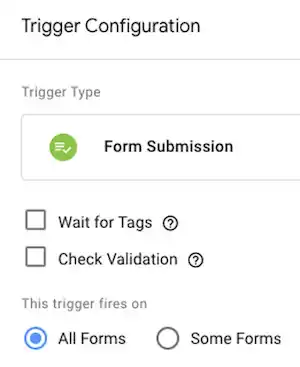
How to set up a form submission trigger
- Go to the Triggers section in Google Tag Manager and click on “New”.
- Choose “Trigger Configuration” and select the Form Submission trigger type.
- The “Wait for Tags” option allows you to delay the form submission until all the tags that depend on this trigger have fired or the specified timeout has elapsed. If not selected, slower tags may not fire before the form submission causes the next page to load.
The “Check Validation” option determines whether the trigger should fire only if the form submission is successful. If not selected, the trigger will fire whenever a user attempts to submit the form.
Note: To optimize performance, it’s recommended to specify conditions, such as a specific URL, where you expect the form submission to occur. Under “This trigger fires on”, select “Some Forms” and add a trigger filter to specify the form action’s location.
When a form submission trigger fires, the following built-in variables are populated:
- Form Element: The form element that was clicked.
- Form Classes: An array of values found in the form’s class attribute.
- Form ID: The ID attribute of the form element.
- Form Target: The target attribute of the form element.
- Form URL: The href attribute value of the form element, if any.
- Form Text: The visible text inside the form.
By utilizing the form submission trigger, you can track and analyze user interactions with your forms to gain valuable insights and enhance your website’s performance.
Practical example: Form Submission Trigger
Let’s say you have a website with a contact form, and you want to track whenever a user submits the form. You can use Google Tag Manager’s form submission trigger to achieve this.
- Set up the form submission trigger:
- Go to Google Tag Manager and navigate to the Triggers section.
- Click on “New” to create a new trigger.
- Choose “Trigger Configuration” and select the Form Submission trigger type.
- Optionally, enable the “Wait for Tags” option if you want to delay the form submission until all relevant tags have fired.
- Optionally, enable the “Check Validation” option if you only want the trigger to fire when the form is successfully submitted.
- Under “This trigger fires on,” select “Some Forms” and specify a trigger filter to define where the form submission should occur. For example, you can set a condition based on the form’s ID or a specific URL.
- Configure tags to fire on form submission:
- Create a new tag or use an existing one to track the form submission.
- Set the tag’s configuration based on your tracking needs. For example, you can send an event to Google Analytics, track form submissions in a conversion tracking tool, or trigger a custom JavaScript code.
- Associate the form submission trigger you created with the tag.
- Test and publish:
- Test the form submission trigger by submitting the form on your website and checking if the associated tag fires in the Google Tag Manager Preview mode.
- Once you’re satisfied with the results, publish your changes in Google Tag Manager to make the form submission trigger and associated tags live on your website.
By using the form submission trigger, you can effectively track and measure user interactions with your contact form, gain insights into form submissions, and analyze the effectiveness of your website’s conversion or lead generation processes.
Scroll Depth Trigger
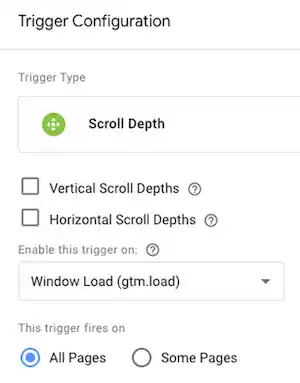
The Scroll Depth trigger in Google Tag Manager allows you to track and measure scroll events on a web page.
How to configure the Scroll Depth trigger
- Open Google Tag Manager and go to the Triggers section.
- Click on “New” to create a new trigger.
- Choose “Trigger Configuration” and select the Scroll Depth trigger type.
- Select the scroll depth options:
- Vertical Scroll Depths: Fire based on how far down a user has scrolled the page.
- Horizontal Scroll Depths: Fire based on how far to the right a user has scrolled the page.
- You can use both vertical and horizontal scroll depth values in the same trigger.
- Set scroll depths as percentages of the page height and width or as pixels. Enter positive integers separated by commas to specify the desired scroll depth thresholds.
For example, if you select percentages and enter 10, 50, 90, the trigger points will be set at 10%, 50%, and 90% of the page height. When this trigger is applied to a tag, it will fire three times when a user scrolls to those thresholds.
- The trigger will only fire once per threshold per page. If the user scrolls back up, the trigger will not fire again unless the page reloads or the user navigates to a new page with the same trigger.
- For pages with infinite scrolling or significant variations in size, consider using the element visibility trigger instead.
- Specify when the trigger should be enabled:
- Container Load (gtm.js): Enable as soon as possible after the page begins to load.
- DOM Ready (gtm.dom): Enable after the DOM is ready to be parsed.
- Window Load (gtm.load) (default): Enable after all initial content on the page has loaded.
Note: It is recommended to enable the trigger after the window has fully loaded (Window Load – gtm.load) to ensure accurate calculations of page dimensions.
When the Scroll Depth trigger fires, the following variables are automatically populated:
- Scroll Depth Threshold: Numeric value indicating the scroll depth that triggered the event.
- Scroll Depth Units: Indicates whether the threshold is specified in pixels or percentages.
- Scroll Direction: Indicates the direction of the scroll event (vertical or horizontal).
By using the Scroll Depth trigger, you can gain insights into user engagement and behavior on your web pages based on their scrolling patterns. This information can be valuable for optimizing content, analyzing user experience, and making data-driven decisions.
Practical example: Scroll Depth Trigger
Let’s say you have a long blog post and you want to track user engagement based on their scroll depth. You want to fire a tag when users reach specific scroll depth thresholds to analyze their behavior.
- Configure the Scroll Depth trigger:
- Open Google Tag Manager and create a new trigger.
- Choose the Scroll Depth trigger type.
- Select the Vertical Scroll Depths option.
- Set the scroll depth thresholds as percentages. For example, set thresholds at 25%, 50%, 75%, and 100% of the page height.
- Create tags based on the scroll depth trigger:
- Create a tag that tracks an event in your analytics tool whenever the Scroll Depth trigger fires.
- For each scroll depth threshold, you can customize the event label or category to indicate the specific engagement level reached.
- Enable the trigger on Window Load (gtm.load):
- Since the Scroll Depth trigger relies on accurate page dimensions, it’s best to enable it after the window has fully loaded.
- Select the “Window Load (gtm.load)” option from the “Enable this trigger on” menu.
- Save and publish your changes:
- Save the trigger and the associated tag configurations in Google Tag Manager.
- Publish the changes to make them live on your website.
Now, when a user visits the blog post and scrolls down, the Scroll Depth trigger will fire the associated tag when the user reaches the specified scroll depth thresholds (25%, 50%, 75%, and 100%).
This will send relevant scroll depth events to your analytics tool, allowing you to analyze user engagement and behavior.
You can use this data to gain insights into how far users are scrolling, identify popular sections of your content, assess user engagement levels, and make informed decisions for optimizing your website’s user experience.
YouTube Video Trigger
The YouTube Video trigger allows you to fire tags based on interactions with embedded YouTube videos on web pages.
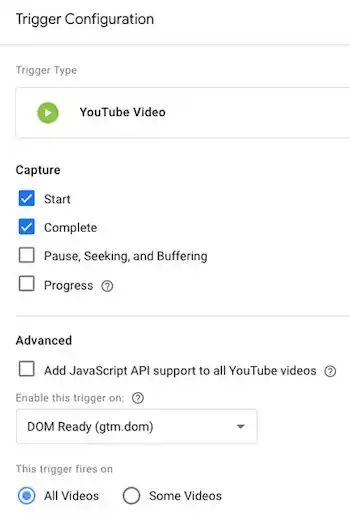
Before using the YouTube Video trigger configuration, make sure to enable the built-in video variables that capture data about the video and its playback status. This data is pushed to the data layer with each interaction.
How to set up a YouTube Video trigger
- Go to Triggers and click on New.
- Choose the YouTube Video trigger type in the Trigger Configuration.
- Configure the trigger settings:Capture Options:
- Start: Triggers an event when the video begins to play.
- Complete: Triggers an event when the video finishes.
- Pause, Seeking, and Buffering: Triggers the event if the video is paused, the scrub bar is moved, or if the video buffers.
- Progress: Triggers events at specific video progress points defined by percentage or time thresholds.
- Percentages: Enter a comma-separated list of integers representing percentages (e.g., 5, 20, 50, 80 for 5%, 20%, 50%, and 80% respectively).
- Time Thresholds: Enter a comma-separated list of integers representing time thresholds in seconds (e.g., 5, 15, 60, 120 for 5 seconds, 15 seconds, 60 seconds, and 120 seconds respectively).
Note: The trigger will only fire the first time a percentage or time threshold is reached. If the user seeks past a threshold, the event will not fire.
Advanced:
- Add JavaScript API support to all YouTube videos: Enable this option to append the enablejsapi parameter to YouTube video player URLs. This allows control of the player via iFrame or JavaScript.
Enable this trigger on:
- Container Load (gtm.js): Enable as soon as possible after the page begins to load.
- Window Load (gtm.load) (default): Enable after all initial content on the page has loaded.
- DOM Ready (gtm.dom): Enable after the DOM is ready to be parsed.
Note: It is recommended to wait until the window has fully loaded before enabling the trigger for best results.
YouTube Video triggers will function both on and after page load as long as one of the following is present when Tag Manager loads:
- An embedded YouTube video.
- The YouTube IFrame API
<script>.
Practical example: YouTube Video Trigger
Let’s say you have a website that includes embedded YouTube videos, and you want to track user interactions with those videos. You can use the YouTube Video trigger to fire tags based on specific events and progress points. Here’s how you can set it up:
- Start by creating a new trigger in Google Tag Manager and choose the YouTube Video trigger type.
- Configure the trigger settings based on the events and progress points you want to track. For example:
- Start: You can set this event to fire when the video begins to play.
- Complete: You can set this event to fire when the video finishes.
- Pause, Seeking, and Buffering: You can set these events to fire when the video is paused, the user seeks to a different position, or if the video buffers.
- Progress: You can set specific progress points using percentages or time thresholds. For instance, you can set the trigger to fire when the video reaches 25% completion or after 30 seconds of playback.
- Enable the trigger on the appropriate event, such as Container Load (gtm.js), Window Load (gtm.load), or DOM Ready (gtm.dom), depending on your requirements and when you want the trigger to start listening for interactions.
- Optionally, you can enable the “Add JavaScript API support to all YouTube videos” option if you need to control the videos through iFrame or JavaScript.
- Once you have configured the trigger, you can associate it with tags that you want to fire based on the specified events and progress points. For example, you might have a tag that sends an event to Google Analytics whenever a video is completed or tracks the percentage of video viewed.
By using the YouTube Video trigger in this way, you can effectively track user engagement with YouTube videos on your website. This allows you to measure video performance, understand user behavior, and make data-driven decisions to optimize your video content and user experience.
Note: Make sure that you have enabled the built-in video variables in Google Tag Manager to capture the necessary data related to the YouTube video playback status.
Custom Event Trigger
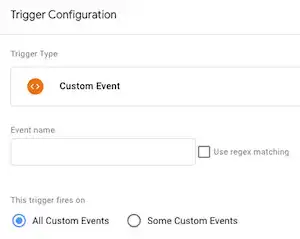
The custom event trigger allows you to track interactions on your website or mobile app that deviate from standard methods. It is commonly used when you want to track form submissions that have been customized or overridden with alternative behavior.
How to create a custom event trigger
- Go to Triggers in Google Tag Manager and click on New.
- Choose the Custom Event trigger type in the Trigger Configuration.
- Enter an event name for your custom event. You can also select “use regex matching” to enable regular expression handling for this field.
Example Configuration:
Here’s an example configuration for a web scenario where a tag should be fired when a custom event named ‘button1-click’ is pushed to the data layer:
- Add the following code to your website that pushes the custom event to the data layer when a button is clicked:
<a href=”#” name=”button1″ onclick=”dataLayer.push({‘event’: ‘button1-click’});”>Button 1</a>
- Create a new custom event trigger in Google Tag Manager with the following settings:
- Event name: button1-click
- This trigger fires on: All Custom Events
When the specified button is clicked, a custom event with the value of ‘button1-click’ is pushed to the data layer. Google Tag Manager detects this custom event and triggers the associated tag.
You can use the dataLayer.push() method to send multiple variables along with the event. For example, you can send a conversion value with the custom event name like this:
dataLayer.push({‘event’:’button1-click’,’conversionValue’:25});
In Tag Manager, create a data layer variable and use this variable in the conversion value field of your Google Ads conversion tracking tag.
Practical example: Custom Event Trigger
Let’s say you have an e-commerce website, and you want to track when users add items to their shopping carts. However, the add-to-cart functionality on your website doesn’t trigger the default events that Google Analytics or other tracking tools recognize.
To track the add-to-cart events using a custom event trigger in Google Tag Manager, follow these steps:
-
- Add the custom event tracking code to your website: Whenever a user adds an item to their cart, you need to push a custom event to the data layer. This can be done using JavaScript. For example, when the “Add to Cart” button is clicked, you can add the following code to your website:
<button onclick=”dataLayer.push({‘event’: ‘add-to-cart’, ‘product’: ‘Product Name’, ‘price’: 29.99});”>Add to Cart</button>
In this code, we’re pushing a custom event called ‘add-to-cart’ to the data layer, along with additional information like the product name and price.
- Create a new custom event trigger in Google Tag Manager:
- Go to Triggers in Google Tag Manager and click on New.
- Choose the Custom Event trigger type in the Trigger Configuration.
- Enter the event name as ‘add-to-cart’ (matching the event name in the code above).
- Configure the associated tag:
- Create a new tag in Google Tag Manager that will be fired when the ‘add-to-cart’ event is triggered.
- Set up the necessary tracking or analytics tag that you want to fire when a user adds an item to their cart.
- Test and publish:
- Save your changes in Google Tag Manager and preview the changes on your website.
- Test the add-to-cart functionality by adding an item to the cart.
- Verify that the custom event trigger is working correctly and firing the associated tag.
- Once you’re satisfied with the results, publish the changes in Google Tag Manager.
- Add the custom event tracking code to your website: Whenever a user adds an item to their cart, you need to push a custom event to the data layer. This can be done using JavaScript. For example, when the “Add to Cart” button is clicked, you can add the following code to your website:
By using the custom event trigger, you can track the specific ‘add-to-cart’ events on your website, even if they don’t trigger the default events recognized by analytics tools.
This allows you to gather valuable data on user behavior and optimize your e-commerce tracking and analytics based on these custom events.
History Change Trigger
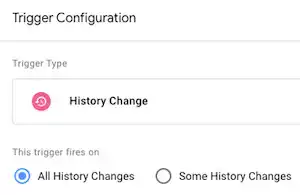
By utilizing the History Change trigger, you can fire tags based on changes in the URL fragment or when a site utilizes the HTML5 pushstate API.
This trigger is particularly beneficial for tracking virtual pageviews in single-page web applications, where the URL fragment changes dynamically without full page reloads.
How to set up a History Change trigger
- Go to your Google Tag Manager account and navigate to the desired container.
- Click on “Triggers” and then select “New” to create a new trigger.
- In the Trigger Configuration, choose the “History Change” trigger type.
- When a history change event occurs, the following variables will be populated automatically:
- History old URL fragment: Represents the previous URL fragment before the change.
- History new URL fragment: Represents the updated URL fragment after the change.
- History old state: Refers to the previous history state object, which is controlled by the site’s calls to pushState.
- History new state: Refers to the new history state object, which is controlled by the site’s calls to pushState.
You can leverage the populated variables to track and analyze user interactions, customize tag firing conditions, or perform other actions based on the specific history change event.
Practical example: History Change Trigger
Let’s say you have a single-page web application where the content dynamically updates based on the URL fragment changes. You want to track these virtual pageviews using Google Analytics when the URL fragment changes.
- Set up Google Analytics: First, ensure that you have Google Analytics properly configured and integrated into your website using Google Tag Manager.
- Create a new History Change trigger: In Google Tag Manager, go to “Triggers” and click “New”. Select the “History Change” trigger type.
- Configure the trigger: Set the trigger to fire on “Some History Changes”. In the conditions, select “URL Fragment” and choose “matches RegEx” to define a specific pattern for the URL fragment you want to track. For example, if your URL fragments follow the pattern “/page/1”, “/page/2”, etc., you can use a regular expression like “/page/\d+”.
- Create a tag for virtual pageview tracking: Now, create a new tag in Google Tag Manager for tracking virtual pageviews in Google Analytics. Configure the tag with your Google Analytics settings and set the “Page Path” field to the appropriate value based on the URL fragment.
- Associate the tag with the History Change trigger: In the tag configuration, select the History Change trigger you created in step 2.
- Save and publish: Save your trigger and tag configurations. Then, publish the changes in Google Tag Manager to make them live on your website.
Now, whenever the URL fragment changes and matches the defined pattern, the History Change trigger will fire, and the associated tag for virtual pageview tracking will send the relevant data to Google Analytics.
This allows you to track user interactions as if they were navigating between different pages within your single-page web application.
Remember to test and validate your implementation to ensure that the virtual pageviews are being tracked correctly in Google Analytics.
JavaScript Error Trigger
The JavaScript error trigger is designed to fire tags when an uncaught JavaScript exception (window.onError) occurs. You can utilize this trigger to log error messages in an analytics tool or perform any other desired actions when an error is detected.
When configuring a tag associated with this trigger, you can use the JavaScript error variable to capture the error message and include it in the tag payload.
This allows you to send the value of the error message variable to your analytics tool or perform other relevant actions based on the captured error information.
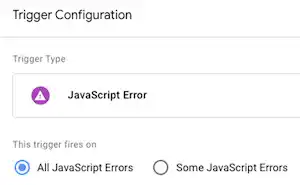
How to set up a JavaScript error trigger
- Go to the “Triggers” section in Google Tag Manager and click on “New”.
- Choose the “JavaScript Error” trigger type from the available options.
- When the JavaScript error trigger fires, it populates the following built-in variables:
- Error Message: This variable contains the text of the JavaScript error message.
- Error URL: This variable holds the URL of the page where the error occurred.
- Error Line: This variable provides the line number in the code where the error was detected.
Note that the JavaScript Error trigger will only capture errors that occur after Tag Manager has loaded, and it specifically captures uncaught exceptions.
Practical example: JavaScript Error Trigger
- Assume you have an analytics tool set up in Google Tag Manager to track website errors and you want to capture JavaScript errors for analysis.
- Create a new JavaScript Error trigger in Google Tag Manager by clicking on “Triggers” and then “New”, and choosing the “JavaScript Error” trigger type.
- Configure the trigger with the default settings, as the trigger will automatically capture uncaught JavaScript exceptions.
- Create a new tag that will be fired when a JavaScript error occurs. For example, you can create a tag that sends an event to your analytics tool with the error details.
- In the tag configuration, use the built-in variables provided by the JavaScript Error trigger:
- Error Message: Include this variable in the event payload to capture the error message.
- Error URL: Add this variable to track the URL where the error occurred.
- Error Line: Include this variable to capture the line number where the error was detected.
- Set up the tag to send the captured error information to your analytics tool or any other desired destination.
- Save and publish your changes in Google Tag Manager to make the JavaScript Error trigger and associated tag live on your website.
Now, whenever an uncaught JavaScript exception occurs on your website, the JavaScript Error trigger will fire, and the associated tag will be triggered. The tag will then send the captured error information, such as the error message, URL, and line number, to your analytics tool.
Timer Trigger
The Timer trigger in Google Tag Manager allows you to send events at specified time intervals. This trigger is useful for measuring the duration of user interactions on a page, such as reading an article, completing a form, or making a purchase.
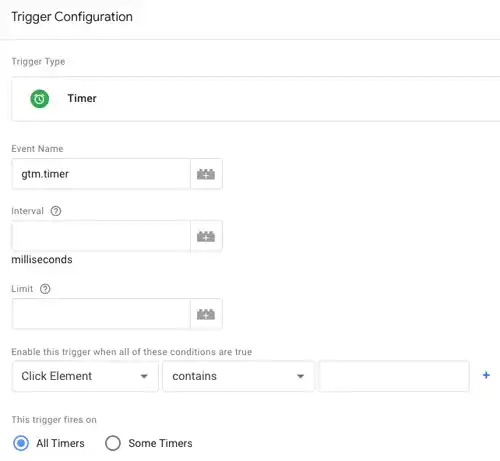
How to set up a new Timer trigger
- Go to “Triggers” and click on “New” in Google Tag Manager.
- Choose the “Timer” trigger type in the Trigger Configuration.
- The default value for the Event Name is “gtm.timer”, which is the name of the event passed to Tag Manager. In most cases, you won’t need to modify this value. However, you can use a custom event name if desired.
- Specify the Interval in milliseconds. This determines how frequently the trigger will fire, such as every 5000 milliseconds (5 seconds).
- Optionally, you can set a Limit value to specify the maximum number of times the trigger will fire. Leaving this blank will allow the trigger to continue firing events until the user leaves the page.
- In the “Enable this trigger when all of these conditions are true” section, you can specify additional conditions using variables, operators, and values. This step helps optimize website performance by enabling the trigger only when necessary.
- Save the trigger and publish the container to make it active.
Practical example: Timer Trigger
Let’s say you have an e-commerce website and you want to track how long users spend on the checkout page before completing a purchase. You can use the Timer trigger to measure the duration and send an event to Tag Manager at timed intervals.
- Set up a Timer trigger in Google Tag Manager:
- Go to “Triggers” and click on “New”.
- Choose the “Timer” trigger type in the Trigger Configuration.
- Keep the default Event Name as “gtm.timer”.
- Set the Interval to 5000 milliseconds (5 seconds) to capture user activity every 5 seconds.
- Leave the Limit blank, so the trigger continues firing until the user leaves the page.
- Save the trigger.
- Create a corresponding Tag to track the event:
- Go to “Tags” and click on “New”.
- Choose the tag type that corresponds to your analytics tool (e.g., Google Analytics).
- Configure the tag to track the event you want, such as “checkout_duration” or “checkout_timer”.
- Save the tag.
- Attach the Trigger to the Tag:
- In the Tag Configuration, choose the previously created Timer trigger as the firing trigger for this tag.
- Save the tag.
- Publish the container:
- Review and publish the container in Google Tag Manager to make the Timer trigger and associated tag live on your website.
Now, as users spend time on the checkout page, the Timer trigger will fire the tag at 5-second intervals, capturing the duration of their activity. This information can be sent to your analytics tool for analysis, helping you understand how long users typically spend on the checkout page and identify any potential bottlenecks in the process.
Remember to adjust the Timer interval and event name according to your specific requirements and the granularity of data you want to capture.
Trigger Group
The trigger group will evaluate the conditions of all the selected triggers as a whole. It will only fire and trigger the associated tags after all the selected triggers have fired at least once.
If you have added multiple instances of the same trigger, each instance will need to fire the corresponding number of times before the trigger group fires.
Trigger groups are useful when you want to create more complex conditions for firing tags, by combining multiple triggers and defining specific requirements for them to be met.
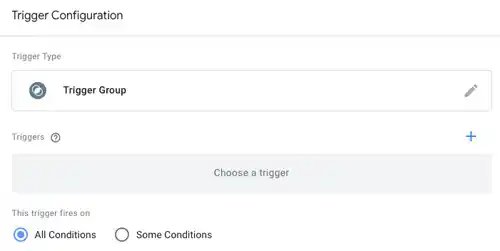
How to create a trigger group
- Go to “Triggers” and click on “New”.
- Choose the “Trigger Group” type in the Trigger Configuration.
- Click on “Add” and select two or more triggers from your container that you want to combine.
- Click on “Add” to add the selected triggers to the group.
- (Optional) If you want to require multiple instances of the same trigger before the group fires, click on “Add” again and select the desired trigger. Repeat this step for the number of times you want that trigger to occur before the group fires.
- Click “Save” to save the trigger group.
Practical example: Trigger Group
Let’s say you have an e-commerce website and you want to track conversions for completed purchases. You have two triggers available: “Form Submission” and “Page View”.
- Create a “Form Submission” trigger that fires when a user submits the purchase confirmation form on the website.
- Create a “Page View” trigger that fires on the order confirmation page after a successful purchase.
- Now, create a trigger group to combine these triggers for tracking completed purchases.
- In the trigger group configuration, add both the “Form Submission” trigger and the “Page View” trigger.
- Save the trigger group.
Now, when a user completes a purchase on your website, the trigger group will only fire and trigger the associated tags when both triggers have fired at least once.
This ensures that the purchase is successfully completed and the user reaches the order confirmation page after submitting the form.
You can then set up tags within the trigger group to track the conversion, such as sending data to your analytics tool or recording the purchase in your marketing platform.
Using a trigger group in this way allows you to create more complex conditions for firing tags and ensures that all the necessary actions have occurred before triggering the desired tags.