To compare your performance with other advertisers participating in the same auctions, use the auction insights.
By analyzing this data, you can make informed decisions about bidding and budgeting, pinpointing areas where you’re excelling and areas where you could improve.
The auction insights report is accessible for Search, Shopping, and Performance Max campaigns and offers a wealth of statistics.
To locate the report and set a filter to identify available auction insights reports for keywords, ad groups, and campaigns, refer to this article.
It’s important to note that auction insights data doesn’t include Search partners or distinguish between “top” versus “others.”
Auction Insights statistics
The auction insights report offers valuable statistics for various campaign types.
Auction Insights report – search campaigns
For Search campaigns, there are six different metrics: impression share, overlap rate, outranking share, position above rate, top of page rate, and absolute top of the page rate. You can generate a report for keywords, ad groups, or campaigns, and segment the results by time and device.
Auction Insights report – Shopping campaigns
Shopping campaigns provide three different metrics: impression share, overlap rate, and outranking share, and the data is only available from the Search Network. Reports can be generated for one or more ad groups or campaigns as long as they meet the minimum threshold of activity for the chosen time period, and you can segment results by time and device.
Auction Insights report – Performance Max campaigns
For Performance Max campaigns, the auction insights report offers data for Search and Shopping ads served on the Search Network or after November 2021. Reports can be generated at the account or campaign level and segmented by the Search and Shopping ads.
Please note that auction insights data for Performance Max campaigns will also be accessible through the Report Editor.
Auction Insights statistics explained
Impression share
Impression share refers to the number of impressions received divided by the estimated number of impressions that you were eligible to receive based on your ads’ targeting settings, approval statuses, and Quality Scores (excluding Shopping campaigns, which factor in the overall quality and relevance of ads).
In the auction insights report, impression share also displays the proportion of eligible auctions in which other advertisers received impressions.
Keep in mind
Impression share refers to the number of impressions received divided by the estimated number of impressions that you were eligible to receive based on your ads’ targeting settings, approval statuses, and Quality Scores (excluding Shopping campaigns, which factor in the overall quality and relevance of ads).
In the auction insights report, impression share also displays the proportion of eligible auctions in which other advertisers received impressions.
It’s important to note that impression share may vary slightly between campaign/product group level and auction insights due to the latter filtering out auctions with very low impressions.
Additionally, the “Product Groups” tab will only show impression share for product groups meeting the volume threshold, which could differ from the campaign level. The impression share shown for competitors may also differ from what they see in their own report due to overlapping eligible impressions.
Furthermore, the auction insights report doesn’t display impression share when it’s less than 5%.
For Performance Max campaigns, auction insights data is segmented by “Search” or “Shopping” options for Ad impressions served across the Search network.
Overlap rate
Overlap rate measures the frequency with which another advertiser’s ad received an impression when your ad also received an impression.
For instance, if the “Overlap rate” column for one of the advertisers in your auction insights report shows “60%”, it means that in 6 out of every 10 times your ad showed, an ad from this advertiser also appeared.
Outranking share
Outranking share is a metric that indicates how frequently your ad achieved a higher position in the auction than another advertiser’s ad, or if your ad was displayed when theirs was not.
For example, if an advertiser in your auction insights report has an “Outranking share” of “20%”, it means that your ad beat out the other advertiser’s ad.
Alternatively, it could also imply that your ad was displayed when the other advertiser’s ad was not, for 2 out of every 10 eligible impressions.
Position above rate (for Search campaigns only)
Position above rate is a metric available only for Search campaigns that shows how frequently another advertiser’s ad appeared in a higher position than yours when both ads were eligible to show in the same auction.
For instance, if an advertiser in your auction insights report has a “Position above rate” of 5%, it means that their ad was displayed at a higher position than your ad in 5 out of every 100 auctions where both ads were eligible to show.
Top of page rate (for Search campaigns only)
The top of page rate metric, only available for Search campaigns, shows the frequency at which your ad, or that of another advertiser, appeared at the top of the search results page above the organic, unpaid search results.
For instance, if you received 100 impressions, and 20 of those impressions were in positions above the organic search results, your top of page rate would be 20%.
Absolute top of page rate (for Search campaigns only)
In Search campaigns, the absolute top of the page rate is the frequency at which your ad or another advertiser’s ad (depending on the row you’re viewing) appeared as the very first ad above the organic search results.
For instance, if your ad appeared as the topmost ad above the organic search results 10 times out of 100 impressions, the absolute top of the page rate will be 10%.
Where to find the Auction Insights report
To find the auction insights report, follow these steps:
- Log in to your Google Ads account.
- Click on the Campaigns, Ad groups, or Keywords page menu based on the data you want to see.
- Check the box next to the specific campaign, ad group, or keyword you want to analyze.
Note: You can only select keywords on a single page at a time, unless you run a report for “All”. - Click on “Auction Insights“.
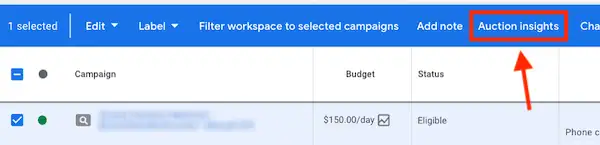
- You will be taken to your auction insights report.
- If you selected only Search or Shopping campaigns or ad groups, you will find the corresponding auction insights report.
- If you selected a mix of Search, Shopping, or Performance Max campaigns, select “Search campaigns” or “Shopping campaigns” from the dropdown menu. Performance Max ad impressions for each channel will be segmented by “Search” or “Shopping” options. Note: The auction insights report is only available for keywords and ad groups that meet a minimum threshold of activity.
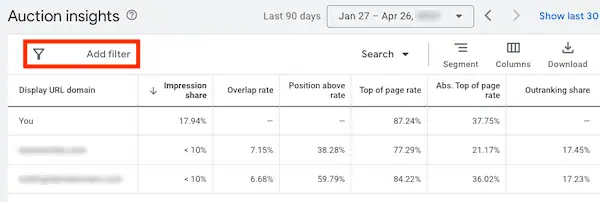
Filter your auction insights to see the data you need
If you want to quickly locate keywords, ad groups, or campaigns that have auction insights reports available, you can create a filter. Here’s how:
- Click the filter icon (Filter) located above your statistics table.

- Select one of the filters that appear to view a list of conditions for new filters.
- Enter the condition and click Apply. The table will automatically update to show you the keywords or ad groups that have auction insights reports available to view.
Actionable Insights
If you are not sure what to do with the data in your Auction Insights report, read this post.