Callout assets can enhance your text ads by showcasing exclusive deals to potential buyers, such as free shipping or round-the-clock customer service.
Whenever you generate a callout, it displays alongside your advertisement on both desktop and mobile devices, allowing interested customers to access detailed information about your company, products, and services.
With callouts, you have the option of displaying up to ten callouts in addition to your ad text, depending on the browser, device, and character spacing. Furthermore, callouts are displayed in various formats depending on the device and other variables.
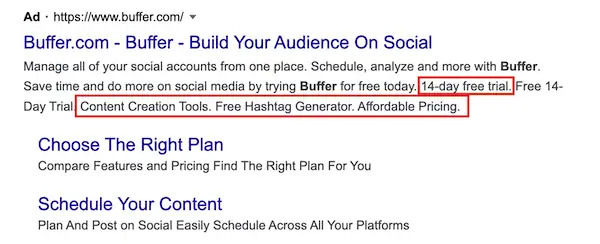
On desktops, callouts are displayed in a single line separated by dots, while on mobile and tablet devices, they are arranged in paragraph form. Advertisements that use callouts can appear at the top and bottom of Google search results.
How it looks
This is an example of how an ad featuring callouts could appear on a desktop computer:
This article will provide you with information on the functionality of callouts and guide you on creating, editing, removing, and scheduling them.
Inform your customers about your offerings by using callout extensions to highlight distinctive deals and special promotions. By enabling you to add supplementary text to your ad, callouts can increase your clickthrough rate.
The process of using callouts involves adding them at the account, campaign, or ad group level. You have the liberty to determine where to include them, create the callout text, and schedule their appearance.
The quantity of callouts that will appear, as well as whether a callout will be displayed for your ad, is dependent on factors such as their order, length, and performance.
A useful practice is to provide more generalized information, such as “24/7 phone support,” at the account and campaign levels, and more specific information, such as “free gift wrapping,” at the ad group level.
If you add callouts to an ad group that belongs to a campaign with existing callouts, the callouts attached to the ad group will be used for the ads in that group instead of the campaign-level callouts.
Take note that adding a callout to your ad does not incur any additional cost. However, the regular charge for clicks on your ad still applies.
Callouts can be created at the account, campaign, or ad group level
Callouts can be added to an account, campaign, or ad group level, and those defined at any level within a specific hierarchy (account > campaign > ad group) can appear together. Callouts created in one campaign will not be displayed in another campaign.
It is recommended to create callout assets at a level that is sensible for all subsequent parts of the account hierarchy. For instance, if a callout applies to all ad groups in an entire account, it should be added at the account level.
On the other hand, if a callout only applies to a specific group of campaigns, it should only be added to those relevant campaigns.
Google will analyze and select the best callouts from the eligible pool of callouts to enhance your ad performance.
Benefits of Callouts
- Highlights your business offerings: Use callouts to promote popular or unique aspects of your business with just a few words or a single phrase.
- Flexible and customizable: Add callouts at the account, campaign, or ad-group levels, allowing you to include generic or detailed information within your ads. You can also specify the dates, days of the week, or times of day when your callouts are eligible to show.
- Update without changing your ads: Keep your ads up-to-date with sales and special offers by changing your callout text whenever you want. Plus, you can edit your callouts without resetting their performance statistics.
- Flexible scheduling: Specify the dates, days of the week, or times of day when your callouts are eligible to show for added flexibility.
Things to keep in mind before getting started
- Campaign eligibility: Callouts can be added to Search Network campaigns and Display Network campaigns that have opted in.
- Character limits: Callout text is typically limited to 25 characters in most languages, while it’s 12 characters in double-width languages like Chinese, Japanese, and Korean.
Note: You can display up to 10 callouts depending on factors such as character spacing, browser, and device.
How to create Callouts
Here are the steps to create callouts:
- Sign in to your Google Ads account.
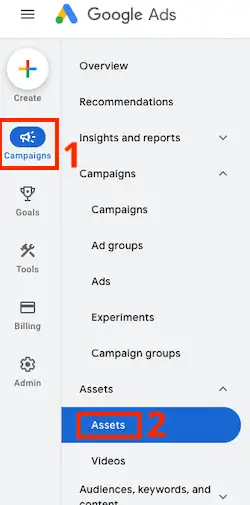
- Click on “Assets” in the left-side menu and select “Assets.“

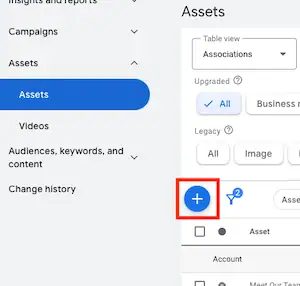
- Click the plus button (+) and choose “Callout.“
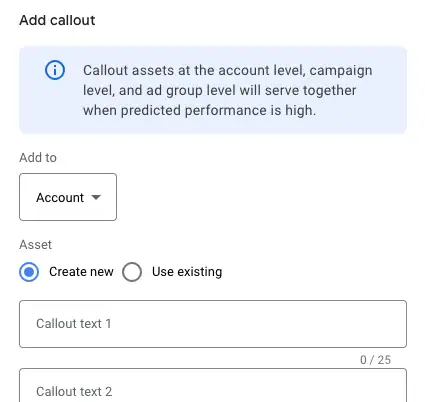
- In the “Add to” dropdown menu, select the level at which you want to add the callout: Account, Campaign, or Ad group.
- To create a new callout, the “Create a new callout” option is selected by default. Enter your callout text in the “Callout text” field.
- To use an existing callout, click the “Use existing” radio button and select the callouts you want from the list.
- Click “Save.“
How to edit Callouts
To edit callouts, follow these steps:
- Sign in to your Google Ads account.
- Click “Assets” in the page menu on the left, then click “Assets“.
- From the “Table view” drop-down menu, select “Association“.
- Select “Callout” from the list above the table toolbar.
- Locate the callout you want to edit. In the “Callout asset” column, click the pencil icon next to the name of the callout, then click “Edit“.
- In the window that appears, make changes to the callout you selected.
- Click “Save“. Your changes will apply to the callout text for all ad groups and campaigns that share the callout.
How to schedule Callouts
- Click on “Assets” in the page menu on the left, then click “Assets“.
- From the “Table view” drop-down menu, select “Association“.
- Select “Callout” from the list above the table toolbar.
- Locate the callout you want to schedule and click the pencil “Edit” icon next to its name, then click “Edit“.
- Click the “Advanced options” drop-down menu.
- Under “Start date“, click “Select a date” and choose the date when the callout should start appearing in your ads.
- Repeat step 6 to select an end date for the callout.
- Click “Add Schedule” to enter additional timeframes for the callout to appear.
- Click “Save” to apply the schedule to your callout asset.
How to remove Callouts
To remove callouts, follow these steps:
- Click on “Assets” in the left-hand side menu of your Google Ads account.
- From the “Table view” drop-down menu, select “Association“.
- Select the boxes next to the callouts you want to remove.
- Click on “Remove” in the blue bar, then select “Confirm“.
Tips
Here are some best practices to follow when using callouts in your Google Ads:
- Start at the account level. Adding callouts at the account level can help you achieve optimal callout coverage faster. However, ensure that they’re relevant to all of your campaigns and ad groups.
- Provide general information at higher levels. Use the account and campaign levels to provide general information about your business that’s applicable to all of your offerings, such as “24/7 phone support.” Use the ad group level for more specific information, such as “women’s skis” or “20% off cameras.”
- Keep the text short. Using shorter text allows more callouts to show in your ads. Instead of “We offer free shipping,” try “Free shipping.”
- Be specific. Give customers detailed information so they can make informed decisions. Instead of “Great fuel economy,” try “34 MPG max mileage.”
- Pay attention to character limits. Callout text is usually limited to 25 characters in most languages, or 12 characters in double-width languages like Chinese, Japanese, and Korean. Depending on the character spacing, browser, and device you’re using, you can show up to 10 callouts.