Cross-Account Conversion Tracking
If you manage multiple Google Ads accounts, you now have the ability to track conversions across all of them. With cross-account conversion tracking, you can use a single conversion code snippet, also known as a “tag,” to monitor conversions in hundreds of accounts simultaneously.
To take advantage of this feature, it is recommended to have or create a Google Ads manager account (MCC). This account will enable you to create conversion actions that can be utilized across all your accounts.
Remember
Transitioning from account-specific conversion tracking to cross-account conversion tracking will result in a change in behavior. Campaigns that target a specific conversion action will start using the default conversion goals set in the MCC account.
It is essential to review and confirm that your campaigns are optimized for the correct goals, as the Manager account may have different goals compared to the serving account. This consideration also applies when switching from MCC to serving account conversion tracking.
Advantages
Cross-account conversion tracking offers numerous benefits for individuals and businesses managing multiple Google Ads accounts. Here are some key advantages:
-
Streamlined code snippets and reports
Instead of dealing with multiple conversion tracking tags, you can create a single tag that works across all your accounts. This simplifies implementation and reporting processes.
-
Enhanced and consolidated reports
Cross-account Attribution reports provide comprehensive insights by consolidating data from all accounts utilizing this feature. You can analyze how users interact with your keywords across all accounts before converting. When using cross-account conversion tracking, make use of the Attribution reports within the manager account (MCC).
-
Minimized miscounts
With fewer tags on your website, the chances of unintentionally counting the same conversion multiple times are reduced. This helps ensure accurate tracking and reporting of conversions.
-
Improved website performance
By reducing the number of tags on your site, you can minimize the HTML load and enhance the speed of your website. This translates to faster page load times for your customers, improving their browsing experience.
Example
Let’s illustrate the benefits with a practical scenario. Imagine you run a travel agency with multiple Google Ads accounts dedicated to promoting different vacation destinations. Each account currently has its own conversion tracking tag.
To simplify the process and streamline your reporting, you log into your manager account and create a cross-account conversion action to track vacation bookings.
By adding the generated tag to your booking confirmation page, you enable the same tag to track conversions for all Google Ads accounts within your manager account that are using this cross-account conversion tracking feature.
This centralizes your conversion data and optimizes your tracking efforts across multiple accounts.
How it works
The process of setting up cross-account conversion tracking involves four steps:
-
Create a cross-account conversion action in your manager account
Similar to setting up any other type of conversion action, you need to create a cross-account conversion action in your manager account. This action serves as the foundation for tracking conversions across multiple accounts.
-
Add the new conversion tracking tag to your website’s conversion pages
If necessary, include the new conversion tracking tag on the relevant conversion pages of your website. It is advisable to retain the old tag on your site temporarily to ensure that no conversions are lost during the transition period.
-
Select the accounts for cross-account conversion tracking
Choose the specific accounts for which you want to enable cross-account conversion tracking. This allows you to precisely monitor conversions across those selected accounts.
-
Remove the old conversion tracking tag after the designated conversion window
Once the designated conversion window has elapsed, remove the old conversion tracking tag from your website. This step ensures a smooth transition to the new cross-account conversion tracking setup.
Differences between account-specific and cross-account conversion actions
If your client accounts already have existing conversions, you can discontinue the use of account-specific conversion actions and switch to cross-account conversion actions. Here are the contrasting characteristics of the two approaches:
Account-Specific Conversion Actions
- Used for individual accounts.
- Each account has its own unique conversion tracking setup.
- Offers independent tracking and optimization based on account-specific goals.
Cross-Account Conversion Actions
- Utilized across multiple accounts.
- Enables centralized tracking and reporting of conversions.
- Provides a unified approach to tracking conversions based on shared goals across accounts.
Impact on Your Accounts
When it comes to conversion tracking in Google Ads, you have the option to use either account-specific conversions or cross-account conversions. However, it’s important to note that an account cannot utilize both simultaneously.
If you manage a client account’s conversion actions within your manager account, the client account will no longer be able to use its own account-specific conversion actions.
Existing conversion statistics will remain intact, and if cross-account conversion actions are disabled in the future, account-specific conversion actions can be reinstated.
Structuring Your Accounts
If you have multiple manager accounts, it is crucial to carefully consider which one you should use to manage conversions for your business. Here are some potential structures that you might find beneficial:
-
Separate agencies for search and display advertising
If you work with distinct agencies for your search and display advertising, it is advisable to set up cross-account conversion tracking within a manager account that encompasses all your accounts. This allows each agency to access and utilize the conversion data relevant to their respective advertising efforts.
-
Multiple product lines leading to the same conversion
If you have different product lines that ultimately lead to the same conversion, you might want to establish conversion tracking within a manager account responsible for managing all the accounts associated with those product lines. This centralizes the conversion data and simplifies tracking and optimization.
-
Multiple product lines leading to different conversions
In this scenario, you need to decide whether to set up separate conversion tracking for each product line or create one primary manager account that encompasses all the product lines. The choice depends on the level of segmentation and reporting granularity you require for each product line’s conversion data.
Careful consideration of these account structures will help you effectively manage your conversions and streamline the tracking process across your Google Ads accounts.
Important Considerations
Here are some key points to keep in mind regarding cross-account conversion tracking:
-
Client account access:
Client accounts can view cross-account conversion actions but cannot make changes to them. Only manager accounts have the authority to modify these types of conversion actions.
-
Target CPA and campaign-specific conversion actions:
Regardless of whether your conversion actions are cross-account or account-specific, the Target CPA bidding strategy will utilize campaign-specific conversion actions.
-
Google Analytics goals and transactions:
If you are using cross-account conversion tracking, it is necessary to import any Google Analytics goals and transactions into the manager account that created the cross-account conversion actions. While existing imported goals and transactions will continue to count conversions, please note that future goals and transactions in the client account will no longer be supported.
-
Availability of account-specific conversion data:
All existing data related to account-specific conversions will remain accessible in Google Ads even after enabling cross-account conversions.
-
Sharing conversion actions between client accounts:
Conversion actions cannot be shared directly between client accounts. To share conversion actions across your client accounts, you need to set up sharing from within the manager account.
-
Priority of Google Ads tags:
When using MCC (manager account) tags in Google Ads, they will take precedence over account-level tags. However, please note that this priority does not apply to Google Analytics tags.
These considerations will help you navigate the implementation and usage of cross-account conversion tracking effectively.
How To Set Up Cross-Account Conversion Tracking
To utilize cross-account conversions, you must have multiple Google Ads accounts and a manager account linked to those accounts. If you haven’t configured conversion tracking before, follow the steps below:
Step 1: Create Cross-Account Conversions in the Manager Account
- Access your manager account and sign in.
- Follow these instructions to create cross-account conversion actions. Choose the appropriate conversion source that aligns with the type of conversion action you wish to track.
Important tip
When implementing the new conversion tracking tag on your website or adding code to your mobile app, ensure that you retain your old tag or code for the duration specified in your selected conversion window.
Additionally, refrain from removing your old conversion actions or their associated tags until the conversion window has passed. Failing to adhere to this guideline could result in the loss of some conversions, particularly those generated from clicks that occurred before these modifications were made.
Step 2: Select Accounts for Conversion Action Sharing
After creating cross-account conversion actions and implementing the necessary conversion tracking tags on your website, you can enable your managed accounts to utilize these conversion actions. Consider the following:
-
Ensure tags are added to your website:
Before making any changes to conversion accounts, confirm that you have successfully added the required tags to your website. Failure to do so will result in conversions not being properly recorded.
-
Verify cross-account conversion actions:
To validate the functionality of cross-account conversion actions, choose one or more managed accounts to utilize the cross-account conversion actions from your manager account. It is essential to ensure that at least one conversion is recorded in a managed account to confirm accurate tracking.
-
Set up conversion action sharing:
To share conversion actions across your managed accounts, establish sharing settings within your manager account. Note that conversion actions cannot be directly shared between managed accounts.
Keep in mind
When transitioning from account-specific conversion tracking to cross-account conversion tracking based on your Manager account, campaigns targeting a specific conversion action will switch to utilizing the default conversion goals set in the MCC account.
It is crucial to review and verify that your campaigns are optimizing towards the appropriate goals. Inconsistencies may arise as the Manager account might have different goals compared to the serving account.
The same considerations apply when transitioning from MCC to serving account conversion tracking.
Steps below to share cross-account conversion actions with your managed accounts
- Sign in to your Google Ads manager account.
- Click on the “Accounts” tab.
- From the left-hand side menu, select “Settings,” and then click on “Sub-account settings” at the top. This will display a complete list of your managed accounts.
- Select the accounts that will share conversion actions by checking the box next to their names.
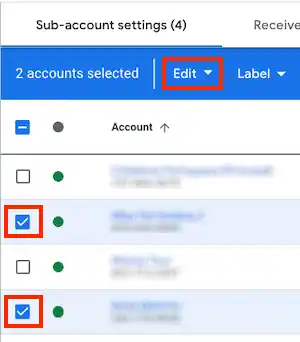
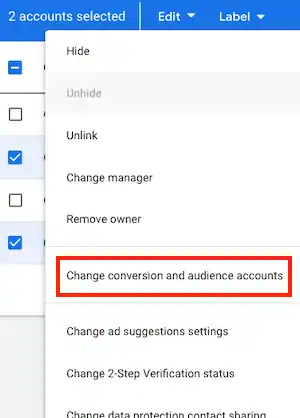
- Click “Edit” in the blue bar and select “Change conversion and audience accounts“.

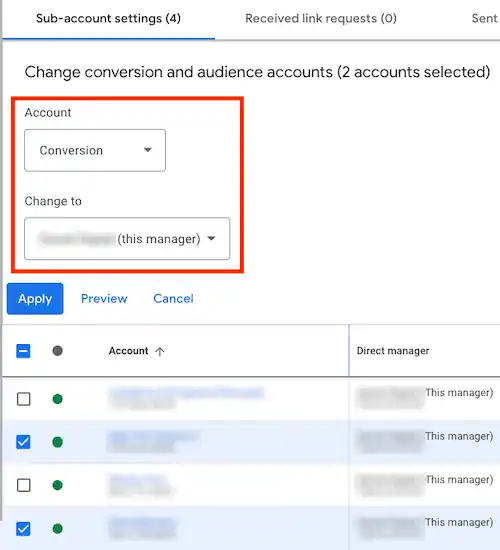
- Select “Conversions” from the “Account” dropdown, then select “(this manager)” from the “Change to” dropdown.
- Click “Apply.“
Useful tip
When selecting the accounts, remember that an account cannot simultaneously use both account-specific conversion actions and cross-account conversion actions. It can only use one type at a time. However, you can switch between the two without losing any conversions.
Additionally, if an account belongs to multiple manager accounts, it can only use conversion actions from one manager.