What is the Conversion Linker tag?
The Conversion Linker tag is a specific tag used in Google Tag Manager (GTM) that serves various purposes related to tracking conversions and ensuring the accuracy of data in your analytics and advertising platforms.
It is used to enhance the measurement of click data for more effective conversion tracking. It is recommended to deploy the Conversion Linker tag on any page that visitors may land on after clicking an ad or promotion.
When users click on your ads, the URL of the conversion page typically contains details about the click. This click information plays a vital role in associating conversions with the specific clicks that led visitors to your site.
For instance, when a conversion is triggered by a Google Ads conversion tag, the click information helps establish this connection.
The Conversion Linker tag automates the detection of ad click information present in your conversion page URLs. It then stores this information in first-party cookies for web pages. In the case of using the Conversion Linker tag with Google Marketing Platform products, unique identifiers may also be stored in those cookies, enhancing the tracking capabilities.
Uses of the Conversion Linker tag
Here are the primary uses of the Conversion Linker tag:
-
Cross-Domain Tracking
If you have multiple domains or subdomains that are part of a user journey, the Conversion Linker tag helps maintain the user’s tracking information (e.g., client ID, referral source) as they navigate across these domains. It enables consistent tracking and attribution of conversions across different domains.
Example:
Suppose you have an e-commerce website with the main domain “example.com” and a checkout process hosted on a separate subdomain “checkout.example.com.” By implementing the Conversion Linker tag, you ensure that when a user moves from “example.com” to “checkout.example.com,” their tracking information (e.g., client ID, referral source) remains consistent, allowing accurate tracking of conversions across the two domains.
-
Cookie Synchronization
When multiple tags are loaded on a page, they may rely on different cookies to function. The Conversion Linker tag helps synchronize these cookies between different tags and domains, ensuring that the data collected is accurate and attributed correctly to the user.
Example:
Imagine you have multiple tags on your website, including Google Analytics, Facebook Pixel, and LinkedIn Insight Tag. Each tag may have its own tracking cookies. By using the Conversion Linker tag, you synchronize these cookies, ensuring that data collected by each tag is attributed correctly to the same user.
-
Third-Party Cookie Support
Due to privacy changes and restrictions in web browsers, third-party cookies may not be accessible by default. The Conversion Linker tag helps mitigate this issue by enabling the use of first-party cookies for third-party tracking, allowing you to continue tracking conversions and user behavior accurately.
Example:
Suppose you’re running Facebook Ads and use the Facebook Pixel for conversion tracking. As third-party cookies may not be accessible due to browser restrictions, you can employ the Conversion Linker tag to enable the use of first-party cookies for the Facebook Pixel.
This ensures that conversions from your website are accurately tracked within the Facebook advertising platform.
-
Referral Source Preservation
When a user navigates from one domain to another, the Conversion Linker tag preserves the referral source information (i.e., the website the user came from) so that it can be accurately tracked in your analytics and advertising platforms. This is particularly useful for tracking the effectiveness of marketing campaigns and channels.
Example:
Let’s say a user discovers your website through an organic search result on Google and then proceeds to make a purchase. Without the Conversion Linker tag, the referral source (Google) might be lost as the user moves through different domains or pages.
By implementing the tag, the referral source information is preserved, allowing you to attribute the conversion accurately to the organic search channel.
-
Tag Firing Order
The Conversion Linker tag can be used to control the firing order of other tags within GTM. By placing the Conversion Linker tag as a dependency for other tags, you ensure that it runs before the other tags, guaranteeing that the necessary tracking information is available for those tags to function properly.
Example:
Suppose you have a Google Analytics tag and a Facebook Pixel tag firing on your website. To ensure that the Conversion Linker tag runs before these tags, you can set the Conversion Linker tag as a dependency for both of them within Google Tag Manager.
This ensures that the necessary tracking information is available when the Google Analytics and Facebook Pixel tags fire, enhancing the accuracy of your data.
The specific implementation and configuration of the Conversion Linker tag may vary based on your unique tracking requirements and setup. The features and uses mentioned above provide a general overview of the capabilities of the tag within Google Tag Manager.
How to set up a Conversion Linker tag
Follow these steps:
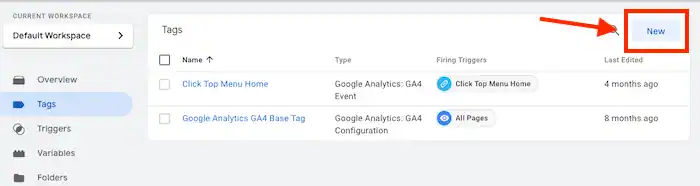
- Click on “Tags” and then select “New“.
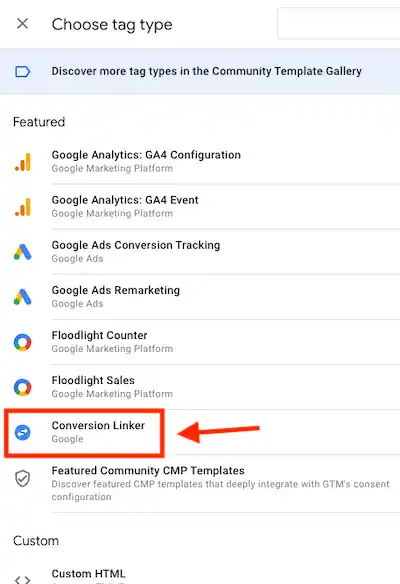
- Choose “Tag Configuration” and select “Conversion Linker“.

- Select an appropriate trigger for your tag. In most cases, it’s recommended to use a trigger that fires on all page views or on specific pages where visitors land after clicking an ad.
- Save and publish your tag configuration.
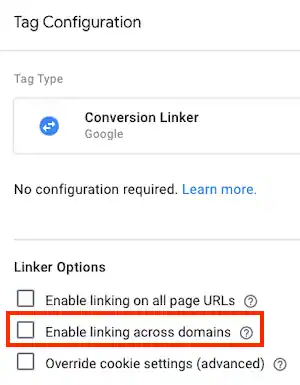
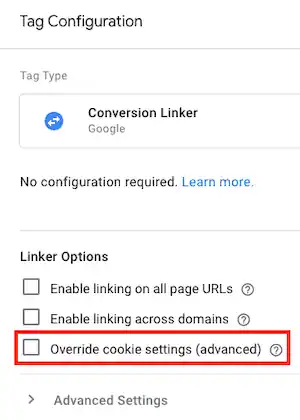
- For web containers, there will be an additional option to enable cross-domain linking. This allows the tag to maintain tracking information across multiple domains. Additionally, web containers may also provide the ability to override cookie settings, giving you more control over how cookies are managed.
Cross-domain linking
To enable cross-domain linking using the Conversion Linker tag in web and AMP containers, follow these steps:
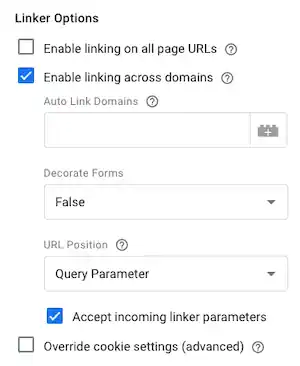
- Select the “Enable linking across domains” option.Fields for “Auto Link Domains” “Decorate Forms” and “URL Position” will appear.
This allows the tag to handle incoming links that contain a linker parameter. - (Optional, but recommended for web and AMP containers) In the “Auto Link Domains” field, enter a list of domains that should be linked with this tag. Any links pointing to these domains will have a linker parameter appended to the URL.
- (Optional for web containers) To enable linking of forms, set the “Decorate Forms” option to true.
- (Optional for web containers) If you need to read the unique parameter from a URL fragment instead of a query parameter, set the “URL Position” option to Fragment. Otherwise, leave it set to the default Query Parameter option.
- (Optional for AMP containers) Select the “Enable linking to Google Analytics Client ID” option to synchronize the Google Analytics Client ID between linked domains. This allows measurement of user activity across multiple domains. Note: Ensure that the endpoint is configured with a Universal Analytics tag and the correct domain link settings:
- For gtag.js installations, set “accept_incoming” to true.
- For analytics.js, set “allowLinker” to true.
- For Universal Analytics settings in Tag Manager, add a field with a Field Name of “allowLinker” and a Value of true.
 Fields for “Auto Link Domains” “Decorate Forms” and “URL Position” will appear.
 This allows the tag to handle incoming links that contain a linker parameter.
Note: The “Decorate Forms” option will only work when the “URL Position” is set to Query Parameter, as some browsers strip off the URL fragment from form submissions.
By following these steps, you can configure the Conversion Linker tag to work with multiple domains, ensuring that the linker parameters are appended to the URLs and that user activity is measured accurately across different domains.
Override cookie settings
For most cases, the default configuration of the Conversion Linker tag is sufficient. However, if you have specific requirements, you can override cookie settings using the advanced features.
This is useful in scenarios where you already have cookies with the same names, need multiple sets of cookies, or want to restrict ad click information from one subdomain for conversions on another subdomain.
Example
Let’s say you have a blog subdomain (blog.example.com) and an e-commerce subdomain (shop.example.com). By default, the Conversion Linker tag would set cookies with the highest-level domain, which in this case would be example.com.
However, if you want to keep the ad click information from the blog subdomain separate from the e-commerce subdomain, you can use the “Override cookie settings” option. You can set the “Domain” field in the tag configuration to the specific subdomain, such as “blog.example.com” for the blog section and “shop.example.com” for the e-commerce section.
This way, the Conversion Linker tag will only store and retrieve ad click information within the specified subdomain, ensuring that conversions and tracking data are isolated and accurately attributed to the respective sections of your website.
Steps to override cookie settings
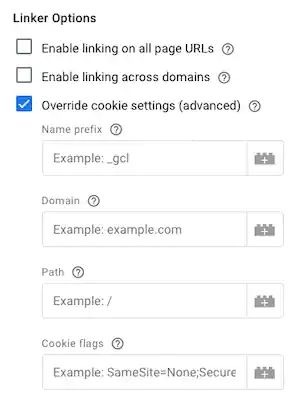
- Enable the “Override cookie settings” checkbox in the Conversion Linker tag.
- Text fields for “Name prefix,” “Domain,” and “Path” will appear.
- Name: This is the prefix used in the cookie names. By default, it is set to “_gcl.” For example, changing the Name field to “_gcl2” will result in cookies named “_gcl2_aw” and “_gcl2_dc.” If you modify the prefix, ensure that any tags reading ad click information from these cookies, such as Google Ads conversion tags, are also configured with the same prefix.
- Domain: By default, the Conversion Linker tag uses the highest-level domain where it can set cookies. For instance, if your website address is “blog.example.com,” the tag will set the cookie domain to “example.com.” Only modify this field if you need to restrict the cookies to a lower-level domain.
- Path: The default cookie path is the root level of the domain. Modify this field only if you want to limit the cookies to a specific subdirectory of the domain.
Additionally, tags that work with first-party cookies set by Conversion Linker tags offer two configuration options in the Conversion Linking section:
- Enable Conversion Linking: By default, this option is set to true for tags that read data set by the Conversion Linker tag. If needed, you can set it to false to disable the tag’s ability to work with Conversion Linker tags.
- Cookie Prefix: If you changed the cookie name prefix in a Conversion Linker tag, add the same prefix in this field for the tag to correctly read data from the associated cookie.
By using these advanced settings, you can customize cookie names, domains, and paths for the Conversion Linker tag, as well as configure tags to work with the cookies set by the Conversion Linker.