After linking your Google Analytics and Google Ads accounts, you can incorporate Google Analytics data into your Google Ads account and view it there.
Analyzing this data can provide you with valuable insights and potential campaign optimization opportunities.
This article will provide you with an introduction to the benefits of using Google Analytics data in your Google Ads account, as well as instructions on how to add Google Analytics columns to your reports.
How it works
To use Google Analytics data in your Google Ads account, you must first activate auto-tagging for your Google Ads account, connect your Google Ads and Google Analytics accounts, and choose Google Analytics views to import site metrics from.
Afterward, you can integrate Google Analytics columns into your Google Ads reports.
By examining these Google Analytics site engagement metrics in conjunction with your Google Ads performance stats, you can determine how people behave after clicking on your ad and reaching your landing page. The following are some of the data you may observe:
- Bounce rate: When a user views only one page or activates only one event, Analytics considers this a “bounce.” The Bounce Rate of your website is the proportion of sessions that are bounces.
- Avg. session duration (seconds): The mean time a user spent on your website.
- Pages/session: The average number of pages viewed per session.
- % new sessions: The approximate percentage of first-time sessions. This data can demonstrate the effectiveness of your campaigns and ad groups, helping you make decisions about your budgets, bids, landing pages, and ad copy.
For example, analyzing an ad group’s bounce rate in conjunction with its clickthrough rate (CTR) can indicate whether your customers are encountering what they anticipated on your site after clicking on your ad.
Example
Let’s take the example of a person named Mark who sells shoes online. He has created different campaigns, and one of them focuses on running shoes. In this campaign, he has created two ad groups: one focused on “running shoes for men” and the other on “running shoes for women.”
Initially, Mark analyzes the clickthrough rate (CTR) of both ad groups and observes that the “running shoes for women” ad group has a higher CTR (9%) compared to the “running shoes for men” ad group (7%). Based on this, he thinks that the “running shoes for women” ad group is more successful.
However, after adding the Bounce Rate column (based on Google Analytics data) to his ad group report, Mark discovers crucial information.
Even though the “running shoes for women” ad group has a higher CTR, it also has a higher Bounce Rate (65%). This implies that more than half of the people who land on his website through clicks on the “running shoes for women” ad group are leaving his site without exploring or making a purchase.
Therefore, the “running shoes for women” ad group may be generating more clicks, but they might not be the right kind of clicks that Mark is looking for. On the other hand, the “running shoes for men” ad group has a lower Bounce Rate (35%), indicating that people who click through to his site from those ads are more likely to explore and stay on his site.
| Ad Group Topic | Impressions | CTR | Ad Clicks | Bounce Rate | Users that don't bounce |
|---|---|---|---|---|---|
| Running shoes for men | 1000 | 7% | 60 | 35% | 21 |
| Running shoes for women | 1000 | 9% | 80 | 65% | 52 |
Similarly, Mark considers the “running shoes for men” ad group to be more valuable, even though it generates fewer clicks, because the clicks it does generate are from people who stay on his website to explore.
This information helps Mark optimize his campaigns and allocate his budget more effectively to maximize his ROI. By focusing on ad groups that generate high-quality clicks, Mark can increase his chances of converting those clicks into sales and achieving his business goals.
Why Google Ads and Google Analytics data may not match
Sometimes, the data in your Google Ads account might not match the data imported from Google Analytics. There are several reasons for these discrepancies:
Firstly, Google Ads tracks clicks while Google Analytics tracks sessions. This can lead to differences in the metrics reported. For example, if a user clicks on an advertisement multiple times in the same session, Google Ads will record multiple clicks, while Google Analytics will recognize it as one session.
Secondly, if a user clicks on an ad and returns to the website later through a bookmark or saved link, it will be counted as one click in Google Ads but multiple sessions in Google Analytics.
Thirdly, if a user clicks on an ad but then prevents the page from fully loading, it won’t register as a session in Google Analytics but will still count as a click in Google Ads.
Additionally, to ensure more accurate billing, Google Ads filters out invalid clicks from your reports automatically.
Finally, comparing data over a long period may include periods when your accounts were not linked, which can also cause discrepancies.
Data accessibility and recency
Note: Google Analytics data can only be viewed in Google Ads from May 2016 onwards, as of October 2019.
After importing site metrics for a specific Google Analytics view, it may take some time for the data to be available in Google Ads.
You can check the status of the import in the “Actions” column under “Linked accounts” > “Google Analytics” in Google Ads. While most imports take less than an hour to complete, larger accounts may take longer.
Once imported, you can use the Google Analytics data in your Google Ads reports, and this data is continuously updated throughout the day, although it can take up to 24 hours for all data to be fully processed.
For instance, if you run a report for “yesterday” at 3 PM today, some of the data from yesterday (between 3 PM and midnight) may not be included in the report yet.
Google Analytics starts collecting and storing data for Google Ads as soon as you link the two accounts. Therefore, you can import Google Analytics data into Google Ads for as long as your accounts have been linked.
For example, if you linked your accounts on May 1 and started importing Google Analytics data on May 15, your reports will include Google Analytics data from May 1 onwards.
How to add Google Analytics data to Google Ads reports
To add Google Analytics data to your Google Ads reports, first make sure you have auto-tagging enabled in your Google Ads account and have linked it with your Google Analytics account. Additionally, activate Google signals to import cross-device conversions from Google Analytics.
Once you have imported site metrics for the view you want to see in your Google Ads account, check the status message in the “Actions” column of the reporting table under “Linked accounts” > “Google Analytics” in Google Ads to ensure that the data has been imported.
Note that while it usually takes less than an hour for the data and columns to appear in Google Ads, larger accounts may take longer.
How to add Google Analytics reporting columns
To add the Google Analytics reporting columns to your Google Ads reports, you can follow these steps:
- Go to the tab where you want to add the columns: Campaigns, Ad groups, Ads, or Keywords.
- Click on the Columns menu and choose Modify columns from the options.
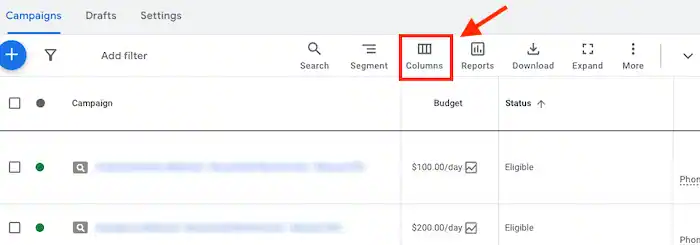
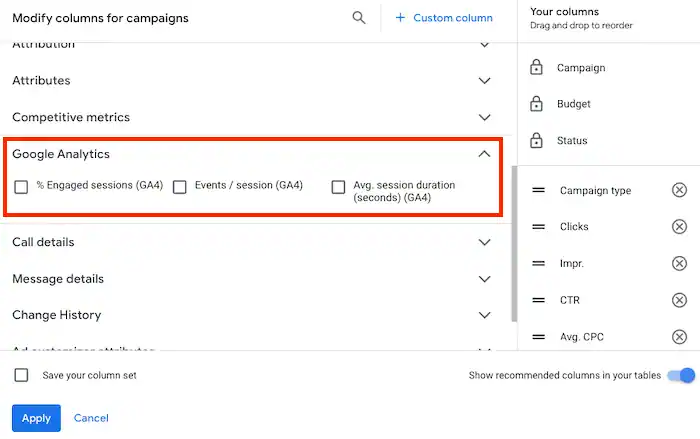
- Look for the Google Analytics section and select it.

- Select the checkboxes next to the columns you want to add. At the time of writing the available columns are % Engaged sessions (GA4), Events / session (GA4), and Avg. session duration (seconds) (GA4).
- Click on Apply and the Google Analytics data will now appear in your Google Ads reports.
Remember
- Google Ads doesn’t have Google Analytics data collected prior to May 2016. For earlier data, you’ll need to refer to Google Analytics directly.
- Any user with access to your Google Ads account will be able to view the imported Google Analytics metrics.
- It’s crucial to link your Google Ads account to all relevant Google Analytics views to ensure you import the necessary information. For instance, if your Google Ads account targets landing pages on four different websites, linking to a Google Analytics view for each of these websites is essential.
- It’s possible to import Analytics data from only one view per property, up to a maximum of ten properties.
- Without tagging all pages you want to track in Google Analytics, you may not get all the data you need.
- You can’t import mobile app property metrics from Google Analytics.
- Some dimensions, such as “Device”, can’t be used to segment Google Analytics metrics.