If you wish to discontinue using your Google Ads account, it can be done anytime. Once you cancel your account, all your ads will be automatically halted within 24 hours. This guide provides information on the steps involved in canceling your account and things to consider before doing so.
It is important to note that canceling your Google Ads account is distinct from deleting your Google Account. Canceling your Google Ads account will only stop your ads from appearing, but you will still have access to the account.
On the other hand, deleting your Google Account will lead to the cancellation of all Google product accounts associated with it, and you will not be able to access those accounts in the future. Additionally, your Gmail username will be deleted and cannot be used again.
Things to consider before you cancel
Prior to canceling your Google Ads account, it’s important to understand that canceling is similar to pausing your campaigns, with a few exceptions:
If you cancel your account, you can receive a refund for any remaining balance in your account that hasn’t been used, except for amounts from promotional offers. If you cancel your account, you’ll need to reactivate it before using it again in the future. If you don’t have unused funds in your account, it might be more suitable to pause your campaigns instead of canceling the entire account.
In case you’re considering canceling your account due to unsatisfactory campaign performance, there are optimization tips you can explore that might help improve your campaigns.
Note: If you’re still in the process of setting up your accounts, you can cancel them by clicking the delete icon located next to them in the Account selector.
How Google Ads account cancellations work
If you choose to cancel your account, please bear in mind that any incurred costs must be paid. If there are remaining funds in your account, you’ll receive a refund within 4 weeks to your payment method. For further information on managing billing after canceling your Google Ads account, refer to the appropriate resources.
After cancellation, you can still access the data within your Google Ads account by logging in to Google Ads. If you plan to use Google Ads again in the future, you can reactivate your account anytime.
Note: If your Google Ads account has been inactive for over 15 months, which means it hasn’t been used for advertising within the specified timeframe, it will be automatically canceled. Further details on the cancellation of inactive accounts can be found elsewhere.
What you’ll need
To cancel your Google Ads account, you must meet the following requirements:
- Have administrative access to your account;
- Have billing set up for your account.
If you have a manager account and wish to cancel one of your managed accounts, the following requirements must be met:
- You must have administrative access to your manager account;
- Your manager account must have ownership of the client account you intend to cancel.
How to cancel your Google Ads account
Follow these steps:
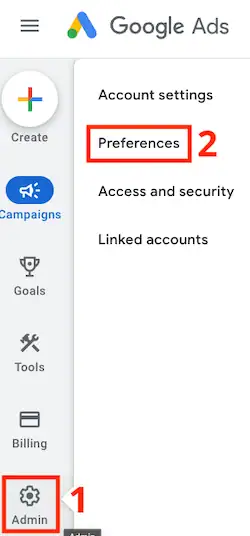
- Click “Admin” from the left-hand side menu.
- Go to “Preferences”.
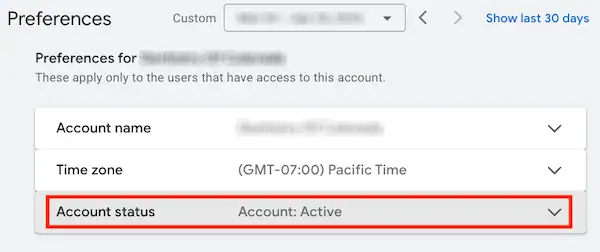
- Click on the “Account Status” section to expand it.

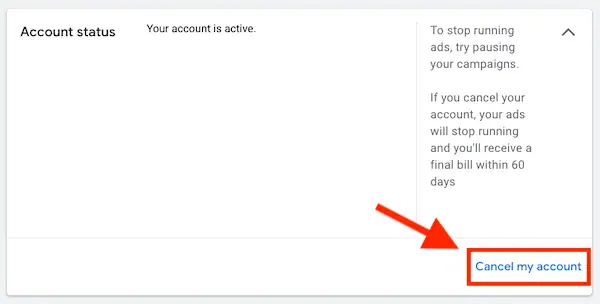
- Select the option “Cancel my account”.
What happens after the account is canceled?
After canceling your Google Ads account, the following actions will occur:
- All remarketing lists owned by the canceled account, including Customer Match, will be set to “Closed,” preventing new users from being added to these lists.
- About a month after the account cancellation, an effort will be made to remove your data, and the following will occur:
- All remarketing lists owned by the canceled account, including Customer Match, will have their membership duration reduced to 1 day. This will remove all users from these lists.
- Once the users are removed, lists that are shared with other accounts will no longer be usable for those accounts.
- Any parameters for dynamic remarketing will be deleted.
- If there is any refundable credit remaining in your canceled account, you should receive a refund within 4-12 weeks.
Troubleshooting
If you are unable to find the option to cancel your Google Ads account, it is possible that you may not be eligible to do so. Please review the “What you’ll need” section above to ensure that you meet all of the necessary criteria.
In the event that your administrative access user has left the company and you wish to cancel your account, you will need to gather the following information: your Customer ID, sign-in email address, and account billing information. After collecting this information, you can contact Google Ads support for further assistance with canceling your account.
Canceling Google Ads client accounts
If you need to cancel any of your client accounts, you can do so easily from the “Sub-account settings” page of your manager account. This can be especially helpful if you need to cancel multiple accounts at once. However, you can also cancel a client account by navigating to that account and following the standard cancellation process.
What you’ll need
To cancel a client account, you must meet the following requirements:
- You must have administrative access to your manager account.
- Your manager account must have ownership of the client account you wish to cancel.
How to cancel client accounts from your “Sub-account settings” page
To cancel accounts from the “Sub-account settings” page, follow these steps:
Note that you must have administrative access to your manager account to do so.
- Sign in to your Google Ads manager account.
- Click on “Accounts” in the page menu on the left, then select “Management” from the top.
- Check the box next to the accounts you wish to cancel.
- Click “Edit” and select “Cancel” from the drop-down menu.
How to access canceled accounts
To view your canceled accounts, you can access the “Management” page and filter the table by clicking on the “Account status” filter in the navigation panel and selecting the checkbox next to “Canceled”. The canceled accounts will be displayed with a red x next to their name to indicate their canceled status.
You can navigate to a canceled account like any other active account by clicking on its name in the “Accounts” column. It’s important to note that users who have access to the canceled account can still access it as usual, and an alert will be displayed at the top of the account to indicate that it has been canceled.