Container export and import functionality in Google Tag Manager allows users to easily manage and manipulate containers in JSON format.
JSON files explained
A JSON file is a format used to organize and store data in a way that is easy for both humans and computers to understand. JSON stands for “JavaScript Object Notation.” It consists of a collection of text-based data that is organized into key-value pairs.
The keys are like labels that describe the data, while the values are the actual information stored within those labels.
Think of a JSON file as a structured document that holds different pieces of information. Each piece of data is represented by a key-value pair, similar to how items in a dictionary are defined.
This format is commonly used for sharing and storing data because it is lightweight, easy to read, and can be processed by various programming languages.
Even if you’re not a programmer, understanding JSON files can be useful. For example, you might come across JSON files when working with web applications, APIs, or even when customizing certain software settings.
Being familiar with JSON allows you to interpret and modify data stored in these files, enabling you to work more effectively with technology.
Advantages of exporting GTM containers
By exporting containers, users can compare, modify, share, store, and import them back into Tag Manager.
This feature serves various purposes, including:
-
Making bulk changes to tag configurations
Users can replicate the structure and tag configurations of an existing site by exporting a container and using a text editor to modify specific items such as conversion IDs and domain names. The revised configuration file can then be imported into a new container.
-
Storing website configuration data centrally
Users can store all versions of their containers in a version control system, enabling them to review changes before publishing them live. While Tag Manager maintains its own version history, utilizing container export and import is particularly useful for workflows that involve text-based tools like diff and Git for change management.
-
Copying new or updated components across multiple containers
Components such as tags, triggers, variables, and templates can be exported from one container and imported into another. This facilitates the distribution of pre-configured components to multiple containers, making it easier to maintain consistency across various projects.
How to export a container
To export a container, follow these steps:
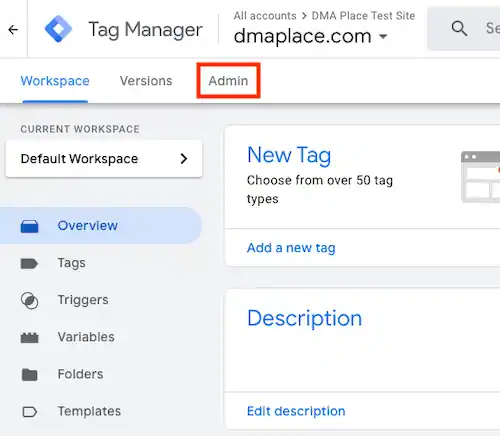
- Go to the top navigation and click on “Admin.”
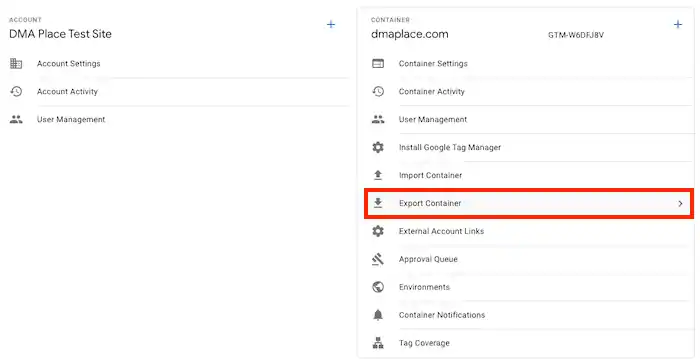
- In the Container section, locate and click on “Export Container.”

- Choose a version or workspace by clicking on the respective option.
- Select the desired container or workspace version from the available options.
- Click on the “Download” button. Note: If you attempt to perform a partial export that excludes tags, triggers, or variables that are dependencies for the selected items, a warning message will appear. If you choose to proceed with the export, any references to missing tags and triggers will be removed, while variable references will be preserved.
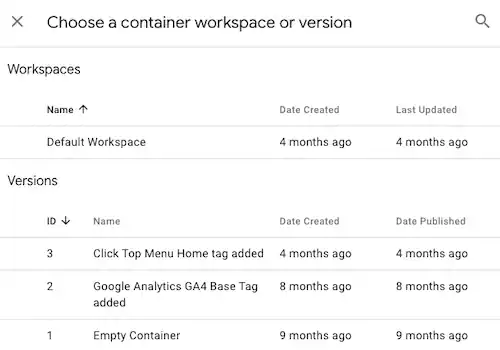
Additionally, you can also export a container from the Trash Can if needed.
How to export a container from the Trash Can
Follow these steps:
- Scroll to the bottom of the Accounts screen and click on “Trash Can.” Note: The Trash Can will only be visible if it contains one or more items that have been marked for deletion.
- A list of items that have been deleted will appear. Locate and click on the specific container you want to export.
- Once you have selected the container, click on the “Export” option.
How to import a container
To import a container, please follow these steps:
- Click on “Admin” in the top navigation menu.
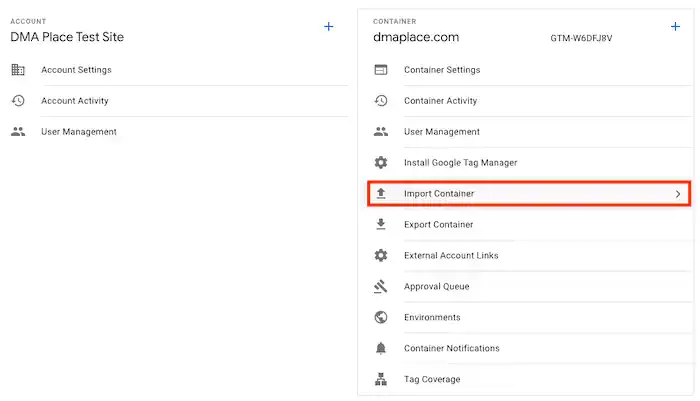
- In the Container section, locate and click on “Import Container.”
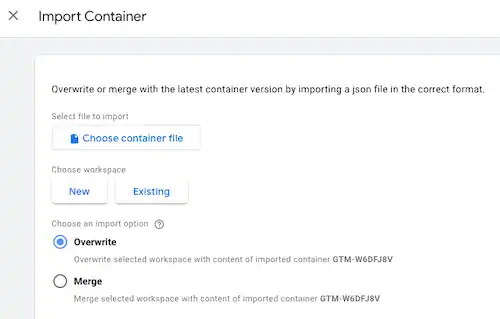
- Click on “Choose container file” and select the file you wish to import.
- Choose whether you want to add the imported file to a new or existing workspace.
- To add the file to a new workspace:
- Click on “New” under Choose workspace.
- Enter a title and description for the new workspace.
- Click on “Save.“
- To add the file to an existing workspace:
- Click on “Existing” under Choose workspace.
- Select the desired workspace from the options provided.
- Choose between “Overwrite” or “Merge.”
- “Overwrite” will replace all existing tags, triggers, and variables with those from the imported container. A new container version will be created before the import.
- “Merge” allows you to handle conflicts between existing and imported items:
- Select “Overwrite conflicting tags, triggers, and variables” to replace the old items with the new ones when there are differences.
- Select “Rename conflicting tags, triggers, and variables” to rename the new items if there are differences.
- To add the file to a new workspace:
- Click on “Continue.” A preview dialog will show the number of tags, triggers, and variables that will be added, modified, or deleted. Click on “View Detailed Changes” to see a list of all affected items.
- Review the changes in the preview dialog. If you are satisfied with the modifications that will be made, click on “Confirm” to proceed.