Integrate Google Analytics conversions with Google Ads
If you want to effectively analyze customer activity on your website, you have the option to integrate your Google Analytics conversions with Google Ads. By doing so, you can use Google Ads conversion tracking to measure and monitor the conversions.
This integration allows you to combine all three components seamlessly. Check the following section for a concise comparison.
Comparison of Google Analytics Conversions and Google Ads Conversion Tracking
Google Analytics 4 Properties Conversion Tracking:
- Suitable for measuring and tracking conversions across both apps and websites.
- Tracks conversions from non-Google Ads sources, offering extensive customer traffic monitoring.
Google Ads Conversion Tracking:
- Ideal for focusing solely on conversions.
- Measures conversions exclusively from Google Ads sources.
Advantages of Importing Google Analytics conversions into Google Ads
-
Consolidated Data Access
By importing your Google Analytics conversions into Google Ads, you gain easy access to your Google Analytics conversion data alongside your Google Ads clicks. This integration allows for a more comprehensive view of your marketing efforts.
-
Enhanced Conversion Insights
Importing Google Analytics conversions into Google Ads enables you to view your Google Analytics conversion data directly within the Google Ads platform. This integration provides a seamless way to analyze and monitor your conversions.
-
Optimized Bidding with Smart Bidding
Importing Google Analytics conversions empowers Smart Bidding strategies in Google Ads by providing valuable data for bid optimization. This data-driven approach can potentially improve the effectiveness of your bids, leading to increased conversions and reduced costs.
Overall, importing Google Analytics conversions into Google Ads offers the convenience of centralized data access, deeper conversion insights, and the potential for improved bidding strategies through Smart Bidding.
Import your Google Analytics conversions into Google Ads
- Sign in to your Google Ads account.
- Click Goals on the left menu.
- Click +New conversion action.
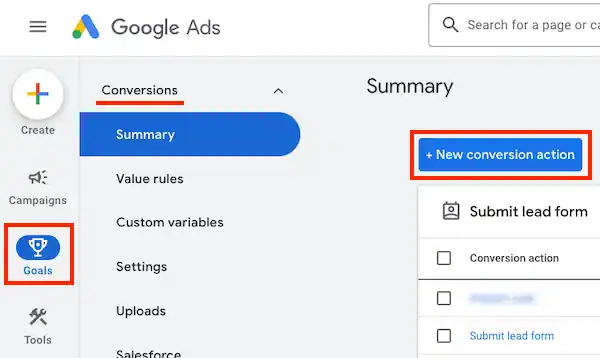
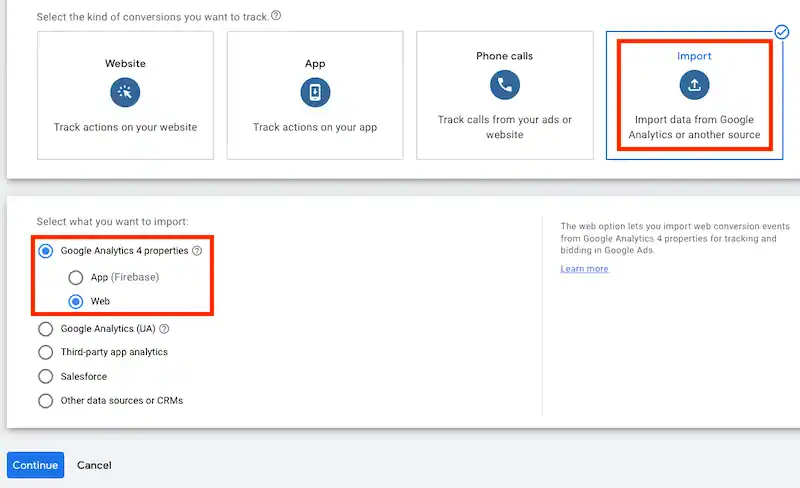
- Select “Import” and then choose “Import data from Google Analytics or another source“.
- On the next page, select “Google Analytics 4 properties” and hit Continue.
- Select “Web“.

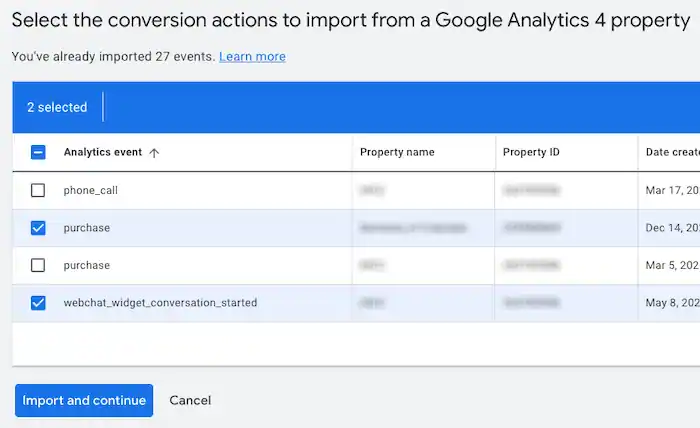
- Select the conversions you want to import into Google Ads and click “Import and continue“.
- Once the import is complete, click “Done.”
Keep in mind
- It may take up to 24 hours for the imported conversion data to be available in Google Ads.
- The imported conversions data will appear alongside your existing conversion data on the Conversions page.
- You can customize columns on the Campaigns tab to include this imported data.
- In some cases where Google cannot observe all conversions, reports based on imported conversions data may include modeled conversions as estimates. These estimates are based on aggregated and anonymized data.
- Once the Analytics data, such as goals, has been imported to Google Ads, it is subject to the terms of service for Google Ads.
Modify settings for imported conversions
To make adjustments to your imported Analytics conversions, follow these steps:
- Sign in to your Google Ads account.
- Click Goals on the left menu.
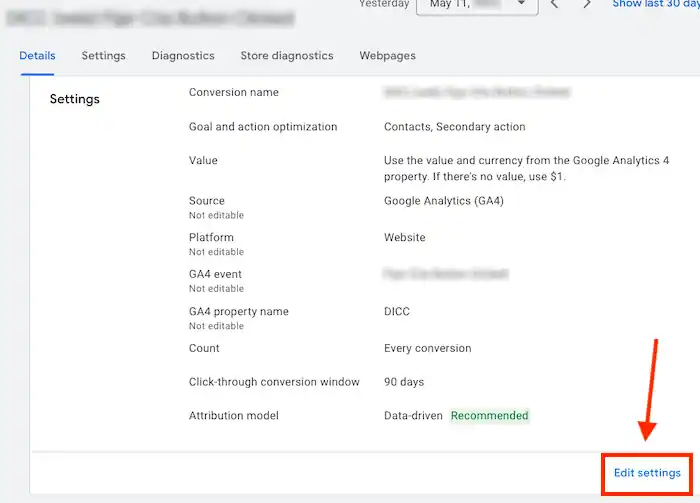
- Locate and click on the name of the imported conversion you wish to edit.
- In the bottom right corner, click on “Edit Settings.”
- Make the desired changes to the conversion settings.
- Once you have made the necessary modifications, click the “Save” button to save your changes.
Discrepancies in conversion statistics
It is not uncommon to observe variations in conversion statistics between Google Analytics and Google Ads conversion tracking. If you have verified that your setup is accurate, here are some possible reasons for these discrepancies:
Date of Transaction
Google Ads records conversions based on the date and time of the click that led to the successful action, rather than the date of the actual conversion itself. For instance, if a user clicked on your ad on July 19 but completed the purchase on your website the following day, July 20, Google Ads would attribute the conversion to July 19.
On the other hand, Google Analytics attributes the conversion to the date it occurred, in this case, July 20.
Please note that this is just one potential cause of data discrepancies, and there may be other factors contributing to variations in conversion statistics between the two platforms.
Counting Method
In Google Ads, you have the flexibility to select either “all” or “unique” conversions as the counting method for each conversion action. This counting method applies to all conversion actions, including those imported from Analytics goals and transactions.
The “Conversions” column in Google Ads reflects the conversions that occur within the chosen conversion window, based on the selected counting method. It’s important to note that Universal Analytics properties count all goals and transactions by default, which can lead to disparities in conversion counts.
Example
Let’s consider an example in a Google Analytics property where you have set up a goal for completing a lead form. A user interacts with your ads and fills out two lead forms in separate sessions. In Analytics, this activity would be recorded as two goal completions.
However, when you import this goal into Google Ads and choose the counting method as “Unique,” you will only see one conversion reported.
This means that even though there were two goal completions in Analytics, the counting method in Google Ads ensures that only unique conversions are considered, resulting in a single conversion being attributed.
Invalid Clicks
It’s important to note that some goals or conversion events reported in Analytics may be filtered out when they are imported into your Google Ads account. This occurs due to Google Ads’ invalid clicks technology, which identifies and excludes potentially suspicious or invalid click activity from being recorded as conversions.
Cookie Expiration Dates
There are differences in the cookie expiration dates between Google Ads and Analytics, which can affect the recording of conversions:
- Google Ads Cookies: The cookies used by Google Ads have a lifespan of 90 days after a customer’s click. This means that the conversion window for Google Ads is limited to this 90-day period.
- Analytics Cookies: In contrast, Analytics uses cookies with a duration of up to 2 years. This extended cookie lifespan allows Analytics to track conversions within this 2-year timeframe.
Consequently, if a customer completes a conversion after the specified conversion window (beyond 90 days) in Google Ads, it will not be recorded as a conversion within Google Ads. However, it will still be captured and recorded by Analytics if it occurs within the 2-year period from the date of the click.
Delays in Imported Analytics Conversions
When importing Analytics conversions data into conversion tracking, there can be a delay of up to 9 hours before the conversions are reflected in your Google Ads account.
Changes to Goal or View Names in Universal Analytics Properties
If you modify the name of a goal or a view that contains your imported Analytics goals in Universal Analytics properties, these name changes will be updated in Google Ads. However, the changes may take up to 24 hours to be fully reflected in your Google Ads account after the goal has been completed by a customer.
Deduplication of Imported Transactions from Analytics
It’s important to consider the deduplication process for imported transactions from Analytics in Google Ads. Here are a few key points to keep in mind:
- Transaction IDs: In Google Ads, transaction IDs from Analytics will be imported as order IDs.
- Automatic Deduplication: Overlapping conversions will be automatically de-duplicated within your Google Ads account. This helps prevent double-counting of conversions.
- Same ID, Same Session: Transactions with the same ID within the same session in Analytics will be de-duplicated. Only one transaction will be counted per session.
- Multiple Sessions, Same ID: If the same transaction ID is associated with multiple sessions, Analytics counts one transaction per session. However, when imported into Google Ads, only one transaction is counted per transaction ID.
As a result, you may observe fewer conversions (transactions) in your Google Ads reports compared to your Google Analytics reports due to the deduplication process and differences in counting methodologies.