Connect your Google Analytics properties to your Google Ads account
By linking your Google Analytics property to your Google Ads account, you can gain insights into customer behavior on your website or app, enabling you to gauge the impact of your Google Ads traffic and enhance your ads and website.
Account linking enables you to carry out the following tasks:
- Import conversions from Google Analytics
- View Google Analytics data in your Google Ads reports (and vice versa)
- Bring in Analytics remarketing audiences
- Track web or app conversions from Google Analytics 4 properties.
If you’re a Google Analytics account administrator, you have the ability to transfer an Analytics property from one account to another. This action will not disrupt any linked Google Ads accounts, which will remain connected to the property.
Once the transfer is complete, users of the new Analytics account will be able to access data from the associated Google Ads accounts.
What you’ll need
Prior to initiating the linking process between your Google Analytics property and Google Ads account, ensure that your Google Account has the following authorizations:
- Administrative access to a Google Ads account (or Google Ads manager account) with auto-tagging enabled.
- If you plan to link to a Firebase project, your Google Account must be the owner of the Firebase project you intend to link.
- If you wish to link to a Google Analytics 4 property, your Google Account must possess “Edit” permissions in the corresponding Analytics property.
Note that once you upgrade your Firebase project to a Google Analytics 4 property, the migration process will automatically transfer your Firebase links with Google Ads to the new Google Analytics 4 property.
Keep in mind that if a manager account handles your Google Ads account, any data it imports from Google Analytics or Firebase will be accessible to you (according to the manager account’s preferences).
If the manager account severs its link with Google Analytics or Firebase, you’ll no longer have access to new data, but previously shared data will remain visible to you.
How to link your Google Analytics and Google Ads accounts
To establish a connection between a Google Analytics property or a Firebase project and your Google Ads account, follow these steps:
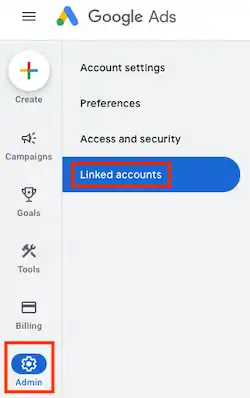
- Access your Google Ads account and click on the Admin Icon.
- Select “Linked accounts” from the menu.
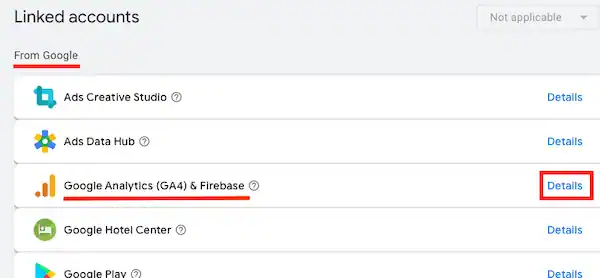
- Look for “Google Analytics (GA4) and Firebase” under “From Google” and click on “Details.“

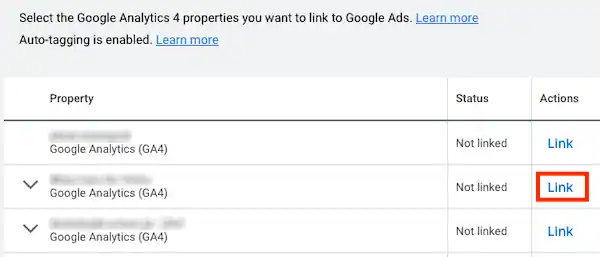
- If you have the appropriate authorizations, a table displaying all available properties and projects will appear. Locate the relevant Google Analytics property or Firebase project, and then click “Link.”
- To view a list of the apps linked to a project, click on the down arrow beside the project name.
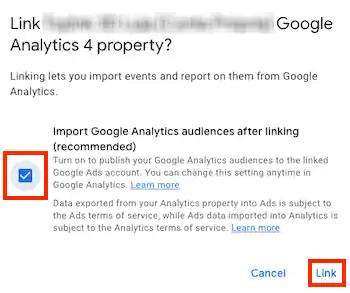
- In the confirmation window, check the option “Import Google Analytics audiences after linking (recommended), and then click “Link.”
- To import site metrics from a connected Google Analytics 4 property, click on “Activate” under the “App and web metrics” column. (Note that this button may take a few hours to become available after linking the property.) This property will be utilized to show site engagement metrics in your Google Analytics reporting columns. Keep in mind that you’ll need to add Google Analytics 4 columns to your Google Ads reports to see these metrics, which are distinct from UA metrics and labeled as (GA4) in the metric picker.
- In most cases, importing Google Analytics data will take less than an hour. However, it may take longer for larger accounts. Once the data is imported, you can include Google Analytics columns in your Google Ads reports.
- Finally, in the confirmation window, click “Activate.”
In case your Google Ads account is managed by one or more manager accounts, you can find the list of linked manager accounts to a Google Analytics 4 property or a Firebase project under the “Accounts” column.
If multiple manager accounts are managing the Google Ads account, then the primary manager account will be displayed under the “Accounts” column.
On the other hand, if a Google Analytics property or a Firebase project is linked only to your Google Ads account and not linked to a manager account, then you will see a hyphen (“-“) in the “Accounts” column.
Experiencing difficulties?
The “Linked accounts” page for Google Analytics
Once you have linked your Google Ads account to a Google Analytics property, you can access a range of useful details about the linked accounts on the “Linked accounts” page within your Google Ads account.
It’s important to note that you can only view views, goals, and audiences for Universal Analytics properties.
Views
This section displays the total number of linked views for the property. When you hover your cursor over the data, you can see the specific views that have been linked, as well as which view’s site metrics have been imported.
If the property has views linked to manager accounts, the column also shows how many views are linked to your account and how many are linked to manager accounts. To learn about linking Google Analytics and a Google Ads manager account, follow this link.
Goals
Here, you can see how many goals have been imported into your conversion reports for this property. Hovering over the data will reveal how many additional goals can be imported, along with a link to manage your conversion actions.
Audiences
This section shows the number of remarketing lists that have been created for the property. Hovering over the data will display which lists have been created and provide a link to create audience lists.
Accounts
If your account is managed by one or more manager accounts, this column displays which manager accounts are linked to the property. If the property is linked only to your account and not linked to a manager account, you will see “This account” in the column.
If your account is managed by multiple manager accounts (such as a sub-manager and a manager account), you can hover over the data to see which manager accounts are linked to the property.
If your account is managed by any manager accounts, you will be able to view data for properties that are linked to those manager accounts.
How to link Google Analytics to your Google Ads manager account (MCC)
Connecting your Google Analytics properties to your Google Ads manager account (MCC) can provide valuable insights into customer behavior on your website after clicking on ads associated with any of the Google Ads accounts under your manager account.
This enables you to better understand the performance of your ads and website and improve them accordingly.
Fortunately, when you add a new Google Ads account to your manager account, it will automatically link with the same Analytics properties, eliminating the need for individual linking.
Benefits
By linking your Google Analytics and Google Ads manager account, you can:
- Easily link all Google Ads accounts you manage to Analytics in one step
- Simplify managing imported Analytics goals, transactions, remarketing lists, and site engagement stats, as well as exported Google Ads cost data across multiple Google Ads accounts
- Automatically link new accounts to your Analytics properties when added to your manager account
What you’ll need
Prior to starting the linking process, make sure you have administrative access to a Google Ads manager account, and “Edit permissions” to a Google Analytics property.
Please note that these permissions are only necessary during the linking process, and can be modified or revoked after the link has been established.
Steps
- Log in to your Google Ads manager account.
- Click the tools menu icon in the upper right corner.
- Under “Setup”, click Linked accounts.
- Click Details next to “Google Analytics (GA4) and Firebase”.
- Select the Google Analytics property you want to link.
- Click Save.
- Repeat for any additional properties you want to link.