The Search Terms report provides insight into how your ads fared when they were activated by real searches on the Search Network. In this article, you will learn everything you need about this report and how to use it.
Search Terms reports vs. Search Terms insights
The search terms insights and the search terms report have some notable differences. Search terms insights evaluate the search terms where your ads were displayed in the past 56 days, categorizing them into themes and subthemes, and providing performance metrics for each.
This feature is recommended for gaining insights into customer interests and capturing untapped demand.
However, there are variations in the data presented in the search terms insights versus the search terms report. Conversions may differ slightly between the two as a result of different conversion processing methods, leading to conversion lag.
Additionally, certain low-volume search terms are excluded from the search terms report to comply with data privacy standards, while search terms insights group these queries into relevant subthemes or aggregate them as “other queries” without revealing the specific terms.
Advantages
The search terms report offers valuable insights into the performance of searches that activate your ads, allowing you to identify opportunities for enhancing your ad content and landing pages to align with your customers’ interests.
It’s important to differentiate between a search term and a keyword. A search term refers to the word or phrase a user types into Google or the Search Network. In contrast, a keyword is a word or phrase that advertisers add to their ad group to target a specific audience on Google Ads.
Example
For example, imagine you own a boutique coffee shop and have a Google Ads campaign targeting users searching for “coffee shops near me.” A user named Sarah is looking for a place to study and searches for “quiet coffee shops with wifi.”
“Quiet coffee shops with wifi” is the search term, and if you have included “coffee shops with wifi” as a keyword in your campaign, your ad may appear on Sarah’s search results page.
By analyzing the search terms report, you can gain insight into the performance of these types of searches and adjust your ad content accordingly.
Where to find the Search Terms report
Here are the steps to access your search terms report:
- Log in to your Google Ads account.
- Navigate to the left-hand navigation pane and click on “Campaigns.”
- Click “Insights and reports“.
- Select “Search terms.”
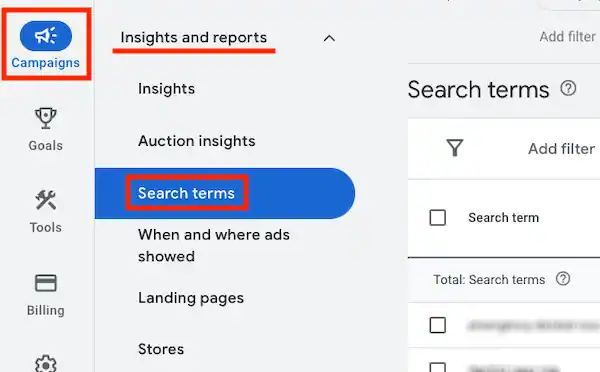
- The report will display data on search terms that have generated significant impressions and clicks from customers.
Features
In addition to viewing your search terms report, there are several other features you can use:
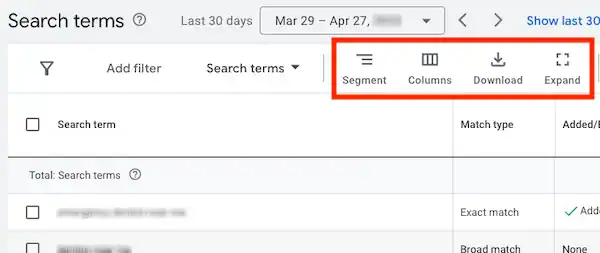
Columns button
You have the ability to customize your search terms report by modifying which columns are displayed. This feature allows you to add, remove, or reorder columns to suit your preferences. Additionally, you can save your column set and apply these changes to future reports.
Download button
o download the data from your search terms report, follow these steps:
- Access your search terms report as described earlier.
- Click on the download icon.
- A list of available formats will appear.
- Choose the format that best suits your needs.
- The data from your report will then be downloaded in the selected format.
Segment button
You can segment the data in your search terms report by time, conversions, device, or network. This allows you to analyze your data from different perspectives and gain insights into how your ads are performing.
To segment your search terms report, simply select the desired segment option from the drop-down menu located above the report table. The table will then be divided into sections based on the selected segment, making it easier to analyze the data.
You can choose to segment your report by:
- Time: This allows you to view data over a specific time frame, such as by day, week, or month.
- Conversions: This allows you to view data based on the number of conversions generated by each search term.
- Device: This allows you to view data based on the device type the ad was shown on, such as desktop, mobile, or tablet.
- Networks: This allows you to view data based on the network where your ad was displayed, such as the Google Search Network or the Google Display Network.
Expand button
You can expand the table in your search terms report to display more data by clicking on the expand button. This will reveal additional columns with information about your search terms, such as the match type, cost per click, and conversion rate.
If you want to return to the previous view with a condensed table, simply click on the collapse button. This will hide the additional columns and display the table in its original format.
Interpreting the data on your search terms
The “Keyword” column
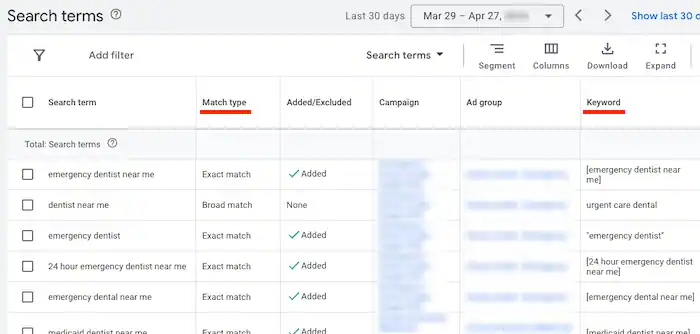
The “Keyword” column provides information about which of your keywords matched a user’s search term and triggered your ad. This column is valuable in evaluating how your keywords are performing and how they match to actual searches.
Using the data in the “Keyword” column, you can refine your keyword list to improve its performance.
For instance, you run an online store that sells hiking boots. After reviewing your search terms report, you observe that your broad match keyword “outdoor footwear” is causing your ads to display for search queries related to sandals and flip-flops, which aren’t relevant to your offerings.
Therefore, you refine your keyword list to include more specific terms related to hiking boots to improve ad targeting.
Note that the “Keyword” column is not displayed by default. To enable it in the new Google Ads experience, click the column icon and select “Attributes”. Check the box next to “Keyword” and click “Apply” to activate the column.
The “Match type” column
The “Match type” column of your search terms report provides information on the level of correlation between the search terms that activated your ads on Google and the keywords in your account.
By analyzing which match types perform well for specific keywords and searches, you can optimize the match types for all your keywords to effectively reach your target audience.
Edit your report
You have the flexibility to customize your report to show the list of search terms that triggered your ad for your entire account, specific campaigns or ad groups. This feature is accessible by clicking the reporting icon and selecting “Predefined reports” from the drop-down menu.
Keep in mind that although you can view the same information for individual keywords when using the search terms report, you cannot add keywords or negative keywords directly from the report. If you want to create your own custom report, read this tutorial.
Search terms on Google search partners
When your ads appear on search partner sites, they may also show on pages such as site directory pages or other relevant pages that align with a person’s search. The search terms in these cases may appear different from the usual format, and could be longer or formatted differently depending on the specific site or page.
How the Search Terms report works
The search terms report is a list of the terms people have used to trigger your ad to be shown. It includes search terms that a significant number of people have used, which may or may not be the same as your keyword list depending on your matching options.
To understand the relationship between your keywords and the search terms, you can refer to the “Match type” column in the report. It shows how closely the search terms are related to the keywords in your account.
By analyzing which match types work best for your keywords and searches, you can optimize your keyword list to show your ad only for relevant searches.
The “Keyword” column in the report tells you which of your keywords matched the search term and triggered your ad. By default, this column is not visible and can be turned on in the Google Ads interface.
How search term matching is determined
To help you understand how search term matching is determined, let’s consider the following example:
- Ad group A: Exact match keyword [organic apples]
- Ad group B: Phrase match keyword “organic apples”
- Ad group C: Broad match keyword organic apples
Keeping these ad groups and keywords in mind, we’ll use the following table to show you how different search terms that triggered your ads on Google are related to your keywords. Note that when the search term match type is a close variation, it will be indicated in the “Match type” column.
Close variants can include misspellings, singular and plural forms, acronyms, stem words (such as fruit and fruits), abbreviations, accents, and variants of your keyword terms that have the same meaning.
Keep in mind that a search term match type listed in your report might not be the same as the match type you’ve selected for the keyword that triggered the ads. This is because keywords with broader match types can still match search terms in narrower ways.
For example, if someone searched for organic apples, and your broad match keyword organic apples triggered your ad, the search terms match type would be an exact match, even though in your ad group, organic fruits is a broad match keyword.
| Your keyword | Customer's search term | Search term match type | Reason for search term match type |
|---|---|---|---|
| [organic apples] | organic apples | Exact match | The search term is an exact match to the keyword in ad group A. |
| [organic apples] | organic appls | Exact match (close variant) | The search term is a close variant of your exact match keyword from ad group A, with the same meaning and intent. |
| "organic apples" | organic apples | Exact match | The search term is an exact match for your phrase match keyword from ad group B. |
| "organic apples" | cheap organic apples | Phrase match | The search term includes your phrase match keyword from ad group B. |
| "organic apples" | cheap organic appls | Phrase match (close variant) | The search term closely matches (in terms of meaning and intent) your phrase match keyword from ad group B. |
| organic apples | organic apples | Exact match | The search term matches exactly with the broad match keyword from ad group C. |
| organic apples | cheap organic apples | Phrase match | The search term includes your broad match keyword from ad group C. |
| organic apples | organic apples | Broad match | The search term is a variant of your broad match keyword from ad group C. |
Keep in mind
Dynamic Search Ads and Shopping targeting do not utilize keywords. Therefore, any terms matched to these types of ads will not show a keyword in the keywords field of the search terms report. Instead, they will display “Exact” in the match type field.
Leverage your search terms data to optimize your keywords
Your search terms report can provide valuable insights to help you optimize your keywords and improve your ad performance. Here are a few suggestions:
- Identify irrelevant search terms that trigger your ads and add them as negative keywords. By doing so, you can prevent your ad from showing to people who are searching for something you don’t offer. For example, if you sell bicycles and you notice that the search term “motorcycle helmets” is triggering your ads, consider adding “motorcycle” as a negative keyword.
- Review the match types for your existing keywords and make necessary adjustments. Analyzing the “Match type” column can help you understand how keyword match type is affecting your ad performance.
- Consider using Smart Bidding, which uses contextual signals to adjust your bids for each auction and maximize your ad performance.