Consent Mode v2: what it is and how to set it up with Google Tag Manager (2026)
 Daniel Timponi · November 15, 2026
Consent Mode v2 is how your website tells Google tags (Google Ads, GA4, Floodlight) what each visitor agreed to in your cookie banner, using four signals: ad_storage, analytics_storage, ad_user_data and ad_personalization. Google tags then adjust: full measurement when consent is granted, no cookies (and, in advanced mode, cookieless pings) when it is denied. If you have visitors in the EEA, the UK or Switzerland and you use Google Ads or GA4 for measurement or remarketing, you need it.
Not sure your consent setup is sending the right signals? I review and fix tracking for Google Ads, GA4 and Tag Manager. See my conversion tracking service.
What Consent Mode does (and doesn’t do)
Consent Mode is not a cookie banner. You still need a banner, usually from a consent management platform (CMP), to ask the visitor. Consent Mode is the connection between that banner and Google’s tags:
- Your banner asks for consent.
- Consent Mode sends the visitor’s choice to Google.
- Google tags behave according to that choice.
Tags with built-in consent support are the Google tag, Google Analytics, Google Ads, Floodlight and the Conversion Linker. Other tags (Meta pixel, LinkedIn, Hotjar and so on) don’t read Consent Mode by themselves; in Tag Manager you block them with consent checks, as shown below.
The four Consent Mode v2 parameters
Google added two parameters in November 2023, which is where “v2” comes from:
| Parameter | What it controls | Added in v2? |
|---|---|---|
ad_storage | Advertising cookies and identifiers (Google Ads, Floodlight) | No |
analytics_storage | Analytics cookies (GA4) | No |
ad_user_data | Whether user data may be sent to Google for advertising (ads measurement) | Yes |
ad_personalization | Whether data may be used for personalized advertising (remarketing) | Yes |
Each is granted or denied. Both ad_user_data and ad_personalization must be granted for personalized advertising, such as remarketing lists. If you still use the older allow_ad_personalization_signals setting and it conflicts with ad_personalization, Google disables personalization, so use the v2 parameter.
Tag Manager also lists three other consent types, functionality_storage, personalization_storage and security_storage. They aren’t part of Consent Mode’s effect on Google tags, but you can use them to block other tags.
Basic vs advanced consent mode
There are two ways to implement it, and the difference is what happens before and after a visitor declines.
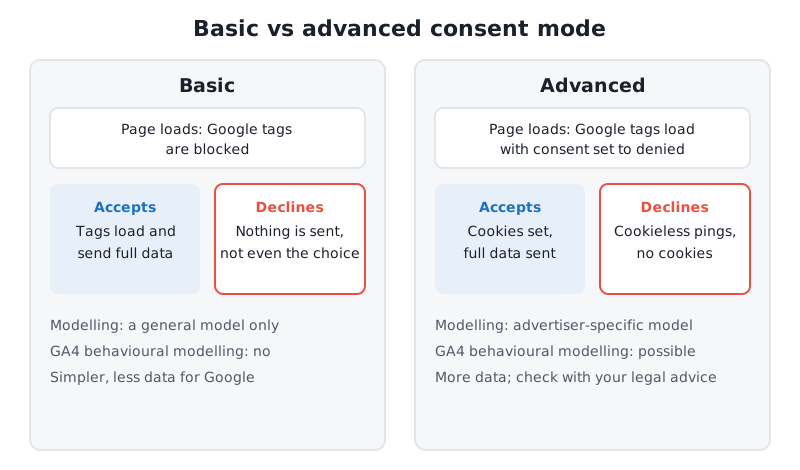
Basic consent mode. Google tags are blocked until the visitor interacts with the banner. If they accept, the tags load and measure normally. If they decline, nothing is sent to Google, not even the fact that they declined. Google Ads can still model conversions, but with a general model.
Advanced consent mode. Google tags load when the page opens, with consent set to denied by default for the regions you choose. While consent is denied, the tags write no cookies and send cookieless pings instead: a timestamp, user agent, referrer, whether there was an ad click ID in the URL, the consent state, a random number per page load and consent platform information. If the visitor accepts, cookies are written and full data is sent. These pings let Google build a model specific to your account, which is more accurate than the general one, and they’re required for GA4 behavioural modelling.
Which one you choose is a legal decision for your business, not a technical one. Many businesses choose advanced for the measurement; some choose basic because their legal advice says no request should reach Google before consent. I implement whichever the client’s privacy adviser has approved.
Who must use Consent Mode v2
Google’s EU user consent policy applies to visitors in the European Economic Area, the UK and Switzerland. Under it, and since the Digital Markets Act took effect in March 2024, advertisers must collect consent from those visitors and share consent signals with Google to keep using measurement, ad personalization and remarketing. When the signals are missing, Google treats the visitor as not consented.
In practice, without Consent Mode v2 on a site with traffic from those regions:
- Remarketing lists and other audience segments stop growing from those visitors.
- Customer Match can’t use data from EEA users without both ad consents.
- Conversion measurement and modelling for those visitors is limited.
- Google Ads and GA4 show warnings about missing consent signals.
If you have no visitors from those regions, Consent Mode isn’t required by Google, though your local privacy law (US state laws, Brazil’s LGPD, Canada) may still require a banner.
Do I need a Google-certified CMP?
For advertisers, Google recommends a CMP from its CMP Partner Program (Cookiebot, Usercentrics, OneTrust, Didomi and many others), because they handle Consent Mode for you and are expected to update to new versions automatically. A custom banner is allowed if it sends the signals correctly. The strict requirement of a Google-certified CMP integrated with IAB’s TCF applies to publishers showing ads with AdSense, Ad Manager or AdMob in the EEA, UK and Switzerland.
How to set up Consent Mode v2 in Google Tag Manager
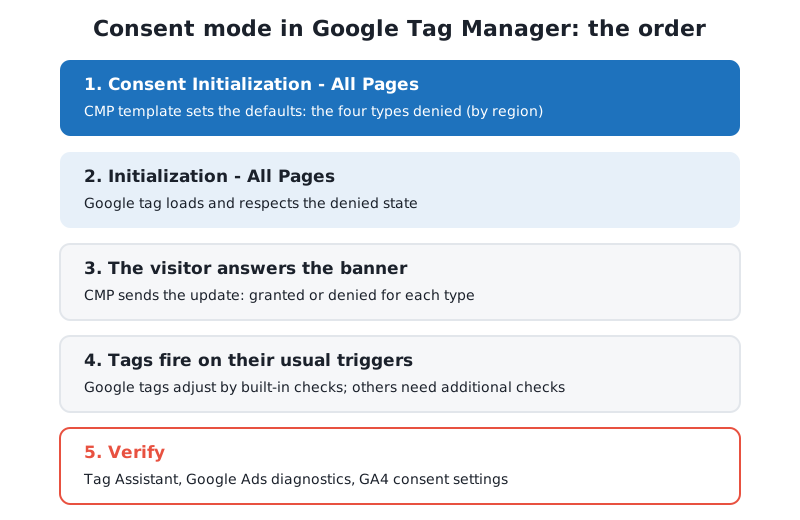
This is the order everything has to happen in:
If you’re new to Tag Manager, start with what Google Tag Manager is and what it’s used for.
Step 1: Turn on the consent overview
- In Tag Manager, go to Admin → Container Settings.
- Under Additional Settings, tick Enable consent overview and save.
You now have a Consent Overview icon at the top of the Tags list, which shows every tag and whether its consent is configured.
Step 2: Add your CMP’s template on the Consent Initialization trigger
- Go to Tags → New → Tag Configuration and choose Discover more tag types in the Community Template Gallery.
- Search for your CMP (for example, “Cookiebot CMP” or “Usercentrics”) and add its official template.
- Enter your CMP’s ID and settings.
- Set the default consent state: the four Consent Mode types
deniedfor visitors in the EEA, UK and Switzerland (most templates have a region field taking ISO codes such asES,GB,CH, or let you set regions in the CMP dashboard). Outside those regions, set the default your legal advice allows. - Under Triggering, choose Consent Initialization - All Pages. Every web container has this trigger, and it fires before every other trigger, including Initialization.
- Save.
The template sets the default, shows the banner, and sends the update when the visitor chooses. Don’t write your own gtag('consent', 'update', ...) in a Custom HTML tag alongside a template: Google warns gtag commands are queued and may not be processed before the next event. If you build your own template, it uses Tag Manager’s setDefaultConsentState and updateConsentState APIs.
If your CMP is installed outside Tag Manager (in your website’s code or a plugin), the default command must run before the GTM container snippet, at the top of the <head>. Your CMP’s documentation will show the exact code.
Step 3: Check the Google tag and Google tags
- Open your Google tag (the tag that loads GA4 and, if you use it, Google Ads), which fires on Initialization - All Pages. If you haven’t set it up yet, see how to install the GA4 tag with Google Tag Manager.
- Go to Advanced Settings → Consent Settings. Under built-in consent checks you’ll see
ad_storageandanalytics_storage(and the v2 types), which the tag reads by itself. - For advanced consent mode, set Additional Consent Checks to No additional consent required. The tag loads, respects the denied state and sends cookieless pings.
- For basic consent mode, set it to Require additional consent for tag to fire and add
analytics_storage(for GA4) orad_storage(for Google Ads), and make sure the tag can fire again after consent (most CMP templates push a consent event to the data layer you can use as a trigger). - Do the same for your GA4 event tags, Google Ads conversion tracking and remarketing tags, and the Conversion Linker.
The Conversion Linker matters more than people think: with consent mode it helps keep ad click information. If you need it across domains, see the Conversion Linker tag explained.
Step 4: Block non-Google tags without consent
Tags without built-in consent support fire regardless of the banner unless you stop them:
- Open the Consent Overview.
- Select the non-Google tags (Meta pixel, LinkedIn Insight, TikTok, Microsoft UET, heatmaps).
- Click Edit Consent Settings, choose Require additional consent for tag to fire, add
ad_storagefor advertising tags oranalytics_storagefor analytics tools, and save.
A tag that requires consent only fires if it’s granted at the moment its trigger fires. If the visitor accepts after the page view, you need a trigger on your CMP’s consent event for those tags to fire on that page. Some vendors (Microsoft, for one) also have their own consent mode, which your CMP template may handle.
Step 5: Optional advanced settings
- URL passthrough (
url_passthrough): passes ad click information through page URLs whenad_storageis denied, so conversions can still be attributed. In Tag Manager, enable it in the Google tag (or consistently on all Google tags), and for Google Ads tags use a Conversion Linker with Enable linking on all page URLs. Many CMP templates have a checkbox for it. - Ads data redaction (
ads_data_redaction): redacts ad click identifiers whenad_storageis denied. Only has an effect then. - wait_for_update: milliseconds tags wait for the update when your CMP loads asynchronously. Templates usually set this for you.
Step 6: Preview, test and publish
- Click Preview and open your site in Tag Assistant.
- Before you click anything in the banner, open the Consent tab: On-page Default should show
Deniedfor the four types (in the regions you set to denied). - Accept in the banner: On-page Update should change to
Granted. - Check the Tags tab: Google tags fired, non-Google tags fired only after consent.
- Test again in a private window and decline: non-Google tags must not fire.
- Submit and publish the container.
To test as a European visitor from elsewhere, use a VPN, or temporarily set the default to denied for your own region.
How to verify Consent Mode in Google Ads and GA4
Google Ads: go to Goals → Conversions → Summary, open a website conversion action and its Diagnostics tab. You’ll see one of:
- Consent mode is implemented: working, but modelling thresholds aren’t met yet (700 ad clicks over 7 days per domain and country).
- Consent mode is implemented and modeling is active: with uplift figures per domain and country for 4 weeks after modelling starts.
The status can take 48 hours to appear, occasionally up to two weeks. Impact results need at least 7 full days.
GA4: go to Admin → Data collection and modification → Consent settings. It shows the share of your traffic from the EEA, and for each data stream whether advertising consent signals (ad_user_data, ad_personalization) and analytics signals are being received. After a fix, the notices take 48–72 hours to update.
What Consent Mode means for your conversions and remarketing
- Conversions. Google Ads fills gaps from visitors who declined with modelled conversions. Advanced mode gives a model specific to your account; basic mode a general one. Either way, modelled conversions are an estimate, which is one reason Google Ads and GA4 numbers differ (see conversion discrepancies between Google Ads and GA4).
- GA4. Behavioural modelling estimates the behaviour of visitors who declined analytics, but only with advanced mode, at least 1,000 events a day with
analytics_storagedenied for 7 days, and at least 1,000 daily users with it granted on 7 of the last 28 days. It shows when Reporting identity is set to Blended. Small sites rarely qualify. - Remarketing. Visitors who deny
ad_personalization(orad_user_data) are not added to remarketing lists. Modelling does not replace them. Expect EEA lists to be smaller than they were before consent banners.
Common mistakes I see
- Banner with no Consent Mode. The banner shows, the visitor declines, and the CMP blocks or allows tags, but no signal reaches Google. Google Ads and GA4 then warn that consent signals are missing.
- Only the two old parameters. An implementation from before 2024 that sets
ad_storageandanalytics_storagebut notad_user_dataandad_personalization. Remarketing and Customer Match break for EEA users. - Default set too late. The default fires on a page view trigger or after the Google tag. It must be on Consent Initialization - All Pages (or in code before the GTM snippet).
- Everything granted by default in the EEA. It “fixes” the data and breaks the policy the whole setup exists for.
- Two banners or two defaults. A WordPress plugin and a GTM template both setting consent, with different values. Pick one.
- Non-Google tags left unblocked. Consent Mode only controls Google tags. Meta, LinkedIn and heatmap tags need their own consent checks.
- Never tested after declining. Everyone tests by clicking Accept. Test Decline too, in a clean private window.
FAQ
Is Consent Mode v2 mandatory?
For advertisers with visitors in the EEA, UK or Switzerland who use Google Ads or GA4 for measurement, personalization or remarketing, yes: Google requires consent signals for those visitors. Elsewhere it’s optional under Google’s policy, though local law may require a banner.
What is the difference between Consent Mode v1 and v2?
Version 2 added ad_user_data and ad_personalization to the original ad_storage and analytics_storage. Both new signals are needed for personalized advertising and remarketing.
Should I use basic or advanced consent mode?
Advanced gives better modelling and allows GA4 behavioural modelling, because Google tags load and send cookieless pings before consent. Basic sends nothing until the visitor accepts. Choose with your privacy adviser.
Does Consent Mode replace a cookie banner?
No. Consent Mode passes the choice from your banner to Google tags. You still need a banner, usually from a CMP.
How long until Google Ads shows consent mode is working?
Usually 48 hours, sometimes up to two weeks. Modelling needs 700 ad clicks over 7 days per domain and country before it becomes active.
Need help with Consent Mode v2?
I set up and audit Consent Mode with Google Tag Manager, GA4 and Google Ads, and I test it the way visitors use it: accepting, declining and changing their minds. If your consent signals are missing or your EEA conversions dropped, get in touch about a Tag Manager and GA4 setup and I’ll find out why.