Enhanced conversions for leads: setup and why it matters (2026)
 Daniel Timponi · November 15, 2026
Enhanced conversions for leads lets Google Ads credit the sales that happen after a form submission, in your CRM or on the phone, to the ad click that brought the lead. Your website sends Google a hashed email or phone number when the form is submitted, and later you import the qualified or closed lead with the same hashed data. Google calls it an upgraded version of offline conversion import, and for lead generation businesses it’s one of the most valuable tracking improvements you can make in 2026.
Not sure Google Ads knows which leads turn into customers? I set up offline and CRM conversion tracking for Google Ads, GA4 and Tag Manager. See my conversion tracking service.
Why it matters
A form submission isn’t a sale. If Google Ads only sees form fills, Smart Bidding optimizes for whoever fills in forms, including spam, students and people outside your service area. When you send back which leads became qualified or became customers, the bidding learns from those instead.
Offline conversion import has done this for years by matching a GCLID (the Google click ID added to your landing page URL). But GCLIDs get lost: the form doesn’t capture them, a redirect strips them, the visitor comes back later from another device, or the CRM field is never filled in. Enhanced conversions for leads adds a second match key, the visitor’s own email or phone, which survives all of those.
How enhanced conversions for leads works
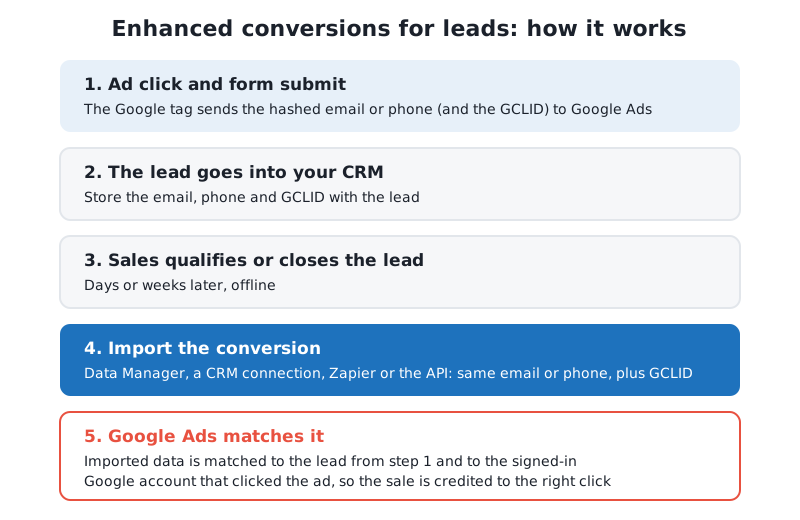
- Someone clicks your ad and submits a form on your website.
- The Google tag (directly or through Tag Manager) sends Google Ads a SHA-256 hash of the email address or phone number. The raw value never leaves the browser in readable form.
- The lead is stored in your CRM with its email, phone and, ideally, the GCLID.
- When the lead becomes qualified or closes, you import that conversion with the same email or phone.
- Google matches the imported data to the lead from step 2 and to signed-in Google accounts that engaged with your ad.
Enhanced conversions for leads vs enhanced conversions for web
- Enhanced conversions for web improves a conversion that happens on your website, such as a purchase: the hashed customer data is sent with that conversion tag.
- Enhanced conversions for leads improves a conversion that happens after the visit, offline: the hashed data is sent when the lead is captured, and the real conversion is imported later.
Since April 2026 Google Ads has combined the two into one enhanced conversions setting, and it accepts user-provided data from website tags, Data Manager and API connections at the same time. You no longer pick an implementation method in the account. Accounts that had already accepted the customer data terms were moved to the new setting automatically.
What happened to GCLID offline conversion import?
It still works, but Google now presents enhanced conversions for leads as its upgrade and recommends that anyone using offline conversion import upgrade. Two things changed in 2026:
- Uploads moved to Data Manager. From June 15, 2026, offline conversion imports and enhanced conversions for leads uploads go through the Data Manager API and are blocked in the Google Ads API (developer tokens with no requests between January and June 2026 weren’t allowlisted for legacy access). If a developer or tool uploaded your conversions through the Google Ads API, check it was updated.
- GCLIDs are still useful. Google recommends sending the GCLID along with the email or phone whenever you have it, because it ties the conversion to a specific ad click. GCLIDs are only required if you don’t use a tag to collect user-provided data.
If you’ve been uploading spreadsheets of GCLIDs by hand, see Google Ads CSV files explained for the format, and plan a move to a scheduled Data Manager connection.
Requirements
- Auto-tagging turned on in Google Ads.
- A lead form that collects an email address and/or phone number.
- The customer data terms accepted in Google Ads (in a manager account if it owns your conversion tracking).
- An identifier on every imported conversion: email, phone or address, ideally with the GCLID.
- Phone numbers in E.164 format with the country code (for example,
+13035550123). - The conversion time in an accepted format, and a conversion goal. Google recommends the Qualified lead or Converted lead goals.
Step 1: Turn on enhanced conversions in Google Ads
- In Google Ads, go to Goals → Settings.
- Expand Customer data use and tick Turn on enhanced conversions.
- Read and accept the customer data terms, then save.
You can also turn it on for a single conversion action, and opt out per conversion action later.
Step 2: Capture the email or phone on your website
With Google Tag Manager
- Make sure you have a Conversion Linker tag firing on all pages (or at least the landing pages from your ads).
- Go to Tags → New and choose Google Ads User-Provided Data Event.
- Enter your Google Ads conversion ID in Conversion ID.
- Under User-provided data, create a new User-Provided Data variable and choose a type:
- Automatic: Tag Manager finds the data on the page. Simplest, but it doesn’t collect phone numbers.
- Manual: for each field, a DOM Element variable pointing at the form input by CSS selector or ID.
- Code: for each field, a Data Layer Variable your developer fills when the form is submitted. The most reliable on custom forms.
- Trigger the tag after the form is successfully submitted (a form submission trigger, or better, a custom event your form pushes on success).
- Click Preview, submit a test form and check the tag is under Tags Fired. In Chrome DevTools, the Network tab should show a request to
google.com/pagead/form-data/with anemparameter holding the hashed value. - Submit and publish the container.
If you already send GA4 and Google Ads data through a server container, the same User-Provided Data variable can go on the Google tag as user_data, and Google says the data is then encrypted before it reaches Google (see server-side tagging with Google Tag Manager).
With the Google tag only
In the Google tag’s settings you can turn on automatic detection of form interactions, or set the data in code with gtag('set', 'user_data', {...}) before the form’s conversion event. Use the code option on any form that matters: automatic detection guesses.
Step 3: Send the qualified leads back
Store the email, phone and GCLID with each lead in your CRM (a hidden GCLID field on the form does this). Then, when a lead reaches the stage you care about, import it. To create the import:
- Go to Goals → Summary → + New conversion action → Import.
- Choose CRMs, files, or other data sources and connect a source.
- Accept the customer data policy, pick the goal (Qualified lead or Converted lead) and set up the connection.
- Map your fields (email, phone, GCLID, conversion time, value) and finish. Connections you’ve made are also listed under Tools → Data manager.
The sources you can connect include:
| Source | How it imports |
|---|---|
| Google Sheets, files (SFTP, HTTP), Google Cloud Storage, Amazon S3 | Scheduled; each run imports conversions from the last 90 days |
| HubSpot, Salesforce (direct connections) | Last 14 days on the first run, then everything changed since the last run |
| BigQuery, Snowflake, Redshift, MySQL, PostgreSQL | Each run imports the last 14 days |
| Zapier | For other CRMs; Zapier’s own fees may apply |
| Data Manager API | For developers and tools that upload directly |
Hashing: the Google tag normalizes and hashes for you. If you or your developer hash data for a file or the API, follow Google’s rules: trim spaces, lowercase emails, remove dots before @gmail.com and @googlemail.com, format phones in E.164, then SHA-256 in hex. You can send up to three emails or phones per conversion.
A closed sale often goes in with a value. If you also track calls offline, the same thinking applies there: see how to track offline phone call conversions in GA4.
Consent
Enhanced conversions sends customer data to Google, so consent rules apply in full:
- You must accept Google’s customer data terms, and comply with its EU user consent policy for visitors in the EEA, the UK and Switzerland.
- On the website, Consent Mode v2 needs to pass
ad_user_datacorrectly, and your privacy policy should say you share data with Google for ads measurement. - In imports, Google highly recommends filling the consent field; conversions without consent information may not be attributable.
Check the diagnostics
Go to Goals → Summary, hover over the conversion action’s status and select Diagnostics (or open the Diagnostics tab and View Diagnostics on the enhanced conversions card). The status reads Excellent, Good, Needs attention or Urgent, with alerts such as:
- Google tag not firing on the site or the lead form.
- Google tag not capturing user-provided data, often because the form isn’t recognized.
- Missing user-provided data on some imported conversions.
- No attempted imports: the tag works but nothing has been imported.
- No user-provided data matches: usually hashing or normalization errors, or a different email in the CRM than the one on the form.
Alerts use the last day of data, or the last seven days if one day isn’t enough. The report is most useful with at least 20 conversions a week.
Common mistakes I see
- Tag fires on click, not on success. The hashed email is sent when someone presses Submit, even when the form shows an error. Trigger on a successful submission.
- Phone without a country code.
(303) 555-0123in the CRM doesn’t match+13035550123. Format phones in E.164 before import. - Dropping the GCLID. Teams switch to email matching and stop capturing the GCLID. Keep both.
- Importing the form fill again. The import should be a later stage (qualified, booked, won), not a second copy of the website lead, or you double count.
- Switching bidding overnight. Run the new imported conversion as a secondary action first, then make it primary for bidding once enough conversions have arrived. Google’s upgrade guide suggests running old and new side by side for a few weeks.
- Nobody updates the CRM. The import is only as good as the lead statuses. If sales never marks leads as qualified, there’s nothing to send.
FAQ
Is enhanced conversions for leads the same as offline conversion import?
It’s Google’s upgraded version of it. Offline conversion import matches on the GCLID; enhanced conversions for leads also matches on hashed email or phone, so more offline conversions can be credited to the right click.
Do I still need the GCLID?
Google recommends sending it whenever you have it. It’s only required if you don’t use a tag to collect user-provided data.
Can I set it up without Google Tag Manager?
Yes. You can use the Google tag directly, or import with only GCLIDs and user data from your CRM. Tag Manager is simply the easiest way to control when the data is sent.
Which CRMs work with it?
HubSpot and Salesforce have direct connections in Data Manager; other CRMs can use Zapier, scheduled files, Google Sheets, a data warehouse or the Data Manager API.
Is my customers’ data safe?
The data is hashed with SHA-256 before it’s sent, and Google uses it for matching under its customer data policies. You still need consent where the law requires it and a privacy policy that discloses it.
Need help with enhanced conversions for leads?
I connect lead forms, CRMs and Google Ads so the bidding learns from customers, not form fills, and I check the match rates after launch. If your leads close offline and Google Ads can’t see it, let’s look at your conversion tracking.