Google Ads conversion tracking not working? How to find and fix it (2026)
 Daniel Timponi · November 15, 2026
When Google Ads conversion tracking stops working, the cause is almost always in one of five places: the click ID never reaches your website, the conversion linker or consent setup stops it being stored, the conversion tag doesn’t fire on the real conversion, the tag fires with the wrong conversion ID or label, or the conversion is recorded but you’re looking at the wrong column or too early. Start with the conversion action’s status in Goals → Summary, then test the whole path with Tag Assistant until you find the step that fails.
Are your Google Ads conversions missing or wrong? I find and fix broken tracking in Google Ads, GA4, Tag Manager, Meta, CallRail and CRMs, tested end to end. See my conversion tracking service.
First, read the status Google Ads gives you
Go to Goals → Summary and look at the Status column of each conversion action. Hover over a status to see Google’s own explanation and next steps. In July 2026 Google changed the names of these statuses, so older guides (and screenshots in this blog’s older posts) may show different words.
| Status (2026) | What it means | What to do |
|---|---|---|
| Active | Recording normally | Nothing, unless the numbers look wrong |
| Needs attention | Still recording, but Google found issues | Hover for details, or open View all issues |
| Misconfigured | Recording has stopped because of a setup error or a broken tag | Treat as urgent; test with Tag Assistant today |
| Awaiting conversions | No conversions in the last 7 days | Check whether the action is under 48 hours old, campaigns are paused or traffic is low |
| Removed | The action was deleted or archived | Nothing records here any more |
The older labels you may still see in some places are Unverified (the tag has never fired), Tag inactive or Inactive (Google no longer sees the tag) and No recent conversions. They map roughly to Misconfigured and Awaiting conversions.
Two things a status will not tell you: whether the tag fires on the right event, and whether it fires twice. A conversion action can be Active and still count page views of your contact page as leads. That’s why the next step is to test the path yourself.
How a conversion travels, and where it breaks
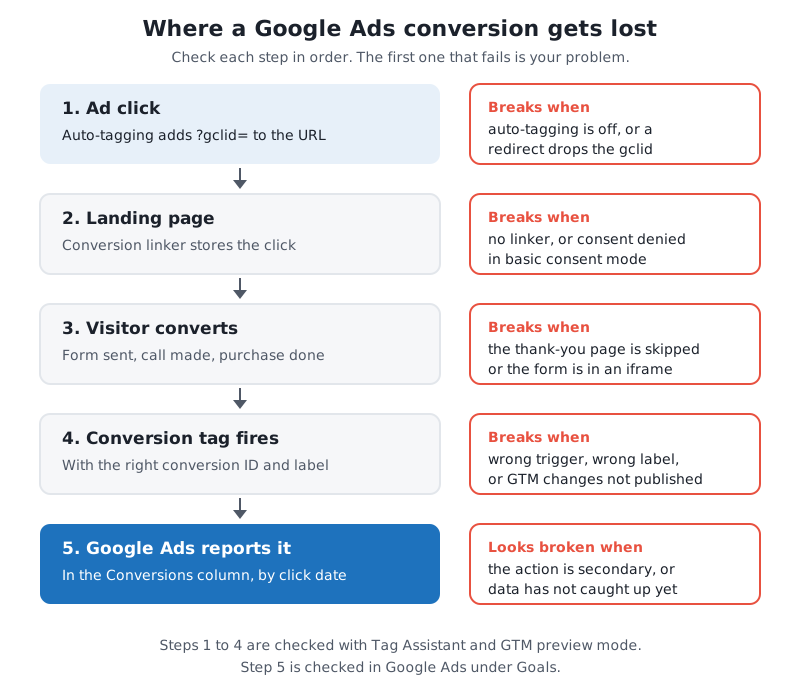
Work through these checks in order. The first one that fails is usually the whole problem.
Step-by-step diagnosis
1. Test the conversion with Tag Assistant
- Open Tag Assistant in Chrome and click Add domain, then enter your landing page URL. If your tags live in Google Tag Manager, use Preview in your GTM container instead; it opens the same Tag Assistant debugger.
- Complete the conversion yourself: fill in the form, reach the thank-you page, click the phone number, whatever the action is.
- In Tag Assistant, open the event where the conversion should happen and check that the Google Ads conversion tag fired once, with the right conversion ID (the
AW-number) and conversion label.
From the conversions summary, Google Ads can also launch Tag Assistant directly for an action with a problem status.
If the tag doesn’t fire at all, the problem is the trigger or the tag install. If it fires with the wrong ID or label, it is sending conversions to another action, or to another account entirely.
2. Check auto-tagging and the gclid
Google Ads credits a conversion to a click through the click ID (gclid) that auto-tagging adds to your landing page URL.
- Confirm auto-tagging is on: Admin → Account settings → Auto-tagging.
- Click one of your own ads (or add a test
?gclid=value to your landing page URL) and watch the address bar after the page loads. If thegclidis gone, a redirect removed it.
The usual culprits are a redirect from http to https or from www to the bare domain that drops query strings, a page builder or plugin that “cleans” URLs, a landing page that sends visitors on to another domain, or a final URL that points at a page which redirects. Fix the redirect, or point the ad at the final address directly. If the conversion happens on a second domain (a booking engine, a separate checkout), the click has to be carried across domains too.
3. Check the conversion linker
The conversion linker stores the click information in first-party cookies so the conversion tag can find it later, even if the visitor converts on another page.
- With Google Tag Manager: you need a Conversion Linker tag firing on All Pages. Missing it is one of the most common faults I find in GTM setups, and the conversion tag still “fires” in preview, so it looks fine.
- With the Google tag (formerly gtag.js) installed directly on the site, the linker is built in.
If you’re unsure which setup you have, I explained the difference in Google Tag Manager vs the Google tag.
4. Check consent mode
If your site has a cookie banner, consent decides whether tags can store or read cookies.
- In basic consent mode, Google tags don’t load at all until the visitor accepts. A visitor who declines or ignores the banner is never counted.
- In advanced consent mode, tags send cookieless pings when consent is denied, and Google models some of the missing conversions.
A sudden drop in conversions the week a new banner went live is almost always this. Check that the banner actually updates consent when someone accepts (Tag Assistant shows the consent state on each event), and that the conversion tag isn’t blocked by an extra consent condition someone added in GTM. My Consent Mode v2 setup guide walks through this in GTM.
5. Check the trigger: right page, right moment
Most “tracking not working” cases I see are really “tracking firing on the wrong thing”.
- The trigger is on the wrong page. The tag fires on
/contact/(where the form is) instead of/thank-you/(after it’s sent), so every visit counts. Or the opposite: the thank-you URL changed and the trigger still waits for the old one. - The thank-you page is skipped. Many forms now show a “Thanks, we’ll be in touch” message on the same page instead of redirecting. A page-view trigger never fires. Use the form’s own success event, a dataLayer push, or an element-visibility trigger on the success message instead.
- The form is in an iframe. Forms embedded from HubSpot, Calendly, Typeform, JotForm and booking widgets run on another domain inside the page, so GTM on your site can’t see the submission. Use the tool’s own event (many send a
postMessageyou can listen for) or its built-in Google Ads integration, and check it doesn’t then count twice. - GTM changes were never published. Preview mode shows your workspace; visitors get the last published version. Check the Versions tab.
6. Check the conversion ID and label
Copy the conversion ID and label again from the conversion action itself (Goals → Summary, open the action, Tag setup) and compare them, character by character, with what Tag Assistant showed. Mismatches come from copying a label from a deleted action, from a second Google Ads account (or a test account), or from an agency that rebuilt the account.
7. Check enhanced conversions diagnostics
If you use enhanced conversions, open the Diagnostics tab in Goals → Summary (or the diagnostics for one action from its status). It shows whether hashed user data is being sent, the coverage and match rate, and specific issues. Low coverage usually means the email or phone field isn’t being captured on some forms. For lead forms, see enhanced conversions for leads explained.
8. If you import GA4 key events, check GA4 first
When the conversion action is imported from Google Analytics 4 rather than tagged directly, the tag can’t be the problem in Google Ads; GA4 is.
- Confirm the event is marked as a key event in GA4 and that it appears in GA4’s own reports.
- Confirm Google Ads and GA4 are linked and auto-tagging is on.
- Allow for the delay. Google’s data freshness page lists 12 hours for conversions imported from Google Analytics with last-click attribution and 24 hours with other models, against 3 hours and 15 hours for Google Ads’ own tag.
Imported GA4 key events and Google Ads’ own conversions also count differently, so the two will never match exactly. I explained why in GA4 key events vs Google Ads conversions.
9. Check primary vs secondary
A conversion action set to Secondary (observe only) records conversions, but they show only in the All conversions column, not Conversions, and bidding ignores them. If the status is Active but the Conversions column is empty, check the action’s goal and whether it’s primary. Also check the campaign’s goal settings: a campaign set to use account-default goals won’t optimize toward a goal you’ve excluded from the defaults.
10. Check the date, the window and the attribution delay
Some conversions aren’t missing, just not there yet.
- Conversions are reported on the date of the click, not the date of the conversion. A lead today from a click two weeks ago lands two weeks back in your report.
- The click-through conversion window (30 days by default) limits how late a conversion can count. A sale on day 45 against a 30-day window is never recorded.
- Data freshness depends on the attribution model, as above. Don’t judge yesterday’s numbers in the morning.
Symptom → likely cause
| What you see | Most likely cause | Where to look |
|---|---|---|
| Status Misconfigured, zero conversions | Tag removed in a site redesign, GTM container not published, or wrong conversion ID | Tag Assistant, GTM Versions |
| Status Awaiting conversions on a new action | Action under 48 hours old, or no real conversions yet | Wait, then test a conversion yourself |
| Conversions dropped suddenly | New cookie banner, site redesign, form plugin change, or a redirect added | Consent state in Tag Assistant, gclid in the URL |
| Leads in your inbox, none in Google Ads | Form shows an inline message (no thank-you page), form in an iframe, or gclid stripped | Trigger type, iframe, redirects |
| Far more conversions than leads | Tag fires on the form page or on every page, or fires twice | Trigger, duplicate tags (GTM plus a plugin) |
| Conversions in All conversions only | Action set to secondary, or excluded from campaign goals | Goals → Summary, campaign goal settings |
| Google Ads lower than GA4 | Different attribution and counting, consent, or GA4 counting all channels | Normal to a degree; compare like for like |
| Imported GA4 action shows nothing | Event not a key event, accounts not linked, or still within the delay | GA4 Admin → Data display → Key events, product links |
| Low enhanced conversions coverage | Email or phone not captured on some forms | Diagnostics tab |
| Phone leads missing | Only website clicks on the number are tracked, not calls from the ad | Call conversion setup or call tracking |
Common mistakes I see
- Two tags for one conversion. A plugin, Shopify’s or WordPress’s own integration and a GTM tag all send the same purchase. The conversion is counted two or three times and Smart Bidding chases a number that isn’t real.
- Counting “Every” for leads. For lead forms the count setting should usually be One, or a person who submits twice is two leads.
- Testing only in preview. Preview mode bypasses the published container and often the cookie banner. Always test the live site in a private window, accepting and declining consent.
- Calling it fixed without checking Google Ads. Tag Assistant proves the tag fired. Only a conversion appearing in Google Ads a few hours later proves it was credited to a click.
- No checks after website changes. Most breakages I find started the day a developer changed the form, the theme or the thank-you URL. Re-test conversions after every release.
If your tracking works but your leads still don’t tell Google which ones became customers, the next step is offline conversion import.
FAQ
Why does Google Ads say “Awaiting conversions”?
No conversions were recorded for that action in the last 7 days. It’s normal for an action created in the last 48 hours, paused campaigns or very low traffic. If none of those apply, test the conversion with Tag Assistant.
How long do Google Ads conversions take to show up?
For Google Ads’ own tag, Google lists about 3 hours with last-click attribution and 15 hours with other models. Conversions imported from Google Analytics take longer, around 12 to 24 hours. Then remember they appear on the date of the click.
Why is my tag firing but no conversions appear?
The usual reasons are the wrong conversion ID or label, a missing conversion linker, a gclid lost to a redirect, the visitor not coming from an ad click, or the action being secondary so it only shows in All conversions.
Do I need the Conversion Linker tag in Google Tag Manager?
Yes, if your Google Ads conversion tags are in GTM. Add one Conversion Linker tag firing on all pages. The Google tag installed directly on the site includes it.
Can a cookie banner stop Google Ads conversion tracking?
Yes. In basic consent mode, tags don’t run until the visitor accepts, so declined visitors aren’t counted. Advanced consent mode sends cookieless pings and lets Google model part of the gap.
Need help fixing your conversion tracking?
I test the full path from ad click to conversion in Google Ads, GA4 and Tag Manager, find what’s broken and fix it, so your bidding learns from real leads. Get your conversion tracking reviewed, or book a call and we’ll look at your account together.