Meta Conversions API (CAPI): what it is and how to set it up (2026)
 Daniel Timponi · November 15, 2026
The Meta Conversions API (CAPI) sends your website’s events, such as leads and purchases, to Meta from your server instead of from the visitor’s browser. Meta recommends running it alongside the Meta Pixel, with the same event ID on both copies so each conversion is counted once. You can set it up in minutes through Meta’s own one-click option or a platform integration like Shopify’s, or build it yourself with the Conversions API Gateway, server-side Google Tag Manager or a direct integration.
Not sure your Meta ads are counting every lead, once? I set up and audit Meta Pixel and Conversions API tracking alongside Google Ads, GA4 and your CRM. See my conversion tracking service.
Pixel vs Conversions API
The Meta Pixel is a script in the visitor’s browser. When someone submits a form or buys, the browser sends the event to Meta. It’s quick to install, but it depends on the browser: ad blockers, privacy features, slow pages and visitors who close the tab early all cost you events.
The Conversions API sends the event from a server: your website’s backend, your store platform, your CRM or a tagging server. The browser can’t block it, and you decide exactly which data goes with it.
| Meta Pixel | Conversions API | |
|---|---|---|
| Runs in | The visitor’s browser | A server you or a partner run |
| Affected by ad blockers and browser privacy | Yes | No (but consent still applies) |
| Can send events that happen off the website | No | Yes, such as a CRM stage or an in-store sale |
| Setup effort | Low | Low to high, depending on the method |
| Matching data | Cookies and whatever the browser has | Hashed email and phone, IP, user agent, fbp, fbc and more |
Meta’s own recommendation is a redundant setup: keep the pixel and send the same events through the Conversions API as well. The pixel still contributes browser signals the server can’t see on its own, and the API fills the gaps the browser leaves. In its April 2026 announcement, Meta said advertisers using the Conversions API for web events saw an average 17.8% lower cost per result than those without it; that’s Meta’s average, not a promise for your account.
Why deduplication is not optional
If the pixel and the server both send “Lead” for the same form submission and Meta can’t tell they’re the same lead, you get two leads in Ads Manager. Your cost per lead halves on paper, and the algorithm optimizes towards a number that isn’t real.
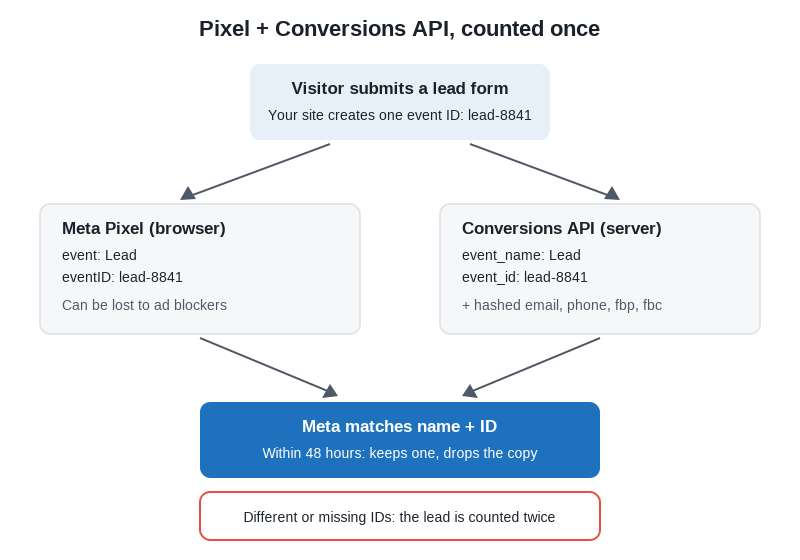
Meta’s recommended method:
- Generate one unique ID per event on your site (an order number or a random ID created when the form is submitted).
- Send it as
eventIDon the pixel event and asevent_idon the server event. - Use the same event name on both, for example
LeadandLead, notLeadandlead_submitted.
Meta deduplicates matching events received within 48 hours of the first one, and generally keeps whichever arrived first. There’s a fallback that matches on event_name plus fbp or external_id, but it only works reliably when the browser event arrives first, so treat it as a backup, not the plan.
Setup options in 2026
Every method below ends in the same place: events in Events Manager under your dataset (Meta’s name for the container of your pixel and server events; the ID is your pixel ID). Pick by platform and by how much control you need.
1. Meta-enabled Conversions API (one click)
In April 2026 Meta launched a one-click Conversions API setup for web, which Meta runs for you: no server, no code, no cost. Meta pitches it at businesses with low event coverage or no technical team. It’s the quickest way to start, with the least control over what’s sent. If you already use a partner or custom setup, Meta says nothing changes.
2. Partner integrations (Shopify, WordPress, WooCommerce and others)
If your site runs on a platform with a Meta integration, this is usually the best first choice, because the platform already knows the order, the customer and the event ID.
- Shopify: the Facebook & Instagram sales channel app. In Sales channels → Facebook & Instagram → Settings → Data sharing settings, choose a customer data-sharing level. Maximum uses the Conversions API together with the pixel.
- WordPress: Meta’s official Meta pixel for WordPress plugin includes Conversions API support and connects through the Facebook Business Extension.
- WooCommerce, Wix, Squarespace, HubSpot and others have their own integrations; check each one’s documentation, because some send only purchases and not leads.
The catch: a partner integration plus a pixel someone added in Google Tag Manager is the classic double count. Choose one source per event.
3. Conversions API Gateway
The Conversions API Gateway is Meta’s self-hosted option: a small server that Meta’s setup deploys in your own cloud account and that forwards pixel events to the Conversions API automatically, with no code.
- In Events Manager, open your dataset and go to the Settings tab.
- Under Set up with Conversions API Gateway, click Get started.
- Choose your cloud setup and hosting region, then follow the flow into AWS, which creates the stack (Meta says this takes about 30 to 40 minutes).
- Add a custom subdomain at your DNS provider, which Meta recommends.
You pay your cloud provider’s hosting costs. Some managed hosting providers also offer it as a service. It mirrors what the pixel sees, so it improves reliability but can’t add events that never happen in the browser.
4. Server-side Google Tag Manager
If you already run (or plan to run) a server-side GTM container, Meta documents a Conversions API tag for it, installed from the server container’s template gallery. Your website sends events to your tagging server once, and the server forwards them to Meta, GA4 and Google Ads. This gives you the most control over what is sent and lets you add data from the server, at the cost of hosting a tagging server. I explained the costs and trade-offs in server-side tagging with Google Tag Manager.
5. Direct integration
Your developer calls the Conversions API from your own backend, using a dataset ID and an access token generated in Events Manager (Settings → Conversions API → Generate access token). It’s the right choice for custom-built sites, apps, and for sending events that happen after the website, such as a lead marked qualified in your CRM. It’s also the one that needs maintenance when Meta’s API versions change.
Event Match Quality and customer information
Every server event needs to be matched to a Meta account to be useful. Meta shows how well that’s going as Event Match Quality (EMQ), a score out of 10 for each event in Events Manager. Higher is better, and Meta lists which parameters you could add to raise it.
The customer information parameters that matter most for website events:
| Parameter | What it is | Hash it? |
|---|---|---|
em | Yes, SHA-256 | |
ph | Phone, digits with country code | Yes, SHA-256 |
fn, ln | First and last name | Yes |
ct, st, zp, country | City, state, zip, country | Yes |
external_id | Your own customer or lead ID | Recommended |
client_ip_address | Visitor’s IP | Never |
client_user_agent | Visitor’s browser | No (required for website events) |
fbp | Meta’s browser ID cookie (_fbp) | No |
fbc | Meta’s click ID cookie (_fbc, from fbclid) | No |
Normalize before hashing: an email is trimmed and lowercased; a phone keeps only digits and includes the country code ((650) 555-1212 in the US becomes 16505551212). Partner integrations and the Gateway do this for you. In a direct or server-side GTM setup, it’s where most mistakes happen.
How to test in Events Manager
- In Events Manager, open your dataset and click Test events.
- For server events, copy the test event code and send it with your server events (the
test_event_codeparameter, or the test field in your GTM tag or plugin). For browser events, enter your site’s URL and open it from there. - Complete a real conversion on your site.
- Check that the event appears from both the browser and the server, and that Meta marks the pair as deduplicated.
- Remove the test code when you’re done, so live events aren’t treated as tests.
Then, after a day or two of real traffic, check the Overview tab: the event’s EMQ, the share of events coming from the server and any diagnostics Meta raises.
Common mistakes I see
- No deduplication. Pixel and server send the same lead with no shared event ID, or with different event names. Leads double overnight and everyone celebrates for a week.
- Two integrations sending the same event. A Shopify or WordPress integration plus a manually added pixel plus a server-side tag. Pick one source per event.
- Missing
fbpandfbc. The server event goes out without Meta’s browser and click cookies, so it can’t be tied to the ad click and EMQ stays low. Read both cookies when the form is submitted and pass them through with the lead. - Hashing what shouldn’t be hashed (the IP address) or not normalizing before hashing (uppercase emails, phones without country codes).
- Ignoring consent. The server isn’t a way around your cookie banner. If a visitor declines marketing cookies, your server should respect that decision just as the pixel does; on the pixel side, Meta provides a consent command for this.
- The wrong business portfolio. Meta Business Manager is now the business portfolio, managed in Meta Business Suite. The dataset, the ad account and the access token must belong to the same portfolio, or a partner needs access to it. I covered the basics in setting up your Meta business portfolio.
- Sending only purchases. For lead generation, the events that matter are
Leadand whatever happens next in the CRM. The server is exactly where you can send “qualified” or “closed” stages back.
The same idea applies on the Google side: if your leads close in a CRM, Google Ads can learn from them too through offline conversion import.
FAQ
Do I still need the Meta Pixel if I use the Conversions API?
Meta recommends keeping both, sending the same events from each with a shared event ID for deduplication. The pixel adds browser signals; the server makes delivery reliable.
Is the Meta Conversions API free?
The API itself is free. Meta’s one-click setup and most platform integrations cost nothing extra. The Conversions API Gateway and server-side GTM run on servers you pay for, and a direct integration costs development time.
What is a good Event Match Quality score?
Meta scores EMQ out of 10 and doesn’t publish a single target. Use the parameters Events Manager suggests for each event; sending a hashed email, phone, fbp, fbc, IP and user agent covers most of what it asks for.
Why are my Meta leads counted twice?
Almost always missing deduplication: the pixel and the server send the same event without the same event_id, or under different event names, or two integrations send the same event.
Can the Conversions API send CRM events like qualified leads?
Yes. With a direct integration or a CRM that integrates with Meta, you can send later stages, such as a qualified lead or a sale, from the server, which helps Meta optimize for lead quality rather than form fills.
Need help setting up the Conversions API?
I set up Meta Pixel and Conversions API tracking with proper deduplication, connect it to your forms and CRM, and test it in Events Manager before you rely on it, alongside your Google Ads and GA4 tracking. Get your conversion tracking set up.