Server-side tagging with Google Tag Manager: is it worth it? (2026)
 Daniel Timponi · November 15, 2026
Server-side tagging moves part of your Google Tag Manager setup from the visitor’s browser to a server you control: the browser sends one stream of events to your own tagging server, and that server forwards what you choose to Google Analytics, Google Ads, Meta and other vendors. It’s worth it when you spend real money on ads, need control over what data leaves your site, or want durable first-party cookies. For a small site with modest ad spend, it’s usually extra cost and maintenance for little gain.
Want to know whether your tracking would actually benefit? I review and set up conversion tracking for Google Ads, GA4, Tag Manager and Meta. See my conversion tracking service.
What server-side tagging is
In a normal (client-side) setup, a Tag Manager web container runs in the browser and every tag sends its own request straight to its vendor: one to GA4, one to Google Ads, one to Meta, and so on. The vendor’s code decides what it collects.
With server-side tagging you add a second container, a server container, that runs on a server in a cloud environment. The web container sends its events to that server instead, and the server container decides what to forward and where. Google describes it as running a Tag Manager container on a server you control, with the same model of tags, triggers and variables you already know.
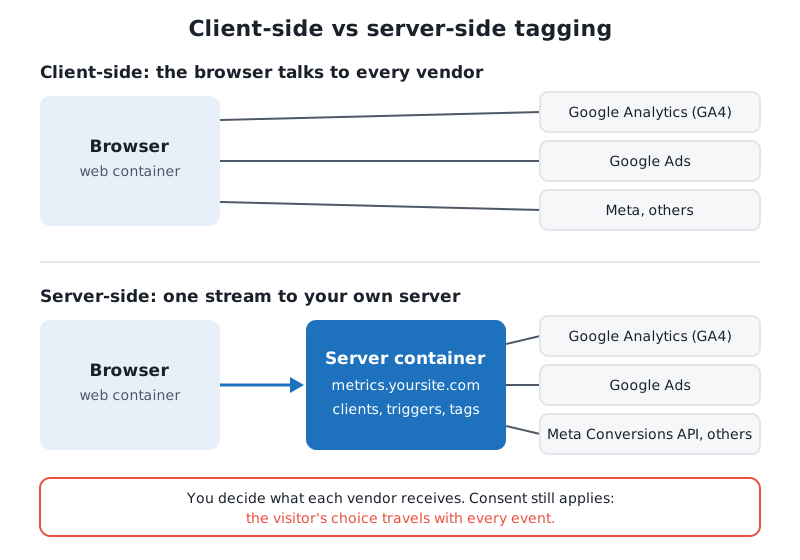
You don’t replace your web container. You keep it, and most setups still load the Google tag in the browser. What changes is where the data goes after it’s collected. If you’re still deciding between Tag Manager and hard-coded tags, start with Google Tag Manager vs the Google tag (gtag.js).
How a server container works
A server container has three building blocks:
- Clients. A client is an adapter that listens for incoming requests. Each request is offered to the clients in priority order, and the first one that recognizes it claims it and turns it into an event. Every new server container comes with a Google Analytics: GA4 client and a Measurement Protocol client.
- Triggers. As in the web container, triggers decide which tags fire for each event.
- Tags. Server tags send the event to a vendor: GA4, Google Ads Conversion Tracking, Google Ads Remarketing, Floodlight, and community templates such as Meta’s Conversions API tag. You can also change or remove parameters before they leave, using transformations.
The usual flow looks like this: the Google tag in your web container sends GA4 events to your server’s address instead of Google’s, the GA4 client in the server container claims them, and server-side GA4 and Google Ads tags fire on those events.
Where to host the tagging server and what it costs
The server container needs somewhere to run. You have two realistic options.
Google Cloud Run
When you create a server container, Tag Manager can provision the tagging server on Cloud Run in your own Google Cloud project, or you can set it up manually. Google’s own sizing for production, from its Cloud Run setup guide:
- Each server runs with 1 vCPU and 0.5 GB of memory and costs about $45 a month.
- Google recommends a minimum of 2 servers to reduce the risk of losing data if one fails, so plan for about $90 a month as a floor.
- Autoscaling between 2 and 10 servers handles roughly 35 to 350 requests per second, depending on how many tags you run.
- You also need a small preview server for testing, and request logging can add significant cost above 1 million requests a month, so most setups turn logging down.
Set a maximum number of instances and a billing alert in Google Cloud. Those two settings are what stop a traffic spike from becoming a surprise bill.
Managed hosting
Several companies host server containers for you (Stape is the best known; Taggrs and others exist). You create the server container in Tag Manager, paste its configuration into the host, and they run the infrastructure. Pricing is by requests rather than servers. As an example, Stape’s public pricing in November 2026 starts with a free plan up to 10,000 requests a month, and paid plans from about $17–20 a month for up to 500,000 requests. Check the current price list yourself before you decide, because these plans change.
A “request” is roughly one event reaching your server: every page view, click event and conversion counts. A site with 30,000 page views a month and a few events per page can easily send a few hundred thousand requests.
| Google Cloud Run | Managed host | |
|---|---|---|
| Monthly cost for a small production site | About $90 and up (2 servers) | Often free to about $20 |
| Who maintains the server | You | The host |
| Data location and contracts | Your Google Cloud project | The host’s infrastructure (check its data processing terms) |
| Extras | None built in | Often custom loaders, logs, ready-made templates |
Neither is “the right one”. Larger companies often prefer Cloud Run because the data stays in their own cloud project; small and medium businesses often choose a managed host because it’s cheaper at their volume and someone else handles updates.
Use a first-party custom domain
The tagging server gets a default address from the host (for example, something.run.app). Don’t send production traffic to it. Google recommends mapping the server to your own domain, and gives three options:
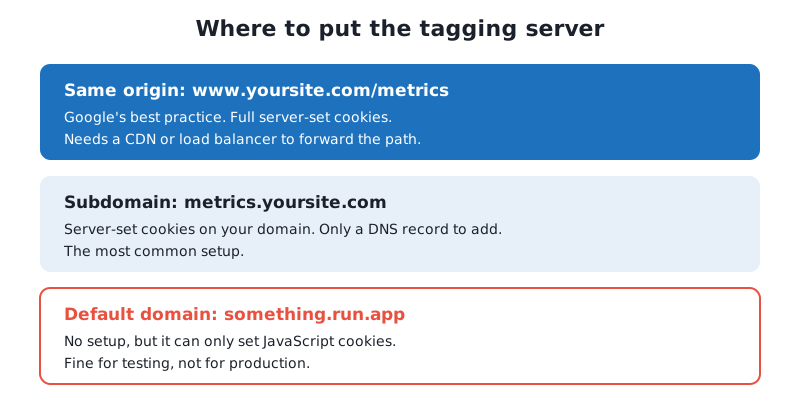
- Same origin (
www.yoursite.com/metrics): Google calls this the best practice. It needs a CDN or load balancer that forwards that path to the tagging server. - Subdomain (
metrics.yoursite.com): only a DNS record to add, and the most common setup I see. - Default domain: can only set JavaScript cookies, which removes most of the point.
Related: Google tag gateway for advertisers (formerly called first-party mode) serves the Google tag itself from your own domain through a CDN such as Cloudflare. It isn’t the same thing as a server container, and Google recommends doing both for the most durable setup.
The real benefits (and their limits)
Control over your data
This is the strongest reason. The server sees every event before any vendor does, so you can remove parameters, strip personal data from URLs, hide visitors’ IP addresses from vendors, or send a vendor only the events it needs. In client-side tagging, each vendor’s script collects whatever it collects.
Longer-lasting first-party cookies
On your own domain, the server can set cookies from the server instead of with JavaScript. Browsers, Safari in particular, limit cookies written by JavaScript much more aggressively, so server-set cookies usually keep returning visitors recognized for longer. The limit: Safari also restricts cookies from servers it considers third-party, which is one more reason Google prefers same-origin hosting over a subdomain that points elsewhere.
Page speed
Fewer vendor scripts in the browser means less work on the page. But be realistic: the gain only appears if you actually remove client-side tags. If you keep the Meta pixel, the GA4 tag and every other script in the browser and add a server container on top, the page isn’t any faster.
Ad blockers
Requests to your own domain are less likely to be blocked than requests to google-analytics.com. Less likely isn’t never: blocklists also include known tracking paths and loader scripts, and a visitor who blocks tracking has made a choice you should respect anyway. Don’t buy server-side tagging expecting to recover “all” lost data.
Encrypted user data for Google Ads
When you send enhanced conversions data through server-side Tag Manager or the Google tag gateway, Google says the user-provided data is encrypted before Google receives it (currently for Google Ads tags only).
What server-side tagging does not fix
- Consent. Moving tags to a server doesn’t change what the law or Google’s policies require. You still need a banner and Consent Mode v2 for visitors in the EEA, the UK and Switzerland. The Google tag passes the consent state with each event, and Google’s server tags respect it; for non-Google server tags, you have to build the consent checks into your triggers yourself.
- Broken tracking. If your conversion fires on the wrong page or twice per lead, it will fire on the wrong page or twice per lead on a server too. Fix the basics first.
- Differences between platforms. Google Ads and GA4 will still count conversions differently (see conversion discrepancies between Google Ads and GA4).
- Leads that close offline. If your sales happen on the phone or in a CRM, the bigger win is usually enhanced conversions for leads, which works with or without a server container.
Google Ads, GA4 and Meta through the server
- GA4. The Google tag in your web container sends to your server’s address (in Tag Manager, a
server_container_urlconfiguration parameter on the Google tag). In the server container, the GA4 client claims the events and a Google Analytics: GA4 tag forwards them. - Google Ads. In the server container, add a Conversion Linker tag (usually on all pages), then a Google Ads Conversion Tracking tag with your conversion ID and label, fired by a Custom Event trigger on the matching GA4 event name. Remarketing has its own server tag. For enhanced conversions, add a User-Provided Data variable to the Google tag in the web container as
user_data. Once the server tag works, remove the equivalent Google Ads tag from the web container, or you’ll count conversions twice. - Meta. Meta’s Conversions API can be fed from the server container with a Conversions API tag template and an access token from Events Manager. Meta recommends keeping the pixel as well and deduplicating with a shared event ID, so the browser and the server don’t both count the same lead.
Who should, and who shouldn’t, bother
Worth considering if:
- You spend enough on Google Ads or Meta that a few percent better measurement changes bidding decisions.
- You have privacy or legal requirements about what reaches vendors (healthcare, finance, the EU).
- You send data to many platforms and want one place to control it.
- You run ecommerce or lead generation with a developer or analyst who can maintain it.
Probably not worth it yet if:
- Your basic conversion tracking isn’t reliable.
- Your monthly ad spend is small and the hosting would cost more than the measurement is worth.
- Nobody will look after it. A server container needs updates, monitoring and someone who understands it when something stops.
How to set it up: an outline
- In Tag Manager, go to Admin → Create Container, choose Server, and either let Tag Manager provision a Cloud Run server or copy the container configuration to a managed host.
- Map your custom domain (same origin or subdomain) and make sure it serves over HTTPS.
- Set the server to production sizing: at least two servers on Cloud Run, a maximum instance count and a billing alert.
- In the web container, point the Google tag at your server’s address.
- In the server container, check the GA4 client, then add the GA4, Conversion Linker and Google Ads tags, plus any other vendors.
- Test with Preview in both containers at the same time: the web preview shows the event leaving, the server preview shows the request, the client that claimed it and the tags that fired.
- Remove the client-side tags that the server now handles, then publish both containers.
- Compare numbers for two to four weeks against the period before.
Common mistakes I see
- Using the default domain in production. The
run.appaddress gets JavaScript cookies only, so the setup costs money and brings few of the benefits. - Double counting. The same Google Ads conversion or Meta event fires from both the web and the server container, with no deduplication.
- One Cloud Run server. It’s cheaper until it goes down, and every event during that time is lost.
- No consent checks on non-Google server tags. The banner says declined, but the server still forwards the event to a vendor.
- Logging left at default. Request logs on a busy site add a cost nobody planned for.
- Set and forget. Templates get updated, vendors change their APIs, and nobody checks the server preview again for a year.
FAQ
Is server-side Google Tag Manager free?
Tag Manager itself is free, but the tagging server isn’t. On Google Cloud Run, Google estimates about $45 per server a month and recommends at least two. Managed hosts charge by requests, and some have a small free plan.
Does server-side tagging replace the web container?
No. You keep the web container to collect events in the browser. The server container receives them and decides what to send to each vendor.
Does server-side tagging get around cookie consent?
No. Consent requirements are the same. You still need a banner and Consent Mode, and the server must respect the visitor’s choice.
Will server-side tagging make my website faster?
Only if you remove tags from the browser. Adding a server container while keeping every client-side script doesn’t speed anything up.
Is server-side tagging the same as Google tag gateway?
No. Google tag gateway for advertisers (formerly first-party mode) serves the Google tag from your own domain through a CDN. A server container processes and forwards events. Google recommends both for the most durable setup.
Need help deciding?
I set up and audit server-side Tag Manager for businesses where it pays for itself, and I’ll tell you honestly when your money is better spent fixing the basics first. If you’d like a second opinion on your setup, get in touch about Tag Manager and GA4.