Offline conversion import in Google Ads: send CRM sales back to Google (2026)
 Daniel Timponi · November 15, 2026
Offline conversion import lets you tell Google Ads which of your leads became qualified prospects or paying customers after they left your website. You save the Google click ID (GCLID) with each lead in your CRM, and when the lead reaches a stage you care about, you send that conversion back to Google Ads, which credits it to the original ad click. For a lead generation business it’s the difference between Google bidding for form fills and Google bidding for sales.
Is Google Ads still optimizing for form fills instead of customers? I set up CRM and offline conversion tracking for Google Ads, GA4 and Tag Manager. See my conversion tracking service.
Why send CRM data back to Google Ads?
If the only conversion Google Ads sees is “form submitted”, every lead looks the same to it: the homeowner ready to sign this week, the student doing research, the competitor checking your prices and the spam bot. Smart Bidding finds more of whatever you count, so it happily finds more cheap, low-quality form fills.
When you import what happened next, three things change:
- Reporting tells the truth. You see which campaigns, keywords and search terms produce sales, not just leads. A keyword with a high cost per lead can turn out to be your best one.
- Bidding learns from quality. A Target CPA or Target ROAS strategy optimizing towards qualified leads or won deals stops rewarding the sources that never close.
- You can bid on value. A $15,000 job and a $300 repair are both “a lead” until you send the value back.
How offline conversion import works
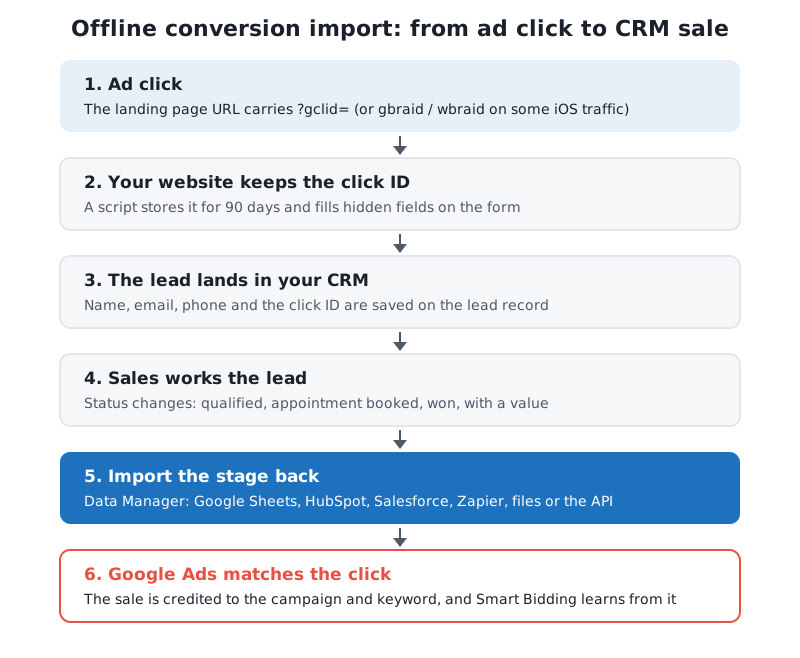
- Someone clicks your ad. With auto-tagging on, Google adds a
gclidparameter to the landing page URL. On some iOS traffic you may seegbraidorwbraidinstead (privacy-safe click parameters Google uses for aggregated measurement). - Your website saves that click ID and puts it into a hidden field on your lead form.
- The form sends the lead, click ID included, to your CRM.
- Your sales team updates the lead’s status: qualified, appointment booked, won, lost.
- You import the stages you care about into a Google Ads conversion action, with the click ID, the conversion time and (optionally) a value.
- Google Ads matches the click ID to the ad click and records the conversion against that campaign, ad group and keyword.
Offline import vs enhanced conversions for leads
In 2026 Google presents enhanced conversions for leads as the upgraded version of offline conversion import, and recommends it to anyone starting today. The difference is the match key. Classic offline import matches on the GCLID only. Enhanced conversions for leads also matches on a hashed email or phone number collected by the Google tag when the form is submitted, so a lead whose GCLID was lost can still be credited. Since April 2026 both live under one enhanced conversions setting in Google Ads.
That doesn’t make the GCLID obsolete. Google still asks you to keep importing GCLIDs (and GBRAIDs or WBRAIDs when you have them) alongside the email or phone, because the click ID ties the conversion to one specific click. In practice I set up both: the click IDs and the hashed user data travel together in the same import. I covered the tag side in enhanced conversions for leads explained; this post is about getting the CRM half right.
Step 1: Capture the click ID on your website
- Make sure auto-tagging is on in Google Ads (Admin → Account settings → Auto-tagging).
- Add a hidden field to every lead form, for example
gclid, and separate ones forgbraidandwbraidif your CRM can hold them. - Add a script to every page that reads the click parameters from the URL, stores them, and fills the hidden fields. Google’s own help page provides a script that keeps the GCLID in local storage for 90 days, and it can be deployed as a Custom HTML tag in Google Tag Manager firing on all pages. Storing the value matters: visitors rarely convert on the landing page itself.
- Respect consent. Storing a click ID is subject to your cookie and consent rules, so wire it into your Consent Mode v2 setup rather than around it.
- Submit a test lead from a URL with
?gclid=test123added and check the value reached the CRM.
Step 2: Store it in your CRM
Create a custom field on the lead (or contact) record for the GCLID, and map the hidden form field to it. A few rules from experience:
- Keep it exactly as received. The GCLID is case sensitive. A CRM field that changes case, or a spreadsheet that “fixes” it, breaks the match.
- Write it once. If the same person comes back through a second ad, decide whether the CRM keeps the first or the latest click ID. Either is fine, but don’t let an empty value from an organic visit overwrite a real one.
- Store a lead ID you can reuse. Your CRM’s own record ID makes a good order ID for the import. Google uses it to avoid counting the same conversion twice, and it’s the safest way to adjust a conversion later.
- Track the dates. You need the time each stage was reached, with a time zone, not just the current status.
Step 3: Create the conversion actions
Create one import conversion action per stage you want Google Ads to see, for example “Qualified lead” and “Closed deal”.
- In Google Ads, go to Goals → Summary → + New conversion action → Import.
- Choose CRMs, files, or other data sources, then Track conversions from clicks.
- Connect a data source now, or skip and connect it later. Nothing is recorded until a source is connected.
- Pick the goal category. Google offers Qualified lead and Converted lead for exactly this.
- Set the value, the count setting and the click-through conversion window. The window can be up to 90 days; set it longer than your typical sales cycle.
- Save. Google recommends waiting 4 to 6 hours before the first upload to a new conversion action.
If you upload GBRAIDs or WBRAIDs, the action’s count setting must be Every, or the upload may fail. Send the order ID so repeat uploads of the same lead aren’t counted twice.
Step 4: Choose how to import
Google now recommends Data Manager for connecting sources, and calls file-based offline import a legacy feature. You’ll find your connections under Tools → Data manager. The main options:
| Method | How it works | Best for |
|---|---|---|
| Google Sheets (Data Manager) | Scheduled; each run imports the last 90 days of rows | Small teams, or a CRM that exports to a sheet |
| HubSpot or Salesforce (direct connection) | First run imports the last 14 days, then changes since the last run | Teams already on those CRMs |
| Files over SFTP or HTTP, Cloud Storage, Amazon S3 | Scheduled; each run imports the last 90 days | Developers and exported reports |
| BigQuery, Snowflake, Redshift, MySQL, PostgreSQL | Each run imports the last 14 days | Data warehouses |
| Zapier | A third-party integration for other CRMs; Zapier’s own fees may apply | Pipedrive, Zoho, GoHighLevel and the rest |
| Data Manager API | Your developer or tool uploads directly | Custom systems at volume |
| File upload (legacy) | Goals → Conversions → Uploads, one-off or scheduled | Testing, or a one-time backfill |
Two notes on the list:
- The Google Ads API is no longer the route for new imports. From June 15, 2026, offline conversion and enhanced conversions for leads uploads moved to the Data Manager API and are blocked in the Google Ads API, except for developer tokens that were already using it and kept legacy access. If an agency tool or a developer script does your uploads, ask whether it was moved.
- The file format still matters. A manual or scheduled file needs the Google Click ID, Conversion Name (matching the action exactly), Conversion Time with a time zone, and optionally Conversion Value and Conversion Currency. If CSV files are new to you, see Google Ads CSV files explained.
Phone leads need the same loop. If a call turns into a sale, it belongs in the CRM and in the import, and I explained the GA4 side in tracking offline phone call conversions.
Timing: the rules that catch people out
- 90 days. Google keeps the GCLID for 90 days. A conversion against an older click is rejected (“Identifiers or iOS URL parameters are too old”). If your deals take longer, import an earlier milestone, such as a qualified lead or a site visit, that happens inside the window.
- Not too soon. A click less than about 6 hours old may not be processed yet (“Click too recent”). Scheduled uploads handle this by re-reading recent days on every run.
- Not before the click. A conversion time earlier than the click is refused (“Invalid conversion times”), which is nearly always a time zone problem.
- Upload at least daily. That’s Google’s own recommendation. Weekly works, but bidding reacts a week late.
- Reports change backwards. Imported conversions are reported on the date of the ad click, not the date of the sale, and processing can take 24 to 48 hours. Last month’s numbers keep rising as deals close, so judge campaigns with that lag in mind.
- Hashed user data has a shorter window. For enhanced conversions, conversions with email or phone can be imported up to 63 days after the click.
Value-based bidding on qualified leads
Once real outcomes are flowing in, you can bid on them. The usual progression I recommend:
- Import the new stage as a secondary action first (Goals → Summary → Edit goal → Secondary (observe only)) and compare it with your form fills for a few weeks. Google’s own upgrade guide suggests waiting the longer of 3 conversion cycles or 4 weeks before swapping.
- Make it primary once there’s enough volume. A primary action appears in the Conversions column and is used for bidding; a secondary one only appears in All conversions.
- Add values. Even rough ones help: if a qualified lead is worth about $200 to you and a won deal about $4,000, send those. Then a value-based strategy such as Maximize conversion value or Target ROAS can prefer the searches that bring bigger jobs.
- Adjust when deals change. A conversion can be restated (new value) or retracted (removed) with an adjustment upload, using the order ID, for a limited time after the conversion. Google recommends uploading adjustments at least 24 hours after the original conversion.
When your conversion volume rises after the switch, revisit your CPA or ROAS targets. Expect a short learning period after the change.
Why your match rate is low
Google Ads shows upload results on its offline data diagnostics page (and on Goals → Conversions → Uploads for files). In the accounts I audit, low match rates nearly always come from one of these:
- The click ID never reached the CRM. The hidden field is missing on one form, a page builder strips it, or a redirect drops the
gclidparameter before the landing page loads. - The GCLID was changed. Case altered, a trailing space, or a spreadsheet turned it into something else.
- Wrong account. The conversion action is owned by a manager account, or the click came from a different account (“Wrong Google Ads account for clicks”).
- Organic leads in the file. Leads with no Google click show as “Unknown clicks”. That’s expected; it’s only a problem when almost everything shows it.
- Bad hashing. If you also send email and phone, wrong formatting shows as “User-provided data not hashed”. Phones must be in E.164 format (
+13035550123).
Common mistakes I see
- Importing the form fill again. The import should be a later stage, not a second copy of the website lead, or you double count. Your website tag already records the form submission.
- Making every stage primary. If “Qualified lead” and “Won” are both primary with no values, a deal is counted twice for bidding. Use values, or keep only one stage primary.
- No one updates the CRM. The import is only as good as the statuses. If sales never marks leads as qualified, Google learns that nothing converts.
- Uploading by hand once a month. Clicks pass the 90-day limit and bidding learns late. Automate it with a Sheet, a CRM connection or Zapier.
- Short conversion window. The default click-through window is 30 days. A 45-day sales cycle with a 30-day window loses the sales that close late.
- Forgetting the GBRAID and WBRAID. On iPhone traffic the GCLID can be missing. Capture all three parameters.
FAQ
Do I need a CRM for offline conversion import?
No. A Google Sheet with one row per lead (click ID, stage, time, value) works with Data Manager. A CRM just makes it automatic and reliable.
How long do I have to upload a conversion?
Up to 90 days after the ad click for GCLID-based imports, and 63 days for conversions matched on hashed email or phone. Uploading daily keeps you well inside both.
Should I use offline conversion import or enhanced conversions for leads?
Both together. Google recommends enhanced conversions for leads, and it still wants the GCLID, GBRAID or WBRAID in the same import whenever you have them.
Will Smart Bidding work with offline conversions?
Yes. Make the imported action primary once it has enough volume, and Target CPA, Target ROAS, Maximize conversions and Maximize conversion value will optimize towards it.
Why don’t my imported conversions show up?
Wait 24 to 48 hours, then check the upload diagnostics. The usual causes are a misspelled conversion name, a click older than 90 days, a time zone that puts the conversion before the click, or GCLIDs that never reached the CRM.
Need help sending CRM sales back to Google Ads?
I connect lead forms, CRMs and Google Ads so the bidding learns from customers, not form fills, and I check the match rates after launch. If your leads close in a CRM or on the phone and Google Ads can’t see it, let’s fix your conversion tracking.