Google Ads dynamic remarketing with Google Tag Manager: a step-by-step tutorial (2026)
 Daniel Timponi · November 15, 2026
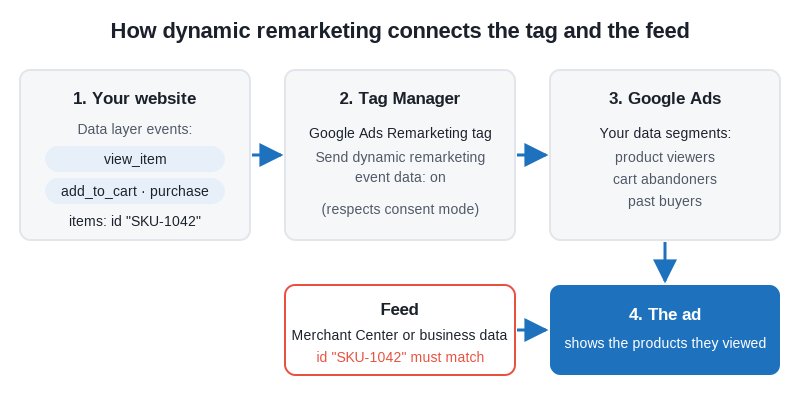
Google Ads dynamic remarketing shows people the exact products or services they looked at on your website, pulled from a feed. To make it work you need two things: a feed (a Merchant Center product feed for retail, or a business data feed for other business types) and a tag that sends events like view_item, add_to_cart and purchase with an items array whose id values match the feed. In Google Tag Manager, that tag is the Google Ads Remarketing tag with Send dynamic remarketing event data turned on.
Want dynamic remarketing that actually matches your feed? I set up and audit Google Ads tags, GA4 and Tag Manager for ecommerce and lead generation sites. See my conversion tracking service.
What dynamic remarketing is (and how it differs from standard remarketing)
Standard remarketing builds a list of people who visited your site and shows them a general ad. Dynamic remarketing goes a step further: the tag records which items each visitor interacted with, and Google builds the ad from your feed, with the product image, name and price of what they viewed or left in the cart.
Google now calls remarketing lists your data segments (part of “audience segments”), and you’ll see both names in the interface and in older guides. The idea hasn’t changed.
What you need before you start
| Requirement | Retail (ecommerce) | Other business types |
|---|---|---|
| Feed | Product feed in Google Merchant Center, linked to Google Ads | Business data feed in Google Ads (Tools → Shared library → Business data) |
| Item ID in the tag | Must match the product id, item_group_id or display_ads_id in Merchant Center | Must match the item ID column of the business data feed |
google_business_vertical | retail | The vertical’s value, for example education, flights, hotel_rental, jobs, local, real_estate, travel or custom |
| Tag | Google Ads Remarketing tag (or the Google tag with events) on every page | Same |
Google supports these business types for dynamic remarketing: retail, education, flights, hotels and rentals, jobs, local deals, real estate, travel, and custom for anything that doesn’t fit. Retail data can only be used with a Merchant Center product feed; every other type uses a business data feed in that vertical’s format.
You also need a Google Ads tag (conversion ID in the AW-XXXXXXXXX form) and access to the website’s data layer, which usually means a developer or your ecommerce platform’s integration.
The events and parameters Google expects
Google’s recommended event names for dynamic remarketing are:
| Event | When it fires |
|---|---|
view_search_results | Search results page |
view_item_list | Category or listing page |
view_item | Product or service detail page |
add_to_cart | Item added to the cart |
purchase | Completed purchase |
Each event carries:
items: an array with at least one item object. On listing and search pages, pass the most relevant items shown, not every item on the page.idinside each item: required for most verticals, and it must match the feed’s ID exactly.google_business_verticalinside each item: recommended; it tells Google which feed type the ID belongs to.value: optional, the total value of the event.
Some verticals use extra item fields. Flights and travel use origin and destination (destination is required for flights), flights, hotels and travel accept start_date and end_date (YYYY-MM-DD), and education, jobs and custom use location_id.
The event name is what puts a visitor into the right automatic list. Google’s own Tag Manager guide warns that without proper cart events you’ll miss many cart abandoners.
Step 1: Get your feed ready
- Retail: make sure your products are approved in Merchant Center and that Merchant Center is linked to your Google Ads account (in Google Ads, Tools → Data manager, or from Merchant Center’s own linked accounts settings).
- Other verticals: in Google Ads go to Tools → Shared library → Business data, add a data feed for your vertical and upload it (.csv, .tsv, .xls or .xlsx), with a unique ID, name, price, image and final URL for each item.
- Write down which column holds the ID. That exact value is what the website must send.
If your ecommerce platform has its own product IDs and its Merchant Center app adds a prefix (for example shopify_US_123_456), the website must send the prefixed version. More on that under common mistakes.
Step 2: Turn on dynamic remarketing data collection in Google Ads
- In Google Ads, go to Tools → Shared library → Audience manager → Your data sources.
- Open the Google Ads tag and choose to collect specific attributes or parameters to personalize ads, then pick your business type.
- Note the conversion ID. You’ll need it in Tag Manager.
Step 3: Push the events into the data layer
Your website (or your developer) pushes each event into the data layer at the right moment. A product page example for retail:
<script>
  window.dataLayer = window.dataLayer || [];
  dataLayer.push({
    event: 'view_item',
    value: 49.90,
    items: [{
      id: 'SKU-1042',
      google_business_vertical: 'retail'
    }]
  });
</script>
For an add to cart that doesn’t reload the page, push add_to_cart when the click happens, after Tag Manager has loaded. Google notes the key names in the data layer are yours to choose, as long as you use the same names in your variables.
If you already have a GA4 ecommerce data layer, you don’t need a second one. GA4’s items use item_id, not id, so build a small variable that copies each item_id into an id field and adds google_business_vertical: 'retail' (example in Step 4). Check that item_id is the same value as the Merchant Center id first; often it’s the SKU while the feed uses something else.
Step 4: Create the variables in Google Tag Manager
- In GTM, go to Variables → New → Data Layer Variable.
- Create one named
DLV - itemswith the data layer variable nameitems. - Create one named
DLV - valuewith the data layer variable namevalue. - Optionally, create a Constant variable holding your Google Ads conversion ID, so you type it once.
If you’re reusing a GA4 ecommerce data layer, create a Custom JavaScript variable instead of DLV - items, for example:
function() {
  var ecommerce = {{DLV - ecommerce}} || {};
  var items = ecommerce.items || [];
  return items.map(function(item) {
    return { id: String(item.item_id), google_business_vertical: 'retail' };
  });
}
Here DLV - ecommerce is a Data Layer Variable reading ecommerce.
Step 5: Create the triggers
You need a trigger for each event the website pushes:
- Go to Triggers → New → Custom Event.
- Set Event name to
view_itemand save it as “CE - view_item”. - Repeat for
view_item_list,view_search_results,add_to_cartandpurchase, or create one trigger with Use regex matching and the event name^(view_item|view_item_list|view_search_results|add_to_cart|purchase)$.
Google’s Tag Manager guide also shows Page View and Element Visibility triggers for sites without a data layer. They work, but a data layer is far more reliable, because the item ID comes from the system that knows it rather than from the page’s HTML.
Step 6: Create the Google Ads Remarketing tag
- Go to Tags → New → Tag Configuration and choose Google Ads Remarketing.
- Conversion ID: your Google Ads conversion ID (or the Constant variable). Conversion Label is optional.
- Tick Send dynamic remarketing event data.
- Event Name:
{{Event}}(GTM’s built-in Event variable, so the tag sends whichever event fired it). - Event Value:
{{DLV - value}}. - Event Items:
{{DLV - items}}(or your Custom JavaScript variable). - Triggering: your custom event trigger(s).
- Name it, for example “Google Ads – Dynamic remarketing”, and save.
Google also says to have the remarketing tag on every page of the site, so general visitors are counted too. If you already have a Google tag for your Google Ads account firing on all pages, that covers the visit itself; otherwise, add a second Google Ads Remarketing tag (same conversion ID, no event data) on All Pages, with your event triggers added as exceptions so the same page isn’t counted twice. And keep a conversion linker tag on all pages for your conversion tracking.
Step 7: Respect consent mode
Remarketing is personalized advertising, so with Consent Mode v2 it depends on the ad_personalization and ad_storage consent states. When a visitor declines, Google doesn’t add them to your remarketing segments. For traffic from the EEA, Consent Mode v2 is required for Google to keep building these segments at all.
Like the conversion linker, the Google Ads Remarketing tag has built-in consent checks. Don’t add your own blocking trigger “for compliance”; set up the consent default and update correctly and let the tag follow it.
Step 8: Test before you publish
- Click Preview in GTM and open a product page.
- In Tag Assistant, select the
view_itemevent and check that Google Ads – Dynamic remarketing fired. - Open the Variables tab for that event and check that
DLV - itemscontains an array with the rightidandgoogle_business_vertical. - Repeat for a category page, an add to cart and a test purchase.
- Take one of the IDs you saw and search for it in Merchant Center (or your business data feed). It must be there, exactly the same.
- Publish the container, then, after a day or two, check the tag’s status in Audience manager → Your data sources and any warnings Google shows there.
The audiences you get, and where to use them
Once the tag is running, Google Ads builds remarketing segments from the event names automatically. For retail you’ll see segments such as all visitors, general visitors, product viewers, shopping cart abandoners and past buyers in Audience manager. A segment needs a minimum number of active users before it can serve; the Size columns in Audience manager tell you when it’s ready.
Where to use them in 2026:
- Display campaigns: the classic dynamic remarketing setup. Use responsive display ads, and in the campaign’s Additional settings → Dynamic ads, tick Use a data feed for personalized ads and choose your feed. Then target the segments you want, for example cart abandoners, and exclude past buyers if repeat purchases are rare.
- Performance Max: with a Merchant Center feed, Performance Max shows your products across Google’s channels, including dynamic ads to people who viewed them. You add your data segments as an audience signal; they guide the campaign rather than limit it.
- Search: the same segments can be used for remarketing lists for search ads (RLSA), as observation or targeting.
Common mistakes
- IDs that don’t match the feed. This is the one I see most often. The website sends the SKU, the feed uses a numeric product ID or an ID with a platform prefix. Everything fires, Tag Assistant looks fine, and the ads can’t show products. Always compare an ID from the tag with an ID from the feed.
- Sending GA4’s
item_idstraight into the remarketing tag. The Google Ads Remarketing tag readsid, so the items arrive without an ID. - Variant IDs on one side, parent IDs on the other. Decide which level the feed uses and send the same one.
- No
add_to_cartorpurchaseevents. Then there are no cart abandoners and no past buyers, and you end up showing ads to people who already bought. - A
valuesent as text with a currency symbol ("$49.90"). Send a number. - The tag only on product pages. General visitors are never counted.
- Blocking the tag with a consent trigger, so it doesn’t fire even when the visitor accepts.
- No feed attached to the Display campaign, so it runs as standard remarketing with static ads.
If your conversions are also off, my Google Ads conversion tracking not working checklist covers the tracking side.
FAQ
Do I need Google Merchant Center for dynamic remarketing?
Only for retail. Ecommerce stores must use a Merchant Center product feed. Other businesses, such as education, travel, real estate or jobs, use a business data feed uploaded in Google Ads.
Can I use my GA4 ecommerce data layer for dynamic remarketing?
Yes. Reuse the same view_item, add_to_cart and purchase events, but convert GA4’s item_id into id and add google_business_vertical before sending them to the Google Ads Remarketing tag.
Does dynamic remarketing work with Performance Max?
Yes. A Performance Max campaign with a Merchant Center feed can show product ads to past visitors, and your remarketing segments work as audience signals there.
Why do my audiences show “too small to serve”?
The segment hasn’t reached Google’s minimum number of active users yet, or the tag isn’t adding people (check consent and the tag status in Audience manager). Smaller sites may need a longer membership duration.
What value should google_business_vertical have?
The vertical that matches your feed: retail for ecommerce, and the vertical’s own value (for example education, real_estate or custom) for business data feeds.
Need help with dynamic remarketing?
Dynamic remarketing is one of the best-performing ways to bring back shoppers, but only when the IDs in the tag match the feed and the cart and purchase events are there. I set it up in Tag Manager, test every event against the feed and check the audiences fill. Let’s look at your tracking.