Google Ads overspending: how to tell pacing from real overspend, and fix it (2026)
 Daniel Timponi · November 15, 2026
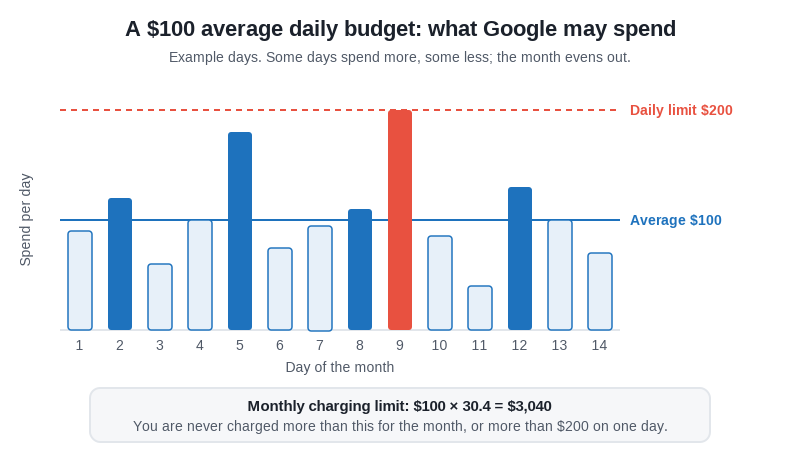
Google Ads budgets are an average per day, not a hard daily cap: on a busy day a campaign can spend up to twice its average daily budget, and over a calendar month you’re never charged more than 30.4 times that budget. So a day at 1.8x your budget is normal pacing, not overspending. Real overspending is different: money going to searches, places and placements that don’t bring customers, and it’s fixed with settings, not by lowering the budget.
Worried your Google Ads budget is going to the wrong places? I audit and manage Google Ads accounts for lead generation and ecommerce. Book a Google Ads consultation.
How Google Ads budgets actually work
Every campaign with an average daily budget has two limits:
- Daily spending limit: for most campaigns, twice the average daily budget. A campaign with a $100 budget can spend up to $200 on a day with lots of searches.
- Monthly spending limit: the average daily budget multiplied by 30.4 (the average number of days in a month). The same campaign is never charged more than $3,040 in a calendar month.
A few details that explain most “Google overspent my budget” emails I get:
- Budget changes mid-month reset the pace. After a change, the rest of the month is paced to the new budget times the calendar days left. If you raise the budget on the 20th, expect the last ten days to run at the new level.
- New campaigns started mid-month are paced on the calendar days left in that month.
- Ad schedules don’t shrink the monthly limit. A campaign that only runs on weekdays still paces towards 30.4 times its daily budget, so its weekdays spend more.
- Served costs can be higher than the limits, very occasionally. You still aren’t charged above your daily or monthly limit; Google credits the difference.
So if a campaign spent $180 yesterday on a $100 budget, check the month before you panic. If the month is on track for about $3,040 or less, that’s how the system is designed.
Other ways to set a budget
| Budget type | How it limits spend | Good for |
|---|---|---|
| Average daily budget | Up to 2x a day, 30.4x a month | Always-on campaigns |
| Campaign total budget | One amount for set start and end dates; never charged more than the total | Promotions, events, fixed flights |
| Shared budget | One average daily budget split across several campaigns | Similar campaigns with one pot of money |
| Account budget | A cap on the whole account for a period; ads stop when it’s reached | Accounts on monthly invoicing |
Campaign total budgets are available for Search, Shopping, Performance Max, Demand Gen and YouTube campaigns with start and end dates. For Search, Shopping and Performance Max the dates must be between 3 and 90 days apart; Demand Gen and YouTube can run up to a year. You choose the total budget when you create the campaign, and an existing campaign can’t switch from an average daily budget to a total budget. There’s no daily limit: the system adjusts each day’s spend to use the total by the end date, which is great for a two-week sale and a poor fit for always-on lead generation.
Shared budgets don’t work with Performance Max, App campaigns, campaigns in experiments or campaigns on a total budget. They’re useful for a set of similar Search campaigns, but they let a greedy campaign take money from the others, so watch the split.
Account budgets are for advertisers on monthly invoicing. They act as a cap across every campaign in the account: once total costs reach the amount, all ads in the account stop until the budget is raised or a new one starts.
Where to see what you’re spending
The budget report
- Go to Campaigns → Campaigns.
- Hover over the campaign’s budget in the Budget column (or click the pencil icon).
- Click View budget report.
It shows the monthly spending limit, the cost so far, a forecast for the month, daily spend against the daily limit, and the days the budget changed. It’s the fastest way to answer “did we overspend?” with facts. It works for campaigns on average daily budgets; it doesn’t cover Performance Max at the moment, so for PMax use the Cost column by day or month.
Recommendations and statuses
Google’s Recommendations page often suggests raising budgets for campaigns that keep hitting their limit, and a campaign may show Limited by budget. Neither is a sign of overspending; both mean the campaign could spend more. Whether it should depends on its cost per conversion, not on the recommendation.
Normal pacing vs real overspend
Normal pacing looks like this: some days above budget, some below, a month that lands close to 30.4 times the daily budget.
Real overspend is when the money is spent on traffic that doesn’t convert, or the budget is higher than the account can use profitably. These are the causes I find most often in the accounts I audit:
- A budget set from a wish, not the numbers. If your target cost per lead is $80 and the business can handle 30 leads a month, a $200 daily budget is about $6,000 a month buying leads nobody can call. Work the budget back from target CPA times the leads you want.
- Broad match and AI Max expanding into unrelated searches. AI Max for Search and broad match reach searches your keywords don’t cover. That can work well with good conversion data; with weak data it pays for loosely related searches. Read the search terms report every week.
- Performance Max with no guardrails. PMax can spend on brand searches you’d get anyway, and on placements that don’t convert. Use brand exclusions, account-level negative keywords and a clean conversion goal.
- Locations set to “Presence or interest”. The default location option also reaches people who showed interest in your area while being somewhere else. A local plumber targeting Denver doesn’t want calls from people in Florida. For most local businesses I switch to Presence (people in or regularly in your targeted locations) in the campaign’s Locations setting, under Location options.
- Search partners and Display Network in a Search campaign. The Networks setting can include Google search partners and the Display Network. Neither is wrong by itself, but check their results in the Network segment and switch off what doesn’t convert.
- No negative keywords. Jobs, free, DIY, training, competitor names you don’t want: without negatives, you pay for every one of them.
- Bidding targets that are too loose. A Target CPA set far above what a lead is worth, or Maximize conversions with no target on a large budget, lets bidding pay a lot per click to spend the budget. Since August 17, 2026, a Target CPA or Target ROAS campaign that’s limited by budget bids towards its target instead of lowering bids to fit the budget, so an unrealistic target now shows up faster.
- Conversion tracking that counts the wrong things. If page views or duplicate form fills count as conversions, Smart Bidding thinks it’s doing great and spends happily. Fix your conversion tracking before you touch budgets.
How to fix overspending, step by step
- Check the month, not the day. Open the budget report. If the forecast lands at or under the monthly limit, the “overspend” is pacing.
- Set the budget from your numbers. Monthly budget = target cost per lead × leads you want. Divide by 30.4 to get the daily budget.
- Clean the search terms. Add negatives for irrelevant searches at campaign, list or account level.
- Tighten locations. Switch to presence-only targeting if you serve a local area, and exclude places you don’t serve.
- Review networks. Segment by network and switch off search partners or Display Network where they don’t convert.
- Rein in automation. Add brand exclusions to PMax, review AI Max’s search term matching and URL expansion, and set realistic CPA or ROAS targets.
- Fix conversions. One primary conversion action per real result, with no duplicates. See my Target CPA guide for setting a target that matches what a lead is worth.
- Use a total budget for fixed flights. For a sale or event with an end date, create the campaign with a campaign total budget so it can’t run past the amount.
Alerts so it doesn’t happen again
- Automated rules. In Tools → Bulk actions → Rules, create a rule that emails you, or pauses a campaign, when cost reaches a level you choose. I explain the setup in how to use automated rules in Google Ads. Rules run on a schedule, so they’re a safety net, not an instant stop.
- Google Ads scripts. For more control, a script can check spend across all campaigns every hour and email you when a campaign is on track to exceed its monthly limit or a figure you set. Scripts are JavaScript and run inside Google Ads, under Tools → Bulk actions → Scripts.
- Account budgets. If you’re on monthly invoicing, an account budget is the only hard stop for the whole account.
Common mistakes
- Lowering the budget to fix a targeting problem. A smaller budget spent on the wrong searches is still wasted. Fix targeting first.
- Changing the budget every day. Each change resets the month’s pacing and gives Smart Bidding a moving target. Change budgets once a week at most.
- Treating “Limited by budget” as an emergency. It’s information, not an error.
- Expecting the budget to be a daily cap. It never has been. If you need a hard limit for a period, use a campaign total budget or an account budget.
FAQ
Why did Google Ads spend more than my daily budget?
Because the budget is an average. Google Ads can spend up to twice the average daily budget on a busy day, but over a calendar month you’re never charged more than 30.4 times it.
Will Google refund overspending?
If served costs go above your daily or monthly spending limit, you aren’t charged the difference. Spending up to twice the budget on one day isn’t overspending, so there’s nothing to refund.
How do I stop Google Ads from spending more than a set amount?
Use a campaign total budget for campaigns with an end date, an account budget if you’re on monthly invoicing, or an automated rule that pauses campaigns when cost reaches a set amount.
What happens if I change the budget mid-month?
The rest of the month is paced to the new budget multiplied by the calendar days left, and the daily limit changes with it.
Can I see when my budget changed?
Yes. The budget report marks the days your budget changed, beside the daily spend.
Need help with your Google Ads budget?
Most “overspending” I’m asked about is either normal pacing or money going to searches, places and placements that never had a chance to convert. I find which one it is and fix the settings behind it. Book a call and we’ll look at your account together.